

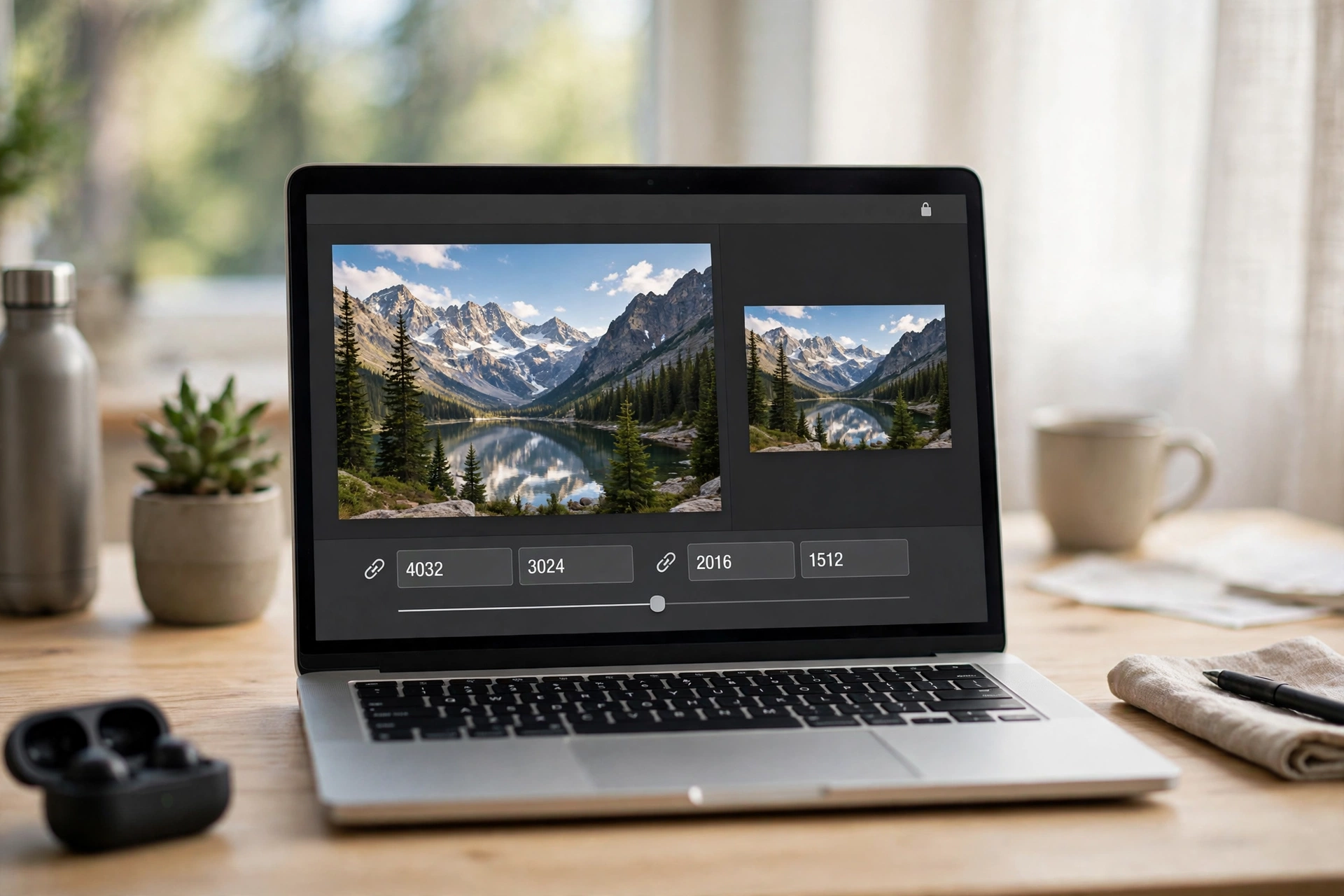
Resize PNG Free: 5 Easy Ways to Shrink Any PNG Fast
To resize PNG images is to change their width and height in pixels. A logo that is 4000 pixels wide will not fit a website header, a screenshot is too big to email, and a profile picture gets rejected for being the wrong size. The fix takes less than a minute.
Below are five free ways to resize a PNG — online, on iPhone, on Android, on Windows, and on Mac.
What It Means to Resize a PNG
When you resize PNG files, you change their dimensions: a PNG that starts at 4000 × 3000 pixels can become 1200 × 900 or 800 × 600 — smaller on screen, and usually a smaller file too.
PNG is different from JPG in one important way: it uses lossless compression, so it keeps every pixel exactly as it was, and it supports full transparency — a logo can have a see-through background instead of a white box. That is why designers prefer PNG for logos and icons — though a detailed PNG is often much bigger than the same picture as a JPG.
There are two ways to shrink a PNG. Resize by dimensions changes the width and height — use it when a website asks for exact pixel sizes. Compress the file keeps the dimensions but reduces the kilobytes — use it when the picture is already the right size but too heavy to upload. Our guide on how to compress a PNG covers that second job.
Before You Resize: Pixels, Percentage, and Aspect Ratio
Every resizing tool asks for the new size in one of two ways. Pixels means exact numbers — type a width and a height, such as 1200 × 800. Percentage means a scale — type 50% and a 4000 × 3000 image becomes 2000 × 1500. Use pixels when a site gives you an exact size; use percentage when you just want it smaller.
Aspect ratio is the relationship between width and height. If you change the width without changing the height to match, the picture stretches. Every good resizing tool has a lock, usually called “maintain aspect ratio”. Keep it locked: change one number and the tool works out the other one. If your target size does not match your photo’s shape, crop the photo first, then resize — our guide on how to crop an image shows how.
Method 1: Resize PNG Online Free (Fastest Way)
The fastest way to resize a PNG is a free online tool — nothing to install, works on any device, done from your phone in about thirty seconds.
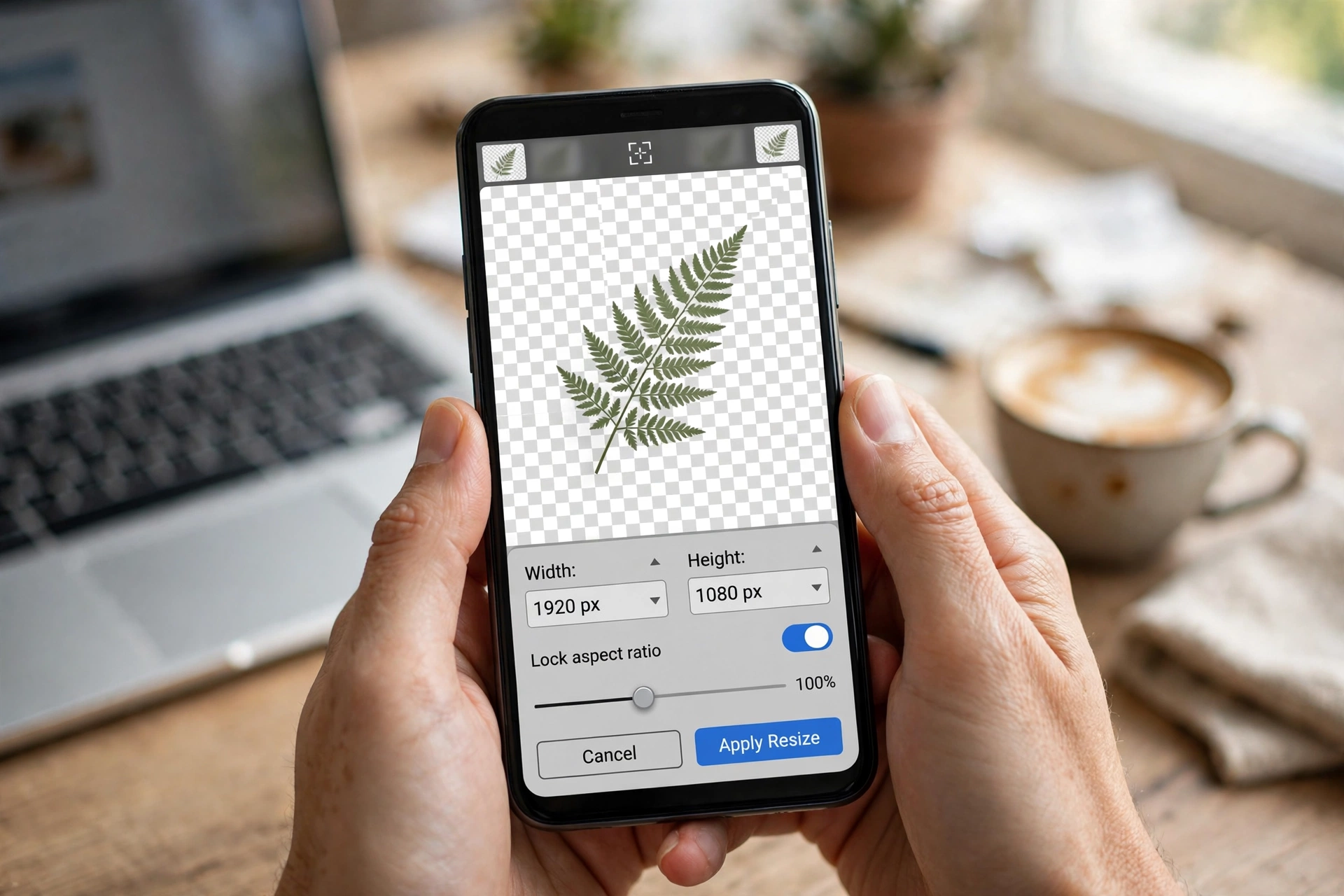
- Open the free Flip Image tool in your browser.
- Upload your PNG by dragging it onto the page or choosing it from your device.
- Enter the new width or height in pixels, or a percentage.
- Make sure the aspect ratio lock is on so the picture keeps its shape.
- Download the resized PNG. The transparency stays intact, and the original file is untouched.
This method is best for a one-off resize, for a phone or a borrowed computer, or when the picture must stay a PNG with its transparent background. If you resize PNG files often, bookmark the tool — it also flips, mirrors, and rotates images. See also our guide to resize an image.
Method 2: Resize PNG on iPhone
The iPhone Photos app has no box for typing exact pixel dimensions, so the quickest way to resize PNG files on an iPhone is the online tool in Method 1 — it works in Safari and needs no app.
If you would rather stay inside Apple’s apps, the Shortcuts app can resize images with a “Resize Image” action, or the Files app can create a smaller copy from its quick actions. Neither is as quick as the browser method.
Method 3: Resize PNG on Android
Android phones vary by brand, so there is no single built-in resize button. The simplest way to resize PNG files on Android is the free online tool from Method 1 in Chrome — upload, type the size, download, in under a minute.
Google Photos can help in a limited way: open the photo, tap Share, and choose a smaller size when the share sheet offers one. It does not let you type exact pixel dimensions, so for exact sizes, the browser tool is better.
One tip: phone screenshots are often 2400 pixels wide — resize one to 1080 pixels wide before sending to halve the file with no visible difference.
Method 4: Resize PNG on Windows (Paint and Photos)
Windows has everything you need built in, and Paint is quickest for exact pixel sizes.
- Right-click your PNG and choose Open with, then Paint.
- Click Resize on the toolbar, or press Ctrl + W.
- Choose Pixels to type an exact width or height, or Percentage to scale it down.
- Keep Maintain aspect ratio checked so the picture does not stretch.
- Type the new width — Paint fills in the height for you.
- Click OK, then File, then Save as, pick PNG picture, and give the copy a new name to keep your original safe.
Microsoft’s own guidance for resizing a photo in Paint follows exactly these steps — see the walkthrough on Microsoft Learn.
Method 5: Resize PNG on Mac (Preview)
Mac users do not need to install anything — Preview, the app that opens when you double-click an image, has a proper resize tool.
- Open the PNG in Preview.
- From the menu bar, choose Tools, then Adjust Size.
- Make sure “Scale proportionally” is checked.
- Type the new width or height in pixels. Preview fills in the other value automatically.
- Click OK.
- Use File, then Export, choose PNG, and save. Exporting instead of overwriting keeps your original untouched.
Keep the Quality Sharp and the File Small
Three rules keep your PNGs looking their best. Always work from the original — start from the biggest copy you have, never an already-resized picture. Keep the aspect ratio locked — stretched faces and squashed logos are the most common resizing mistake. Keep the transparency — make sure the tool saves it as a PNG with transparency preserved. You can read the full technical background on the PNG format.
If the picture is already the right size but the file is still heavy, compress it after resizing — resize first, then compress. For photographs, converting PNG to JPG after resizing can cut the file to a tenth of its size, though you lose transparency; to change formats instead, our guide to convert PNG to WebP explains what each format keeps and loses.
Once your PNG is the right size, you may need it inside a document. To share it, print it, or attach it to a form, you can convert your PNG to PDF in seconds — the PDF keeps the picture exactly as it is and opens on any device.
Frequently Asked Questions
How do I resize a .PNG image?
To resize PNG files online, open a free online resizer, upload the PNG, type the new width or height in pixels (or a percentage), keep the aspect ratio locked, and download the result. On Windows use Paint (Ctrl + W, then Resize); on Mac use Preview (Tools, then Adjust Size).
How do I make my PNG file smaller?
First resize it to the dimensions you need — a 4000-pixel image shown at 800 pixels wide wastes most of its file size. Then compress it to reduce the kilobytes. If it is a photograph, converting it to JPG after resizing shrinks it further, but you will lose transparency.
Is a PNG file bigger than a JPEG?
Usually, yes — for photographs. PNG uses lossless compression and keeps every pixel perfectly, while JPG throws away detail to save space. That is why PNG suits logos, icons, text, and screenshots, and JPG suits photographs, where a smaller file matters more.
Can I increase the size of a PNG image?
Yes, but enlarging a PNG cannot add detail that was never there, so a small picture made much bigger will look soft. If you must enlarge one, do it in small steps from the sharpest original you can find.
Try It Free
Now you know five free ways to resize PNG files — online, on iPhone, on Android, on Windows, and on Mac. For most jobs, the online tool is the fastest: no install, no sign-up, and your transparent background stays intact. Try the free Flip Image tool now, and see our image resizer guide for every format.
