

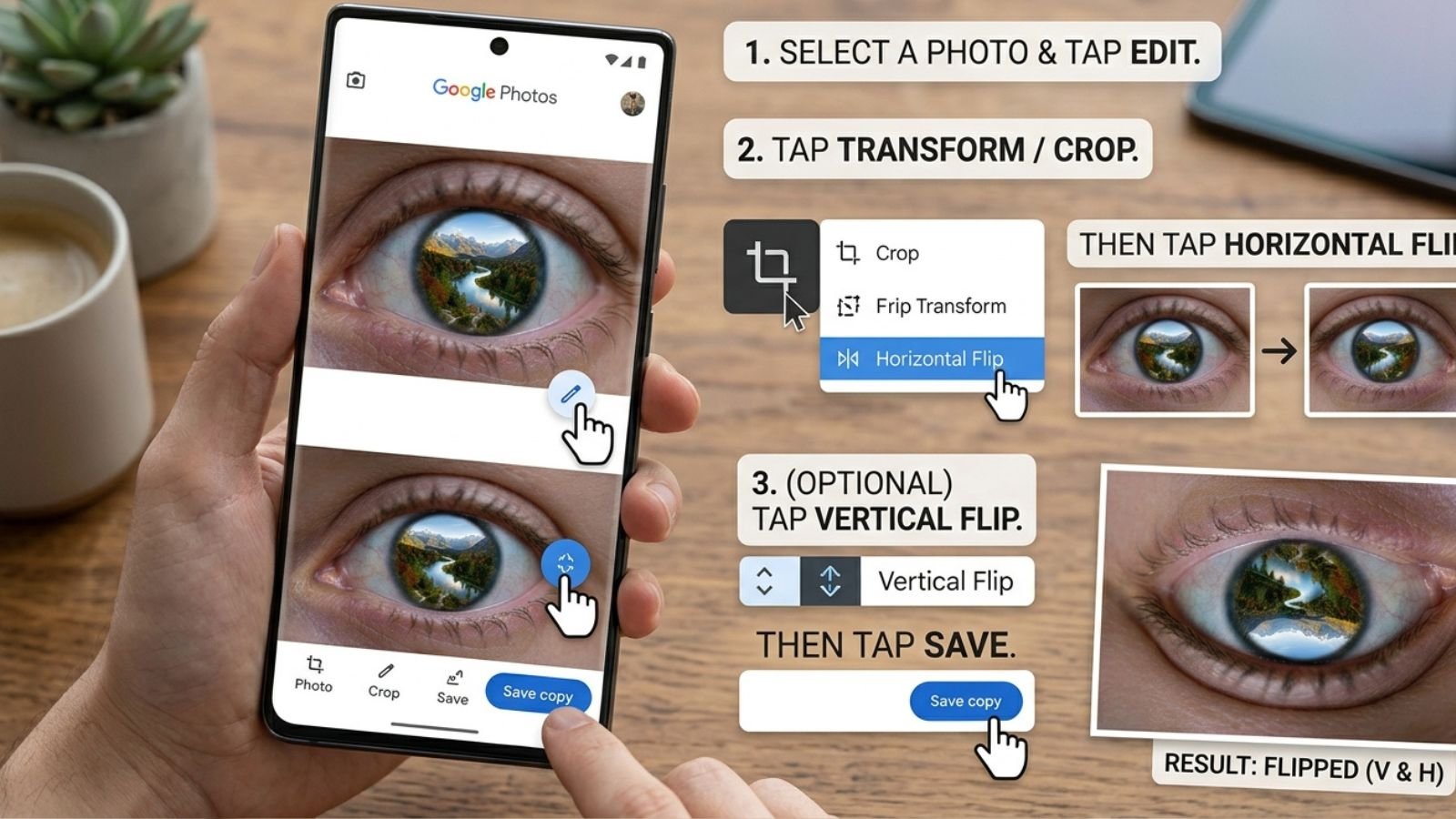
Flipping a photo on Android is useful when you want to create a mirror image, correct a selfie orientation, reverse text in an image, or change the visual direction of a picture. Unlike rotating a photo, flipping creates a mirror effect by reversing the image horizontally or vertically.
Most Android phones include photo-editing tools that can handle this without requiring advanced software. For example, the Google Photos app on Android now includes a Mirror option, while Samsung Galaxy phones provide flip controls directly in the Gallery editor.
If you need a quick browser-based option, you can also use an online image flipper to flip a photo without installing another app.
What Does It Mean to Flip a Photo?
Flipping and rotating are two different editing actions.
- Horizontal flip: Mirrors the photo from left to right.
- Vertical flip: Turns the photo upside down from top to bottom.
- Rotate: Turns the image around its center, usually by 90 or 180 degrees.
For example, if a person is looking toward the right side of a photo, a horizontal flip makes them appear to look toward the left.
| Editing action | What happens |
| Flip horizontally | Left and right sides are reversed |
| Flip vertically | Top and bottom are reversed |
| Rotate 90° | Photo turns sideways |
| Rotate 180° | Photo turns upside down |
How to Flip a Photo in Google Photos on Android
Google Photos currently provides a Mirror option in its Android photo editor. Google’s instructions place the feature under the Crop tools.
Follow these steps:
Step 1: Open Google Photos
Open the Google Photos app on your Android phone and find the picture you want to flip.
Step 2: Open the Editing Tools
Tap the photo to view it, then tap Edit.
Step 3: Select Crop
In the editing screen, tap Crop.
Google Photos includes several transformation controls in this area, including rotate, straighten, perspective, and mirror.
Step 4: Tap Mirror
Look for the Mirror or flip icon and tap it.
The photo will be flipped horizontally, creating a mirror image.
Step 5: Save the Photo
Tap the checkmark or Done, then choose Save.
Your edited image will now appear as a mirrored version.
Google introduced the mirror feature for the Google Photos Android app in 2025.
How to Flip a Photo on a Samsung Galaxy Phone
Samsung Galaxy devices have built-in photo editing tools in the Gallery app.
To flip a picture:
- Open Gallery.
- Select the photo you want to edit.
- Tap the pencil/Edit icon.
- Look for the Flip control in the editing tools.
- Tap it to mirror the image.
- Tap Save when finished.
Samsung’s current support documentation confirms that Galaxy Gallery includes tools for rotating and flipping pictures. Some menus can vary depending on the Galaxy model, software version, and carrier.
Samsung also provides an option to save the edited result as a copy on supported Galaxy devices, allowing you to preserve the original photo.
How to Flip a Photo Vertically on Android
A horizontal mirror is the most common type of photo flip, but you may sometimes need a vertical flip.
A vertical flip reverses the photo from top to bottom. This can be useful for creative effects, reflections, or certain graphic-design projects.
The exact availability of vertical flipping depends on the editor you’re using. If your phone’s default Gallery or Photos editor only provides a horizontal mirror option, an online tool can be a convenient alternative.
For example, you can use a free image flipper in your mobile browser to flip an image without installing a dedicated editing application.
Flip a Photo Online on Android
If your phone doesn’t provide the flip option you need, an online image-flipping tool can be easier than installing another editor.
The general process is:
- Open your browser on Android.
- Go to an online image flipper.
- Upload your photo.
- Choose horizontal or vertical flipping.
- Apply the change.
- Save the resulting image to your device.
This approach can be useful when you’re working with a downloaded image, a screenshot, a product picture, or a photo that needs a quick mirror effect.
Horizontal vs. Vertical Flip: Which Should You Use?
The correct option depends on what you want the finished image to look like.
Horizontal Flip
Use a horizontal flip when you want to create a mirror image.
Common examples include:
- Correcting a selfie orientation
- Reversing the direction a person is facing
- Creating a mirrored composition
- Correcting an image captured with the wrong orientation
- Reversing a graphic from left to right
Vertical Flip
Use a vertical flip when you want the top and bottom of the image reversed.
It can be useful for:
- Reflection effects
- Creative photography
- Graphic designs
- Experimental compositions
- Certain product or landscape edits
Be Careful With Text
Flipping an image horizontally also flips any text inside the picture.
For example, a sign that originally says:
OPEN
may appear visually reversed after a horizontal flip.
This is important when editing:
- Documents
- Screenshots
- Product labels
- Street signs
- Instructions
- Posters
- Social media graphics
If you are flipping a selfie and there is writing on clothing or in the background, check the result carefully before sharing it.
Why Flip a Photo on Android?
There are many practical reasons to mirror a picture.
Correct a Selfie
Some camera apps or selfie settings can produce an image that looks different from the way you saw yourself in the preview. Flipping the finished picture can create the orientation you prefer.
Fix Composition
Sometimes the subject looks better facing the opposite direction. A horizontal flip can change the visual flow of a photograph without cropping it.
Create a Mirror Effect
Flipping can be combined with other editing techniques to create symmetrical or reflective compositions.
Prepare Images for Design
Graphic designers may need to reverse an image before placing it into a poster, presentation, social media post, or other visual project.
Does Flipping Reduce Photo Quality?
A simple horizontal or vertical flip normally does not require cropping the image. However, the final quality can still depend on the editing application and how the image is saved.
For the best results:
- Start with the original photo when possible.
- Avoid repeatedly exporting and re-uploading the same image.
- Use the highest-quality version available.
- Check the final image before deleting the original.
- Keep a copy of the unedited photo for important pictures.
How to Keep the Original Photo
Before editing an important picture, consider preserving the original.
Some Android editors save edits directly to the existing photo, while others provide an option such as Save as copy. Samsung, for example, documents a Save as copy option in its Gallery editing workflow on supported devices.
Keeping the original is especially useful when you’re experimenting with multiple orientations.
Common Problems When Flipping Photos on Android
I Can’t Find the Flip Button
The location and name of editing controls vary between Android phones and apps. Look under Edit, Crop, Transform, or similar image-editing sections.
Google Photos places its Mirror control under Edit → Crop on Android.
My Text Is Backward After Flipping
That’s expected with a horizontal mirror. The entire image is reversed, including text.
If you only need to change the direction of the person or object without reversing text, you’ll need a different editing approach.
My Phone Doesn’t Have a Flip Option
Android manufacturers use different Gallery and Photos applications. If the built-in editor doesn’t provide the control you need, use an online image flipping tool instead.
I Accidentally Flipped the Wrong Way
Simply flip the image again in the same direction. Applying the same horizontal mirror twice returns the image to its original orientation.
Tips for Better Results
Before saving your flipped photo, check the following:
- Make sure you selected Flip, not Rotate.
- Check whether text has become reversed.
- Compare the edited image with the original.
- Keep the original if the photo is important.
- Use horizontal flipping for a left-to-right mirror effect.
- Use vertical flipping when you specifically need to reverse the top and bottom.
- Check the final image after saving.
Frequently Asked Questions
Can I flip a photo on Android without an app?
Yes. Many Android phones provide photo-editing tools in their built-in Gallery, and Google Photos on Android includes a Mirror feature.
How do I mirror a picture on Android?
In Google Photos, open the photo, tap Edit → Crop → Mirror, then save the result.
Can I flip a photo horizontally on Android?
Yes. A horizontal flip creates a mirror image by reversing the left and right sides of the photo.
Can I flip a photo vertically?
That depends on the editing app or device. If your built-in editor doesn’t provide vertical flipping, an online image flipper can provide another option.
Does flipping a photo change its size?
A simple flip normally preserves the image’s dimensions. The file size may change slightly depending on how the edited image is saved.
Can I flip a selfie after taking it?
Yes. You can edit the saved selfie using your phone’s photo editor or Google Photos. A horizontal flip can reverse the selfie from left to right.
Conclusion
Flipping a photo on Android is a simple edit that can correct selfie orientation, reverse an image, create a mirror effect, or change the direction of a composition. On many Android devices, you can do it directly from the built-in photo editor.
Google Photos now provides a Mirror tool under its Android editing controls, while Samsung Galaxy phones include flip functionality in Gallery.
If your phone doesn’t offer the type of flip you need, you can use an online image flipper from your Android browser. This can be a convenient solution when you need to flip an image quickly without installing additional software.
