

When you compress GIF files, you shrink animated images so they upload, send and load faster — without turning a smooth animation into a choppy, blotchy mess. A single GIF can weigh 10 MB or more, yet Discord, email and many forums cap uploads at a few megabytes, sometimes just a few hundred kilobytes. The good news: you can compress GIF free in under a minute, on any device. Here are five easy ways.
Why Are GIFs So Big?
A GIF is not one picture — it is dozens of pictures played in sequence. A four-second clip at 15 frames per second stores 60 separate images, and every frame can hold its own palette of up to 256 colours. GIFs use LZW compression, which works well on flat areas and solid colours but poorly on noise and camera motion, and unlike video it cannot predict motion between frames. So a GIF grows fast: more frames, bigger dimensions and more colours all multiply the size. That tells you exactly where to cut: frames, dimensions, colours and encoding.
Method 1: Compress GIF Online Free (Fastest Way)
The quickest way to compress GIF files is a free online compressor — no install, no account, about a minute of work.
- Open a free online GIF compressor and drag your GIF onto the page, or click to pick the file.
- Set the lossy slider to a moderate level. A light to medium pass typically cuts 30 to 50 percent while the animation still looks smooth.
- Reduce the colour palette if offered. Dropping from 256 colours to 128 or 64 can cut another 20 to 40 percent, and flat graphics barely change.
- Resize the dimensions if the GIF is larger than it will ever be shown. Halving the width cuts the pixel count to a quarter.
- Preview the result at full size, check the motion is not choppy, then download the smaller GIF.
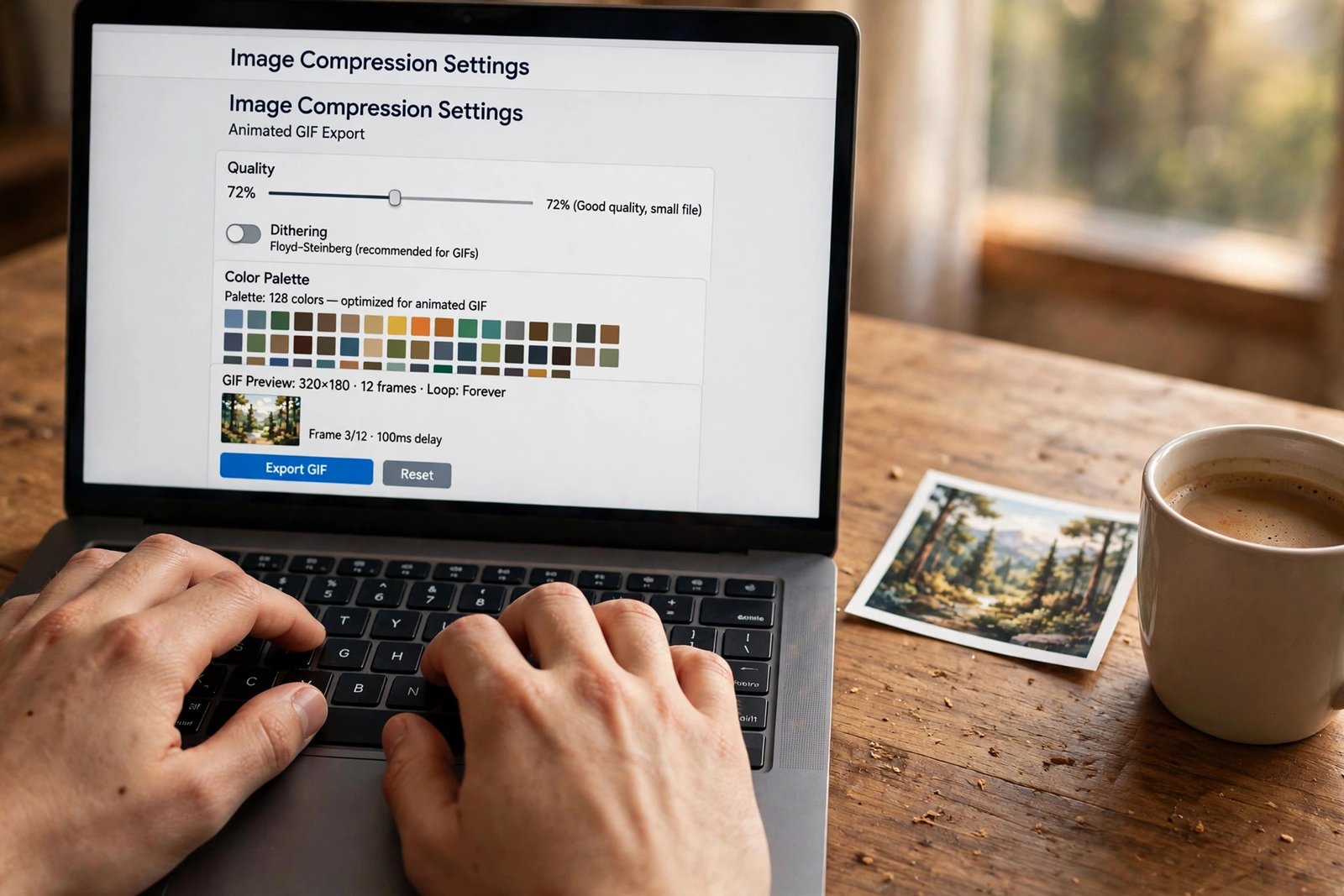
Some free tools accept very large files — FreeConvert, for example, allows uploads up to 1 GB — while others cap uploads around 200 MB. If one lever is not enough, combine two: our guide on how to resize an image explains the dimension trick for still pictures.
Method 2: Compress GIF to a Target Size (256 KB, 512 KB or 1 MB)
Sometimes the goal is not “smaller” but an exact number: Discord stickers need 256 KB, many email systems balk above 1 MB, and some forums cap uploads at 512 KB.
- Trim the clip. Cut the dead seconds before and after the action — a reaction GIF rarely needs more than two or three seconds.
- Lower the frame rate. Dropping from 24 to 12 frames per second halves the frame count, and most GIFs still look fine at 10 to 15 frames per second.
- Resize to the size it will actually be shown at. A 400-pixel-wide GIF covers most chats and embeds.
- Apply lossy compression and reduce the colour palette until the file lands under your target, checking the preview after each step.
- If it is still too big, drop every second frame. Motion gets choppier, but it works fast.
Work in that order — trim, frame rate, dimensions, then compression — because the first three multiply each other. If you regularly shrink still images too, our guide on how to compress an image covers the same ideas for JPG and PNG.
Method 3: Compress GIF on iPhone
iPhones collect GIFs fast — saved from chats, social apps and screen recordings. To compress GIF on iPhone without installing anything, open Safari and use a free online GIF compressor: upload the GIF from your Photos library, apply lossy compression, resize it to the width it will be shown at, then save the result back to Photos. The same steps work on iPad.
For GIFs you make yourself, Shortcuts can help before the file ever gets big: build a shortcut that trims a video to three seconds and exports a smaller GIF. And if the picture inside the GIF is a still frame you also use elsewhere, compress the PNG version separately.
Method 4: Compress GIF on Android
Android phones handle GIF compression just as easily, and again the browser is the fastest route. Open Chrome, use a free online GIF compressor, upload the GIF, set the compression level and download the smaller file — no app, no account, and it works on every Android phone. Google Photos can also help: open the GIF, trim the clip shorter with the video editor, and share the trimmed version instead of the original.
Watch out for GIFs saved from screen recordings: they are often recorded at full phone resolution. Resize to 480 pixels wide before you compress GIF files and the file can drop by three quarters in one step. Our guide on how to crop an image shows how to cut away the parts of a frame nobody needs.
Method 5: Compress GIF on Desktop (GIMP, Photoshop and Gifsicle)
If you compress GIF files often, a desktop tool gives you the most control. In GIMP, open the GIF, go to Image, then Mode, then Indexed, and reduce the colour palette — 128 colours for photos, 64 for flat graphics — then export with “As Animation” ticked. In Photoshop, use File, then Export, then Save for Web (Legacy), choose GIF, and lower the colour count and image size.
For batch work, the free command-line tool Gifsicle is the standard: one command can apply lossy compression, cut colours and optimise a whole folder of GIFs at once. If a GIF is really a short video clip, consider converting it instead: a video file of the same clip is often 80 to 95 percent smaller, and our guide to the best video compressor tools shows how. See the GIF format on Wikipedia and MDN’s guide to image file types for why the format behaves this way.
5 Tips to Keep Quality High When You Compress a GIF
- Start from the original file every time. Compressing a copy of a copy stacks quality loss.
- Resize first. A GIF shown at 400 pixels wide does not need to be 1,200 pixels wide.
- Cut colours before cranking the lossy slider. Dropping to 128 colours is nearly invisible on most GIFs.
- Check motion at full size before downloading. Thumbnails hide choppy frames and colour banding; full size reveals them.
- Match the method to the content. Photos and video clips take lossy compression well; flat graphics and logos prefer fewer colours over a heavy lossy pass.
Bonus: Flip or Mirror Your Compressed GIF Free
Once your GIF is small and smooth, you may find it faces the wrong way — a selfie with reversed text or a recording that came out mirrored. Fix it in seconds with the free Flip Image tool: upload the file, flip it, and download the corrected version. No sign-up, no watermark. And if the still image inside your GIF needs to live in a document, convert your PNG to PDF free for sharing or printing.
Frequently Asked Questions
How much can I compress a GIF?
Most GIFs shrink 30 to 50 percent with a moderate lossy pass, and 50 to 80 percent when you also resize and trim frames. Flat graphics compress best; busy video clips least.
Does compressing a GIF reduce quality?
Lossless, no — every pixel stays the same. Lossy discards a little colour and detail data, which can soften the image if pushed too far; a light to medium pass is invisible in everyday use.
How do I compress a GIF to 256 KB for Discord?
Trim the clip to two or three seconds, lower the frame rate to 10 to 12 frames per second, resize to the display width, then apply lossy compression and cut colours until the file drops under 256 KB.
What is the best free way to compress a GIF?
For one GIF, a free online compressor is fastest: no install, no account, about a minute. For batches, Gifsicle on the desktop is the standard free tool; for fine control on single files, GIMP or Photoshop’s Save for Web.
Try It Free
A heavy GIF slows down everything it touches — chats, emails, pages and uploads. Pick one method above, compress GIF now and compare the file size before and after. And when the image also needs flipping, try the free Flip Image tool: upload, flip, download, done.
