

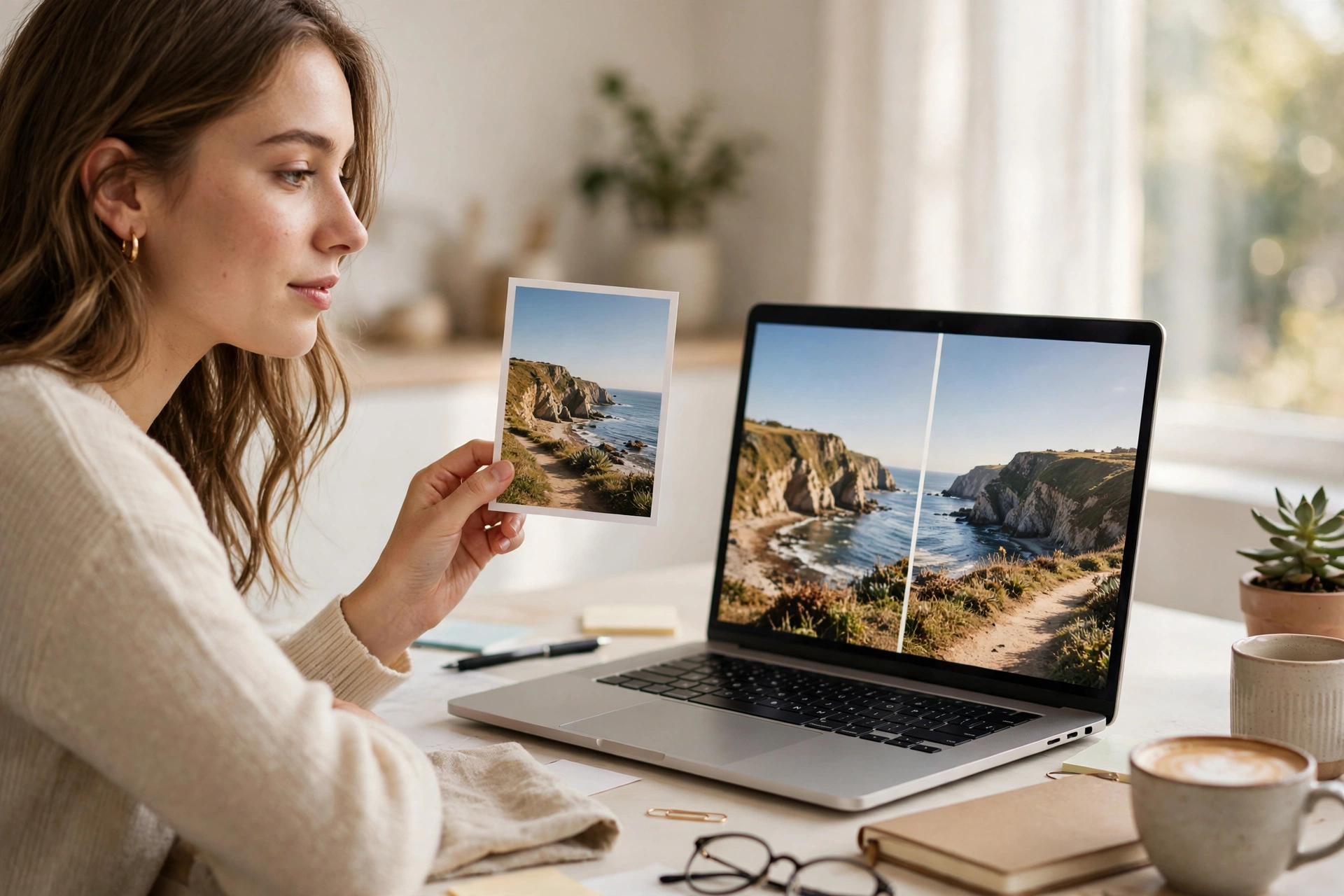
To flip an image is to mirror it — left becomes right, or top becomes bottom — so the picture faces the other way. It takes seconds, needs no design skills, and fixes more everyday photo problems than most people realise: a selfie that came out backwards, a sign whose text reads in reverse, or a product photo facing the wrong way on your shop page. This guide explains exactly what flipping does, when it helps, and five quick ways to flip an image free on any device — online, on iPhone and Android, and on Windows and Mac.
What Does It Mean to Flip an Image?
When you flip an image, you create a mirror version of it. A horizontal flip swaps the left and right sides, exactly like looking in a mirror: a person facing left ends up facing right, and any text in the shot reads backwards. A vertical flip swaps the top and bottom, turning the picture upside down along its horizontal axis. If you only need one direction, our guide on how to flip image horizontally walks through the left-to-right version step by step.
Flipping is not the same as rotating. Rotating turns the whole picture by 90 or 180 degrees, like turning a printed photo in your hands. Flipping mirrors it. That difference matters: rotating a backwards selfie by 180 degrees leaves it upside down, while a horizontal flip fixes it in one move. If your photo is sideways rather than backwards, see our guide on how to rotate an image instead. And if you want the classic mirror look for a portrait, the steps in our mirror photo guide use the same idea with a creative twist.
When Should You Flip an Image?
Most people flip an image for one of five reasons. See if any of these sound familiar:
1. A backwards selfie. Front cameras often save a mirrored preview, so your face looks right on screen but the saved photo is reversed — a parting on the wrong side, a logo reading backwards. A quick horizontal flip puts everything back the way you saw it.
2. Reversed text in the photo. Shop signs, T-shirts, whiteboards and book covers all read backwards in a mirrored shot. Flip the image and the words become readable again.
3. A product facing the wrong way. On a shop page or a slide, a product that points off the edge of the frame pulls the reader’s eye away. Flip it so it faces into the page, towards your headline or your buy button.
4. A scanned or old photo. Negatives and slides are easy to scan in backwards, especially when there is no text in the frame to warn you. Flipping restores the scene the way it was photographed.
5. Balance in a design. Two photos on facing pages, a before-and-after pair, or a symmetrical layout often look better when one image mirrors the other. Designers flip images for this reason every day.
5 Quick Ways to Flip an Image
You do not need paid software. Every method below is free and takes under a minute.
Method 1: Flip an Image Online Free (Fastest Way)
The quickest option is a free online tool — nothing to install, and it works on any device with a browser. Open the Flip Image tool, upload your photo, and choose Flip Horizontal or Flip Vertical. The preview updates instantly, and you download the finished picture. There is no sign-up and no watermark. For the full walkthrough with screenshots, see our step-by-step guide on how to flip an image online.
Method 2: Flip an Image on iPhone
Open the Photos app and tap the picture you want to fix. Tap Edit, then the Crop icon at the bottom. At the top left you will see the flip icon (a triangle with a vertical line). Tap it once to flip the image horizontally, and tap Done to save. The change replaces the original in your library, but you can tap Revert at any time to undo it.
Method 3: Flip an Image on Android
Open Google Photos and tap the photo, then tap Edit and choose Crop. The flip icon sits at the bottom of the crop screen — tap it to mirror the picture left to right. Tap Save copy to keep your original untouched, which is the safer choice if you might want the unflipped version later. Samsung Gallery has the same option under Edit, then the flip icon in the transform menu.
Method 4: Flip an Image on Windows
Open the picture in the Photos app, click Edit image, and look for the flip icon in the toolbar — one click mirrors it horizontally. If you prefer the classic route, open the same picture in Paint, go to the Home tab, click Rotate, and choose Flip horizontal or Flip vertical. Save with a new file name so the original stays as it was.
Method 5: Flip an Image on Mac
Open the picture in Preview, then go to Tools in the menu bar. Choose Flip Horizontal or Flip Vertical and the change applies immediately. Press Command + S to save. Preview has no built-in undo history once the file is closed, so duplicate the file first if the original matters to you.
Flip an Image Without Losing Quality
Flipping itself does not damage a photo — it only rearranges the pixels, so the resolution stays exactly the same. Quality problems come from saving, not from flipping. Two habits keep your pictures sharp: work on a copy so the original is never at risk, and save text-heavy images as PNG rather than JPEG, because repeated JPEG saves soften fine edges and lettering. If you are flipping a picture inside a design tool rather than a photo app, how to flip an image in Canva shows the same idea in a design workspace — and for heavier editing, Adobe’s own guide explains how to rotate or flip images in Photoshop, including flipping a single layer instead of the whole canvas. A detailed Canva walkthrough is also available in Jotform’s guide to flipping an image in Canva.
FAQs About Flipping an Image
Does flipping an image reduce quality?
No. A flip only rearranges pixels, so the resolution and file size stay the same. Quality only drops if you re-save a JPEG many times or crop heavily afterwards.
Is flipping an image the same as rotating it?
No. Flipping mirrors the picture — left becomes right. Rotating turns it by 90 or 180 degrees. A horizontal flip fixes a backwards selfie; rotating it would only turn it upside down.
Can I flip an image on my phone without installing an app?
Yes. Use the free Flip Image tool in your phone’s browser, or the flip button already built into the Photos app on iPhone and Google Photos on Android. No extra app is needed.
How do I flip just part of an image?
That needs a layer-based editor. In Photoshop, select the layer you want to change and use Edit > Transform > Flip Horizontal — everything else in the picture stays exactly where it was.
Try It Free
Now you know what it means to flip an image, when it helps, and five free ways to do it in under a minute. The fastest option is the free online tool: open Flip Image, upload your photo, pick horizontal or vertical, and download the result. No software, no sign-up, no watermark — just your picture, facing the right way.

1 Comment
Pingback: Image Flipper Free: 5 Best Ways to Flip Any Picture