

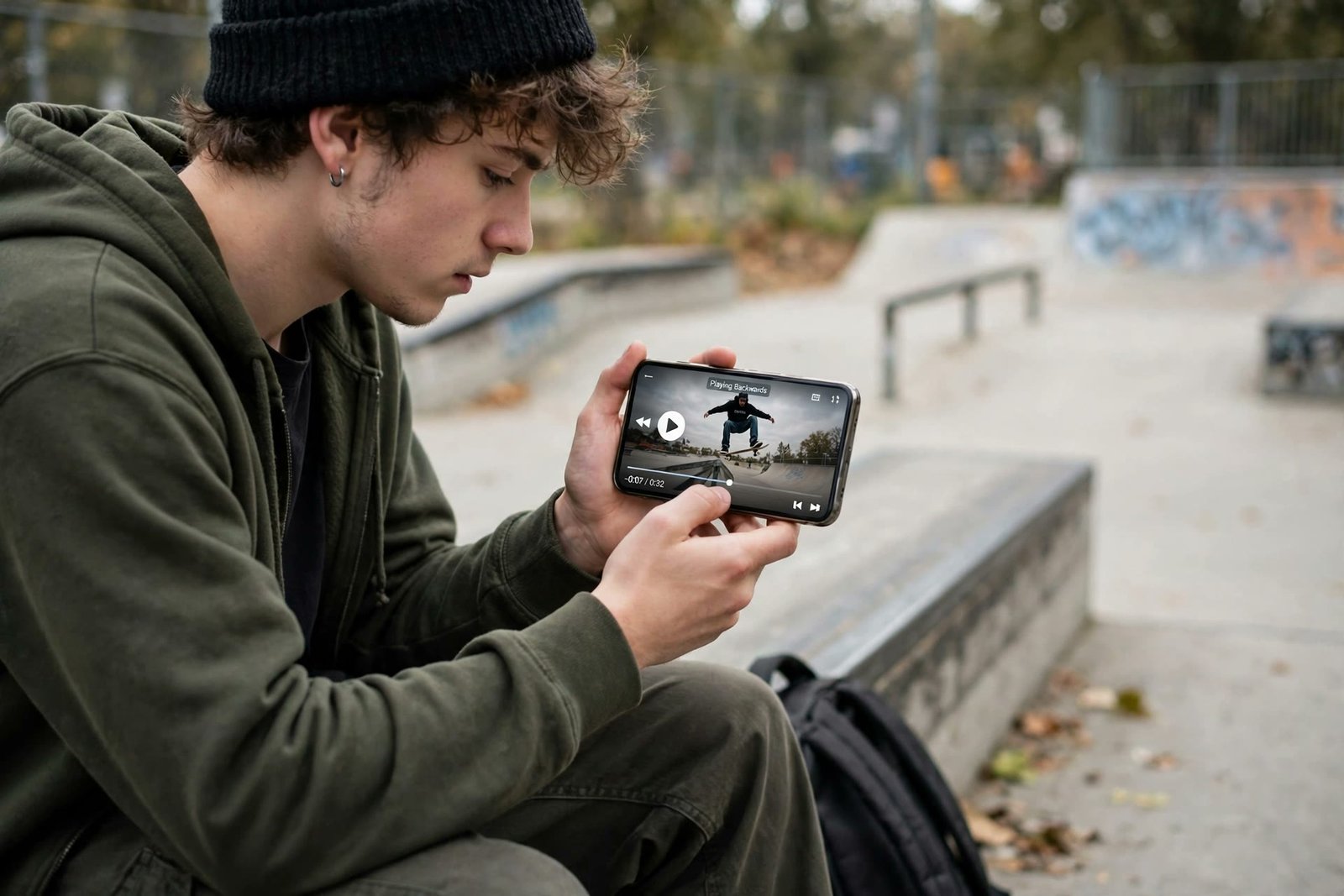
Reverse Video: How to Play a Video Backwards Free (5 Easy Ways)
To reverse a video is to play it backwards — the last frame becomes the first, so people walk in reverse, water flows uphill and a dropped glass leaps back into your hand. A reverse video is one of the easiest effects in editing: most editors do it with a single button, and you do not need to pay for software. Here are five free ways to play a clip backwards, on any device.
What Does It Mean to Reverse a Video?
When you reverse a video, the editor reorders the frames so the clip plays from end to start. Nothing in the picture is flipped or recoloured — only the direction of time changes. A five-second clip of a diver hitting the water becomes a five-second clip of the diver flying out of the water and landing back on the board.
Two things are worth knowing before you start. First, the sound reverses too: music plays backwards and speech turns into gibberish, which is why most creators mute the audio or replace it with a fresh track. Second, reversing is not the same as “reverse video search” — that is a way of finding where a clip came from. This guide is about the backwards-playback effect itself.
Reverse vs Flip vs Invert: What’s the Difference?
These three edits are often confused, but they change completely different things:
- Reverse changes the order of frames — the video plays backwards in time.
- Flip (mirror) changes the picture left-to-right, like looking in a mirror. Our guide on how to mirror a video covers that edit.
- Invert changes the colours to their opposites, turning the clip into a negative. See our invert video guide for that effect.
If you are still unsure which one you need, our flip vs rotate vs mirror explainer walks through all of them with examples.
5 Easy Ways to Reverse a Video Free
Method 1: Reverse a Video on Your Phone with CapCut
CapCut is the most popular free option on phones, and its Reverse button does the whole job in one tap.
- Open CapCut and start a new project with your video.
- Tap the clip in the timeline to select it.
- Tap Edit, scroll the bottom toolbar, and tap Reverse.
- Wait for processing to finish, preview the result, then export.
CapCut’s own guide to making a video reverse covers the same steps for desktop and web. Short clips reverse in seconds; a long 4K clip can take a minute or two.
Method 2: Reverse a Video in Premiere Pro
If you already edit in Premiere Pro, reversing takes three clicks:
- Select the clip in the Timeline panel.
- Choose Clip > Speed/Duration (or right-click the clip and pick Speed/Duration).
- Tick Reverse speed, then click OK.
Adobe documents the option in its Premiere speed and duration help page. The clip now plays backwards at the same length. To reverse only part of a clip, cut that section out first with the Razor tool, then apply Reverse speed to just that piece.
Method 3: Reverse a Video in DaVinci Resolve
DaVinci Resolve is free and reverses clips just as quickly:
- Import your clip and drag it onto the timeline.
- Right-click the clip and choose Change Clip Speed.
- Tick the Reverse speed checkbox and click Change.
The effect applies instantly. Resolve also lets you reverse a single segment: split the clip at both ends of the section you want, then reverse only that segment.
Method 4: Reverse a Video with FFmpeg (No Editor Needed)
Comfortable with a command line? FFmpeg reverses a video in one command:
ffmpeg -i input.mp4 -vf reverse -af areverse output.mp4
The -vf reverse filter reverses the picture and -af areverse reverses the sound. Leave the audio filter out if you plan to add new music anyway. FFmpeg is free, works on Windows, Mac and Linux, and handles batch jobs well — but very long clips use a lot of memory, so trim first.
Method 5: Reverse a Video Online in Your Browser
Browser-based editors can reverse a short clip without installing anything. The flow is the same almost everywhere: upload the video, find the Reverse option in the clip tools, wait for it to process, then download the result. Online editors suit short clips best — large files upload slowly, and free tiers often cap the length or add a watermark, so check before you rely on one for a long video.
Creative Ways to Use a Reversed Video
- Sports tricks: a skateboard or basketball trick looks impossible played backwards.
- Everyday magic: a drink pours itself back into the bottle, or scattered puzzle pieces assemble themselves.
- Product demos: show a gadget being un-assembled in reverse to reveal how it comes apart.
- Comedy: walking backwards through a busy scene, or a dog “un-eating” a treat.
- Loops: reverse a clip and append it to the original for a smooth back-and-forth boomerang effect.
Tips for a Clean Reverse
- Trim first. Reversing works best on short, punchy clips — cut the boring head and tail before you reverse.
- Fix the sound. Mute reversed speech, or replace the whole track with music.
- Keep the original. Always export the reversed version as a new file so you can redo it.
- Check the ends. The new opening frame is your old closing frame — make sure it looks good, because it is now the first thing viewers see.
Reverse Video: Frequently Asked Questions
Does reversing a video reduce its quality?
Not by itself. Reversing only reorders frames. Quality can drop if the editor re-exports at a lower resolution or bitrate, so export at the same settings as the original where you can.
What happens to the audio when I reverse a video?
It plays backwards too. Music sounds warped and speech becomes nonsense, so most people mute it or lay a new soundtrack over the reversed clip.
Can I reverse only part of a video?
Yes. Split the clip at the start and end of the section you want, then apply the reverse effect to that segment only. Every editor above can do this.
Is reversing a video the same as flipping it?
No. Reversing changes the direction of time; flipping mirrors the picture left-to-right without changing playback order.
Try It Free
Now you know how to reverse a video on any device, free. If your clip also needs its orientation fixed — a sideways recording or a mirrored selfie video — our video flipper guide and the rotate video online walkthrough cover those fixes step by step.
And when the still frames matter too — a backwards thumbnail, a mirrored poster image or a flipped screenshot — you can flip, mirror and rotate images free in seconds with the Flip Image tool. No sign-up, no watermark: just drop in your picture and download the corrected copy.
