

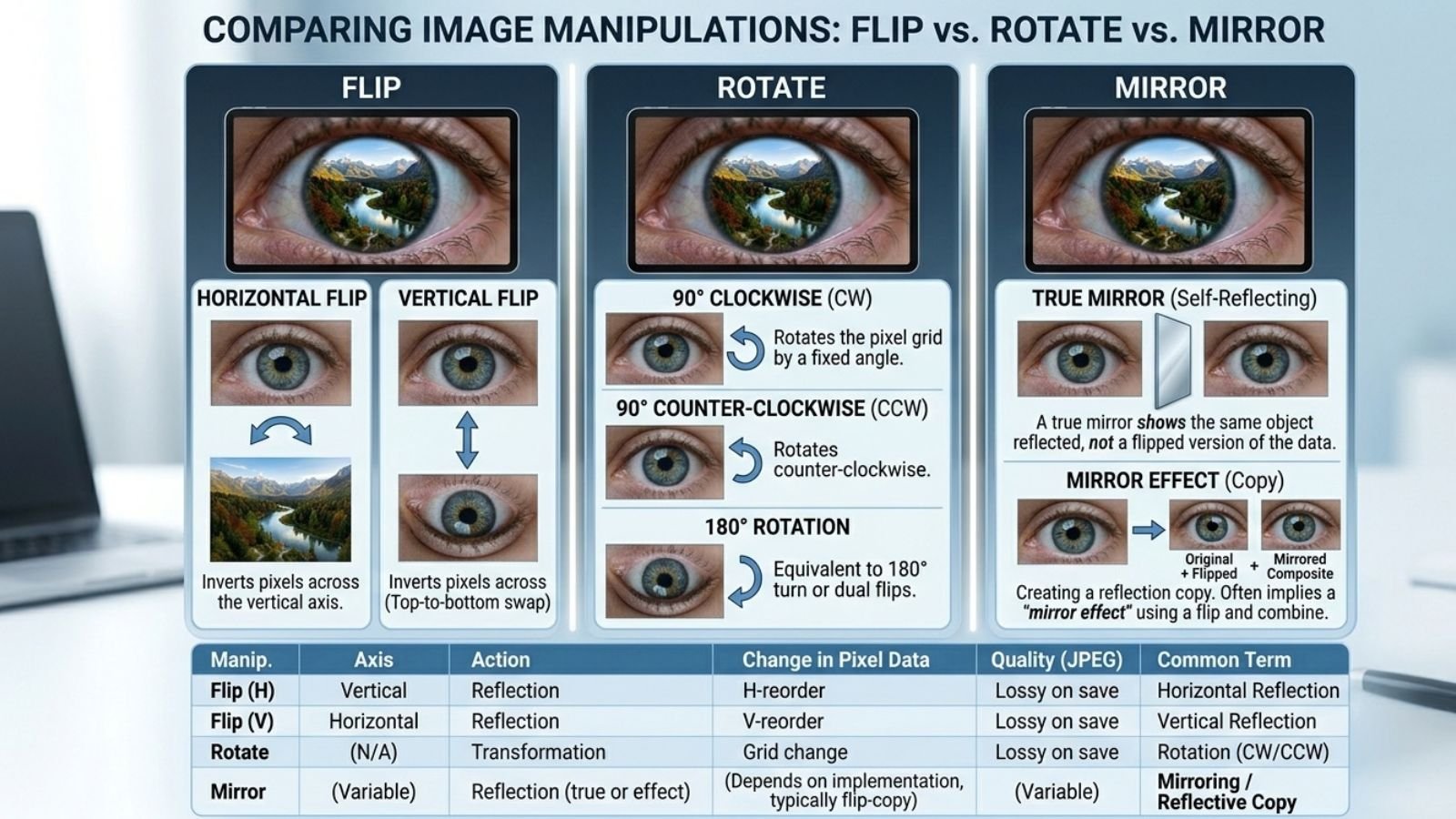
When editing an image, you’ll often see options such as Flip, Rotate, and Mirror. They can sound similar, especially when you’re trying to correct the orientation of a photo or create a specific visual effect.
But these operations do different things.
A flip reverses an image across an axis. A rotation turns the image around a central point. A mirror usually refers to creating a reversed, reflection-like version of an image—most commonly by flipping it horizontally.
Understanding the difference can save you from accidentally reversing text, turning a photo upside down, or changing an image when you only wanted to move it into the correct orientation.
Flip, Rotate, and Mirror at a Glance
| Editing action | What happens | Common use |
| Flip Horizontal | Left and right are reversed | Mirror a selfie or image |
| Flip Vertical | Top and bottom are reversed | Creative effects or upside-down compositions |
| Rotate 90° | Image turns a quarter turn | Correct landscape/portrait orientation |
| Rotate 180° | Image turns completely upside down | Correct an upside-down image |
| Mirror | Usually creates a left-right reflection | Reflection effects and mirrored photos |
The terminology can vary between apps. Some programs use Mirror instead of Flip Horizontal, while others simply call the command Flip.
The actual visual result matters more than the label.
What Is Flipping an Image?
Flipping reverses an image across an imaginary line called an axis.
There are two basic types.
Horizontal Flip
A horizontal flip reverses the image from left to right.
Imagine holding a photograph in front of a mirror. The left and right sides appear reversed.
This is the type of flip commonly used for:
- Selfies
- Portraits
- Product photos
- Graphic designs
- Directional compositions
- Creating mirror images
If a person is facing right in the original photo, they will appear to face left after a horizontal flip.
Vertical Flip
A vertical flip reverses the image from top to bottom.
The upper part of the picture moves downward, while the bottom moves upward.
This can be useful for:
- Water reflection effects
- Experimental designs
- Creative compositions
- Upside-down artwork
However, vertical flipping is less commonly needed for ordinary photo corrections.
What Is Rotating an Image?
Rotation changes the angle of the entire image.
Unlike a flip, rotation doesn’t reverse the image from left to right. Instead, the image turns around its center.
The most common rotation options are:
- 90° clockwise
- 90° counterclockwise
- 180°
- 270°
For example, if you accidentally take a photo in landscape orientation when you need portrait orientation, rotating it 90 degrees can correct it.
Rotation Does Not Create a Mirror Image
This is where many beginners get confused.
Suppose a person in a photo is facing toward the right.
A 90-degree rotation changes the direction in which the entire photograph is oriented, but it doesn’t make the person’s left side become their right side.
A horizontal flip does.
That’s why rotating an image won’t fix a selfie that looks reversed.
What Does “Mirror” Mean in Image Editing?
The word mirror is commonly used to describe a left-right reflection.
In many image editors, the command may actually be called:
Flip Horizontal
Other software may use:
Mirror Horizontally
These generally produce the same basic result: the left side of the image becomes the right side and vice versa.
The terminology isn’t completely standardized, so always look at the icon or preview if you’re unsure.
Why Is It Called a Mirror?
Think about your reflection.
If you stand in front of a mirror, the image you see has the opposite left-right arrangement from the real-world scene.
Digital image editors can recreate a similar effect by flipping the image horizontally.
This is why people often use “mirror” and “horizontal flip” interchangeably.
A Simple Example
Imagine a photo of a person holding a cup in their right hand.
Original
The cup appears on the person’s right side.
Horizontal Flip / Mirror
The cup appears on the person’s left side.
90° Rotation
The entire photograph turns sideways, but the cup remains associated with the same side of the person’s body.
180° Rotation
The entire photograph is upside down.
This simple example shows why these tools aren’t interchangeable.
Flip vs Rotate: Which One Should You Use?
The easiest way to decide is to ask:
Do I want to reverse the image, or turn it?
Choose Flip when:
- You want a mirror effect.
- A selfie looks different from the camera preview.
- You need the subject facing the opposite direction.
- You want to reverse a graphic horizontally.
- You’re creating a reflection.
Choose Rotate when:
- The photo is sideways.
- The image is upside down.
- You need to change portrait to landscape orientation.
- You want to turn the composition by a specific angle.
If the problem is that the image is facing the wrong direction, try a horizontal flip. If the problem is that the image is at the wrong angle, rotate it.
Why Selfies Often Need a Horizontal Flip
Front-facing cameras can display a mirrored preview because it behaves like looking into a mirror.
The saved photograph may use a normal left-to-right orientation instead.
This can make your final selfie feel unfamiliar even though nothing has changed about your face.
A horizontal flip can make the saved photo match the mirror-like appearance you’re accustomed to seeing.
Just remember that flipping also reverses:
- Text
- Logos
- Shirt designs
- Signs
- Numbers
- Background objects
If readable text is important, check the final image carefully.
Mirror vs Reflection Effect
Another common source of confusion is the difference between a mirrored image and a reflection effect.
A mirrored image simply reverses the original.
A reflection effect usually creates the appearance of an object being reflected on a surface.
For example, a water-reflection design might use:
- The original image.
- A vertically flipped copy.
- Reduced opacity.
- A gradient or mask.
- Sometimes a blur or distortion.
So if you want an image to look as though it is reflected in water, simply choosing Flip Horizontal isn’t enough.
What Happens to Text?
Text makes the difference between these operations especially obvious.
Suppose an image contains:
WELCOME
A horizontal flip will make the lettering appear backward.
A 90-degree rotation will turn the word sideways.
A 180-degree rotation will turn it upside down.
None of these operations translates or rewrites the text.
This is important when editing:
- Screenshots
- Posters
- Product packaging
- Signs
- Documents
- Social media graphics
If your goal is to make text readable, don’t use a horizontal flip unless the reversed appearance is intentional.
Flip vs Rotate on a Screenshot
Screenshots are another common situation where the wrong tool can cause problems.
Imagine you’ve captured a webpage but want the menu on the opposite side.
A horizontal flip will move the visual arrangement from left to right—but it will also reverse all the text.
If you simply want the screenshot positioned differently in a presentation, don’t flip it. Resize or reposition the screenshot instead.
If the screenshot itself is upside down, rotation is the appropriate solution.
Which Operation Changes the Image’s Direction?
| Operation | Left/right reversed? | Top/bottom reversed? | Image turns? |
| Horizontal flip | Yes | No | No |
| Vertical flip | No | Yes | No |
| 90° rotation | No | No | Yes |
| 180° rotation | No | No | Yes |
| Mirror | Usually yes | No | No |
This is the simplest way to remember the difference.
How to Choose the Right Tool
Before editing, identify the problem.
The photo is sideways
Rotate it.
The photo is upside down
Rotate it 180°.
The subject faces the wrong direction
Flip it horizontally.
You want a mirror-style version
Flip it horizontally.
You want an upside-down reflection below an object
Create a vertically flipped copy.
You want text to remain readable
Don’t mirror or flip the text unless the reversed appearance is intentional.
This small checklist can prevent most orientation mistakes.
Can You Flip or Rotate an Image Online?
Yes. If you only need a quick image transformation, you don’t necessarily need a full desktop editor.
For example, FlipImage.co can be used to flip an image horizontally or vertically in a browser.
This is useful when you need a simple mirror effect without opening software such as Photoshop.
However, online flipping is different from rotation. If your goal is to turn an image by 90 or 180 degrees, you’ll need a tool that provides rotation controls rather than only flipping.
Flip vs Rotate in Photoshop, Canva, and Other Editors
Most image-editing and design applications provide both transformations, although the names and menus vary.
In Photoshop, for example, transformations can be applied to individual layers, making it possible to flip one part of a design without reversing everything else.
In Canva, you can select an image or design element and use its transformation controls.
On phones, the built-in photo editor may place Flip and Rotate inside the same Crop or Edit menu.
The important thing is to understand what each command does rather than relying on the menu name.
Common Mistakes
Rotating when you need to mirror
If your selfie looks reversed, rotating it won’t fix the left-right orientation.
Flipping when you only need to reposition
A flip changes the image itself. If you simply want the picture on the other side of a layout, move it instead.
Mirroring text accidentally
Flipping an entire graphic will also reverse its text.
Using vertical flip instead of horizontal flip
If you want a mirror-like selfie effect, choose horizontal rather than vertical.
Confusing a reflection with a mirror
A reflection effect often involves a second copy of an image, while a mirror simply reverses the original.
FAQs
Is flipping the same as mirroring?
In many image-editing applications, yes. “Mirror” often refers to a horizontal flip that reverses the image from left to right.
Does rotating an image flip it?
No. Rotation changes the image’s angle. A flip reverses it across an axis.
What is the difference between horizontal and vertical flipping?
Horizontal flipping reverses left and right. Vertical flipping reverses top and bottom.
Which one should I use for a mirrored selfie?
A horizontal flip is normally the appropriate operation.
Does flipping an image affect text?
Yes. Text inside the image will also be reversed.
Does flipping reduce image quality?
A basic flip doesn’t inherently reduce resolution. Quality can change if the image is resized or heavily compressed during the editing or export process.
Conclusion
Flip, rotate, and mirror are related but different image-editing operations.
Use rotate when you need to change the angle or correct an image that is sideways or upside down. Use flip when you want to reverse the image across an axis. And when an editor uses the term mirror, it usually means creating a left-right reversed version through a horizontal flip.
The easiest rule is:
Wrong angle? Rotate.
Wrong direction? Flip.
Want a mirror effect? Horizontal flip.
Once you understand that distinction, choosing the right image-editing tool becomes much easier—and you can avoid accidentally reversing text or turning an otherwise correct photo upside down.

1 Comment
Pingback: How to Create Mirror Symmetry Photo Effects? - Flip Image Online Free