

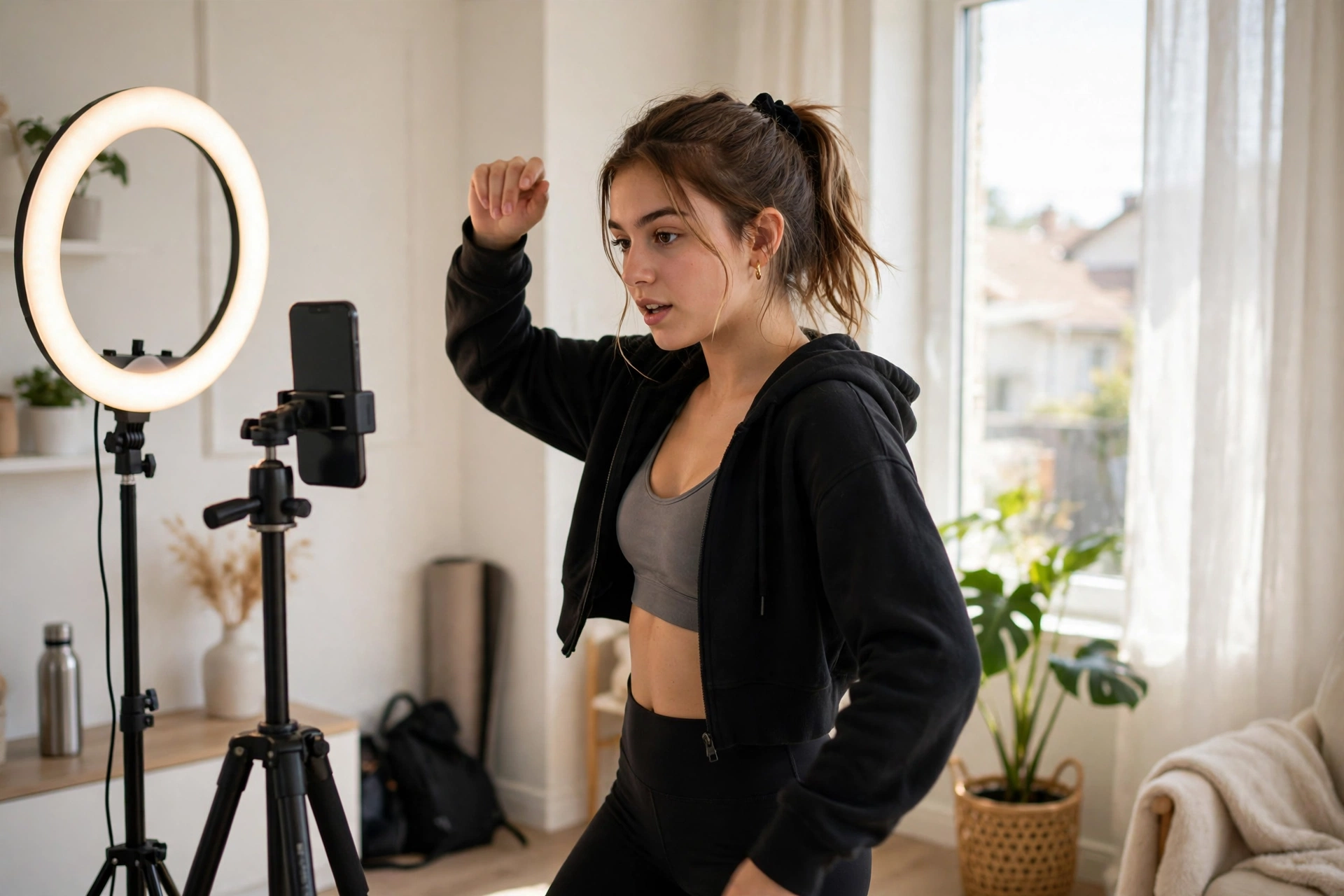
Learning how to mirror a video on YouTube is simpler than it sounds — but there is one thing to know first: YouTube itself has no mirror button. You cannot flip a video inside YouTube or YouTube Studio. The fix happens before you upload: mirror the clip with a free tool, then upload the mirrored version. If the video is already live, download your own copy from YouTube Studio, mirror it, and upload it again.
What Does It Mean to Mirror a Video on YouTube?
Mirroring a video on YouTube means flipping the whole clip from left to right before your viewers ever see it. Everything on the left side of the frame moves to the right, and everything on the right moves to the left — like looking at the footage in a mirror. The video still plays forward and the sound does not change at all.
Mirroring is not the same as rotating. Rotating turns the whole frame by 90 or 180 degrees, while mirroring only swaps left and right. If you want the full comparison, read our guide on flip vs rotate vs mirror.
Why Would You Mirror a Video on YouTube?
The most common reason is the dance cover: a mirrored video matches what viewers see in their own mirror, so left and right line up when they copy your moves. Front-camera selfie videos are another big one — your face and any text on your shirt often appear the wrong way round, as is backwards whiteboard writing.
First, Know This: YouTube Has No Built-In Mirror Tool
YouTube Studio’s editor can trim and cut your video, but it cannot flip, mirror or rotate it. YouTube’s own help page for trimming videos lists only trim and cut options — there is no flip or mirror button anywhere in the editor. So every method below mirrors the video file first, and then uploads the result to YouTube. That is the only way to get a mirrored video onto the platform.
Method 1: How to Mirror a Video on YouTube Online Free (Fastest Way)
The fastest way to mirror a video on YouTube is with a free online video flipper — nothing to install, and the whole job takes about a minute.
- Open a free online video flipper in your browser.
- Upload your video clip — MP4 and MOV files work in most tools.
- Choose the Flip Horizontal or Mirror option.
- Preview the result and check that any text now reads the right way.
- Export and download the mirrored video.
Now upload the mirrored file to YouTube. Sign in to YouTube Studio, click CREATE and choose Upload videos, then select the mirrored file. YouTube’s upload help page walks through the same steps for computer and phone.
Method 2: How to Mirror a Video on YouTube in CapCut
CapCut is a free favourite with YouTube creators, and its Mirror tool does the job in a few taps.
- Open CapCut and import the clip you want to upload to YouTube.
- On desktop, select the clip on the timeline and use the Mirror option. On mobile, tap the clip, open Edit, then Transform, and tap Mirror.
- Preview the clip and check that text and movement now face the right way.
- Export the video at its original resolution, then upload it to YouTube from Studio.
Our full walkthrough is in this how to flip a video in CapCut guide.
Method 3: How to Mirror a Video on YouTube in iMovie
iMovie is free from Apple and already on most Macs and iPhones.
- Open iMovie and import your clip.
- Select the clip on the timeline, then open the crop controls — the flip option sits there with the rotation controls.
- Flip the clip horizontally and preview it.
- Share or export the finished video, then upload it to YouTube.
On iPhone, the built-in Photos app is even faster: open the video, tap Edit, tap the Crop icon, then tap the Flip icon. Our guide on how to flip a video on iPhone covers both routes.
Method 4: How to Mirror a Video on YouTube in Premiere Pro
For creators who already edit in Adobe Premiere Pro, the Horizontal Flip effect is the cleanest option.
- Import your clip and drag it onto the timeline.
- Open the Effects panel and search for Horizontal Flip under Transform.
- Drag the effect onto your clip. The preview flips left to right at once.
- Export the video at its original settings, then upload the mirrored file to YouTube.
The Horizontal Flip effect only changes the picture — your clip still plays forward and the audio is untouched. For the full deep-dive, see our guide on how to flip a video in Premiere Pro.
Method 5: How to Mirror a Video That Is Already Live on YouTube
If the video is already published, you cannot mirror it in place — but you can fix it, because YouTube Studio lets you download your own uploads.
- Sign in to YouTube Studio on a computer and open Content in the left menu.
- Find the video, open its three-dot menu, and choose Download. You get an MP4 copy in 720p or 360p. You can download each video up to five times in 24 hours, and only your own uploads have this option.
- Mirror the downloaded file with any method above — the online tool is fastest for this.
- Upload the mirrored file to YouTube as a new video.
- Set the old video to Unlisted or delete it, so viewers do not find two versions of the same video.
One honest trade-off: the re-upload gets a new URL and starts at zero views — views, likes and comments do not move over.
Mirror a YouTube Thumbnail or Still Frame
Sometimes you do not need to mirror the whole video — just one frame of it, for a custom thumbnail. Take a screenshot of the frame, then flip it in seconds with the free Flip Image tool — upload, choose Flip Horizontal, and download. No sign-up needed.
5 Quick Tips for a Clean Mirror on YouTube
- Check the text first. If a sign, shirt, or logo reads backwards, one horizontal flip fixes it.
- Mirror before you add captions. Burned-in captions flip with the picture, so mirror first and add text afterwards.
- Keep a copy of the original. Save the mirrored clip as a new file so you can always go back.
- Export at the original resolution. Re-encoding lower is what causes quality loss, not the mirror.
- Preview before you publish. Upload as Unlisted first, watch it once through, and only then switch it to Public.
FAQ: How to Mirror a Video on YouTube
Can you mirror a video directly in YouTube Studio?
No. YouTube Studio’s editor can only trim and cut — it has no flip, mirror or rotate option, so mirror the file first and then upload it.
Can I mirror a video that is already on YouTube?
Only if it is your own video. Download your copy from YouTube Studio (Content, then the three-dot menu, then Download), mirror the file, and upload it again as a new video.
Does mirroring a video change the audio?
No. Mirroring only flips the picture left to right; the audio plays exactly as before.
Can I mirror a YouTube Short?
Yes — mirror the clip before uploading. A vertical video stays vertical after a horizontal mirror, so it still uploads as a Short.
Related Guides
- How to Mirror a Video — flip any clip left to right in seconds.
- Video Flipper — five best tools to flip any video free.
- How to Flip a Video on TikTok — the same fix for TikTok clips.
- How to Flip a Video in CapCut — the full CapCut walkthrough.
- Flip a Video on iPhone — mirror video clips on iOS free.
Try It Free
Now you know how to mirror a video on YouTube — mirror the clip first, then upload it, or download your own live video from Studio and fix it. For a still frame or thumbnail, try the free Flip Image tool — mirror any image in seconds, free, no sign-up.
