

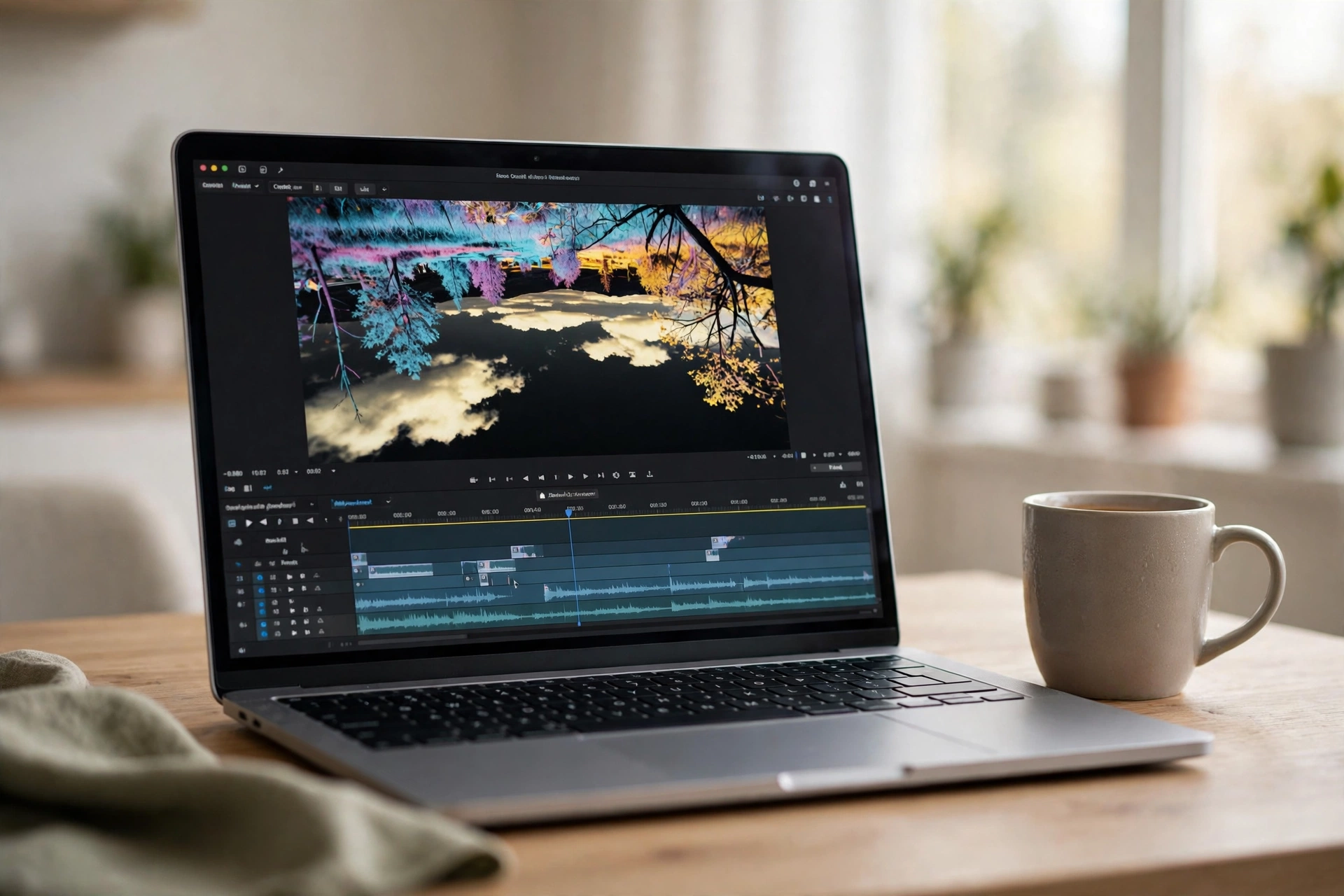
To invert video means to reverse its colors, so bright areas turn dark, dark areas turn bright, and every hue flips to its opposite — the classic photo-negative look. You can invert video free with an online tool, Premiere Pro, DaVinci Resolve, CapCut, or VLC. This guide shows five easy ways to invert video colors in seconds, plus when the effect looks good and when to skip it.
What Does It Mean to Invert Video?
When you invert video, every pixel’s color is replaced by its opposite: white becomes black, black becomes white, blue becomes orange, red becomes cyan. The result looks like a film negative — the same idea as the “Invert” filter on a photo, applied to every frame of a moving clip.
People invert video colors for a striking negative effect in a music video, a flashback, a glitch transition, or to make a dull clip stand out. It is a bold look, so use it in short bursts — a few seconds at a time — not across a whole video.
Invert vs. Flip vs. Reverse: Don’t Mix Them Up
Three similar-sounding words do three different things. Inverting a video changes its colors. Flipping a video mirrors it left to right (or top to bottom) without touching the colors. Reversing a video plays it backwards. If you want the mirror effect instead, read our guide on how to mirror a video — and for a refresher on all three, see flip vs. rotate vs. mirror.
Method 1: Invert Video Online Free (Fastest Way)
The fastest way to invert video is a free online video editor — no download, no sign-up, no software to learn. Best for a one-off clip.
- Open a free online video editor with a Negative or Invert effect and upload your clip.
- Find the effect under Effects or Filters — it is usually called “Invert,” “Negative,” or “Invert Colors.”
- Apply it to the whole clip, or split the clip first to invert only part of it.
- Preview the result, then export the video in MP4 and download it.
Online tools are quick, but they usually compress your video, so the export may look slightly softer. For the best quality, use a desktop method below.
Method 2: How to Invert Video in Premiere Pro
Premiere Pro has a built-in Invert effect, so this takes under a minute once your clip is on the timeline.
- Import your clip and drag it onto the timeline.
- Open the Effects panel and search for “Invert.”
- Drag the Invert effect (under Video Effects, then Channel) onto your clip.
- In the Effect Controls panel, set Channel to RGB to invert all three channels at once — or pick Red, Green, or Blue to invert one channel for a stranger look.
- Use the “Blend With Original” slider for a partial inversion instead of the full negative look.
A second route: open the Lumetri Color panel, go to Curves, and click Invert. For a full walkthrough of both routes, see this detailed Premiere Pro invert colors guide.
Method 3: How to Invert Video in DaVinci Resolve
DaVinci Resolve is free and gives you two clean ways to invert video: Curves is the most flexible, the OFX plugin is the quickest.
Option A — invert with Curves:
- Put your clip on the timeline and open the Color page.
- Open the Curves panel and select the RGB curve, with the channels linked.
- Drag the top-right point down to the bottom-right corner, and the bottom-left point up to the top-left corner. The curve now runs in reverse, and your video is inverted.
Option B — invert with the OFX plugin:
- On the Color page, open the Effects library and search for “Invert Color.”
- Drag the Invert Color OFX onto the node for your clip.
- The colors flip instantly — adjust the controls for a partial effect.
For screenshots and the full walkthrough, see this DaVinci Resolve invert colors guide.
Method 4: How to Invert Video in CapCut
CapCut has no one-click “Invert” button, but you can still get the negative look with its Negative effect and color controls.
- Import your clip into CapCut (desktop, web, or mobile) and add it to the timeline.
- Open Effects, then Video Effects, and look for “Negative” or “Invert Light” under Basic or Retro. Apply it to your clip.
- If the effect is not strong enough, open the Adjust panel and push the Hue, Saturation, and Brightness sliders until the colors read as a true negative.
- For a stronger result, duplicate the clip onto a track above and try a Difference blend mode.
CapCut is the easiest option on your phone — the same steps work in the CapCut app, and you can export straight to TikTok or Instagram when done.
Method 5: Invert Video Colors in VLC (Free Preview)
VLC is a media player, not an editor, but it can invert a video’s colors instantly while it plays — handy to preview the look before committing to an edit.
- Open your video in VLC.
- Go to Tools, then Effects and Filters, and open Video Effects.
- In the Colors section, tick “Invert colors” — the video flips to its negative look right away.
- Untick the box any time to go back to normal.
This only changes playback inside VLC. When you are happy with the look, invert the video in Premiere Pro, DaVinci Resolve, or CapCut and export a new file.
5 Tips for a Great Inverted Video
- Use it in short bursts. A full minute of negative colors tires the eyes fast — invert a 2–5 second moment and leave the rest normal.
- Pick high-contrast footage. Inversion looks best on clips with strong light and shadow; flat, grey footage stays flat, just with swapped colors.
- Watch skin tones. Inverted skin looks alien — fun for horror or sci-fi, terrible for a wedding video. Keep faces out of inverted shots when the mood matters.
- Pair it with a flip, not a filter stack. An inverted clip that is also mirrored reads as a deliberate choice; five more filters on top usually just looks muddy.
- Export a copy, keep the original. Always export the inverted version as a new file and keep the untouched clip, so you can re-cut in seconds if the effect does not land.
FAQ: Inverting a Video
Can I invert video for free?
Yes. DaVinci Resolve is free and inverts video colors with its Curves tool or the Invert Color OFX plugin. Free online editors and CapCut’s free plan can do it too, and VLC previews the look at no cost.
Does inverting a video reduce its quality?
Inverting colors only remaps color values, so it need not reduce quality. Match your export resolution and bitrate to the source clip.
How do I invert video on iPhone?
Open the clip in the CapCut app, go to Effects, then Video Effects, and apply the Negative effect. The iPhone Photos app cannot invert video colors on its own.
What is the difference between inverting and flipping a video?
Inverting a video reverses its colors (a negative look). Flipping a video mirrors it left to right or top to bottom without changing any colors. To flip a video, use a free flip tool; to invert one, use the methods in this guide.
Try It Free
Inverting a video is a small effect with a big payoff — and every method above is free. Try the online route for a quick result, or DaVinci Resolve for the most control. If your clip also needs mirroring, flip it free with Flip Image in seconds.
Related Guides
- How to Mirror a Video Free: 5 Easy Ways in Seconds
- Rotate Video Online Free: 5 Easy Ways to Turn Any Clip in Seconds
- Video Flipper Free: 5 Best Tools to Flip Any Video in Seconds
- How to Flip a Video in Premiere Pro Free: 5 Easy Ways in Seconds
- How to Flip a Video in CapCut Free: 5 Easy Ways in Seconds
