

Rotate Video Online Free: 5 Easy Ways to Turn Any Clip in Seconds
You can rotate video online free whenever a clip comes out sideways. It happens to everyone: you record a quick video holding your phone upright, then play it back on a bigger screen and the whole scene is lying on its side. Fixing it takes less than a minute — rotate video online in your browser with nothing to install, or use the tools already on your iPhone, Android, Windows PC or Mac. This guide shows you five easy ways to turn any clip upright, and how to fix the framing afterwards.
What Does It Mean to Rotate a Video?
Rotating a video turns every frame around its centre, like turning a photograph on a table. A 90-degree turn moves a sideways clip upright, a 180-degree turn fixes an upside-down clip, and a 270-degree turn goes the other way. The clip still plays forward, and the sound does not change at all.
Rotating is not the same as flipping. Flipping mirrors the picture left to right, so text reads backwards, while rotating only changes the angle. For the full comparison, read our guide on flip vs rotate vs mirror.
Method 1: Rotate Video Online Free (Fastest Way)
The fastest way to rotate video online is with a free browser-based video rotator — nothing to install, and the whole job takes about a minute.
- Open a free online video rotator in your browser.
- Upload your video clip — MP4 and MOV files work in most tools.
- Choose Rotate 90° clockwise or counterclockwise, depending on which way the clip is lying.
- Preview the result and check that faces and text are upright.
- Export and download the rotated video.
Online tools are best for short clips — a very long or high-resolution video takes longer to upload, so for a big file use a desktop or phone app instead. And if you only need to rotate a single frame, for a thumbnail or a poster, you can turn that still image instantly with the free Flip Image tool, no upload or sign-up needed. Our guide on how to rotate an image online walks through it.
Method 2: Rotate a Video on iPhone with iMovie
On an iPhone, the free iMovie app rotates a video in seconds using a simple two-finger gesture.
- Open iMovie and start a new Movie project.
- Import the sideways video and tap it on the timeline to select it.
- Place two fingers on the video preview and twist them clockwise or counterclockwise — a white arrow appears as the clip rotates 90 degrees.
- Repeat the twist until the video is upright.
- Tap Done, then share the movie and choose Save Video.
iMovie rotates in 90-degree steps, which is exactly what a sideways clip needs — see this iMovie rotate and flip guide for the full walkthrough. The same idea works for still photos too: how to rotate a photo on iPhone.
Method 3: Rotate a Video on Android with Google Photos
On Android, the Google Photos app has a built-in rotate option for videos.
- Open Google Photos and tap your video.
- Tap Edit, then tap Crop.
- Tap Rotate to turn the clip 90 degrees. Tap it again if the video needs another quarter turn.
- Tap Save copy to keep the rotated version alongside the original.
Google Photos rotates in 90-degree steps and saves the result as a new copy, so your original stays untouched. If your phone does not show a rotate option, a free editor such as CapCut can do it: import the clip, open Edit, and choose Rotate.
Method 4: Rotate a Video on Windows with Clipchamp
On Windows 11, the free Clipchamp app — built into the system — rotates a video without any download.
- Open Clipchamp and start a new video project.
- Import your clip and drag it onto the timeline.
- Select the clip, then use Rotate to turn it 90 degrees in either direction.
- Preview the result, then export the video in the quality you need.
On older Windows versions, the Photos app can rotate a video too: open the clip, choose Edit, and use the rotate control. For a still image, our guide on how to rotate an image covers it.
Method 5: Rotate a Video on Mac or in Premiere Pro
On a Mac, iMovie works the same way as on iPhone, except it has rotate buttons instead of a gesture. Open iMovie, import the clip, select it on the timeline, click the crop button, and use the rotate buttons to turn the clip in 90-degree steps. The iMovie rotate and flip guide shows both the Mac and iPhone steps.
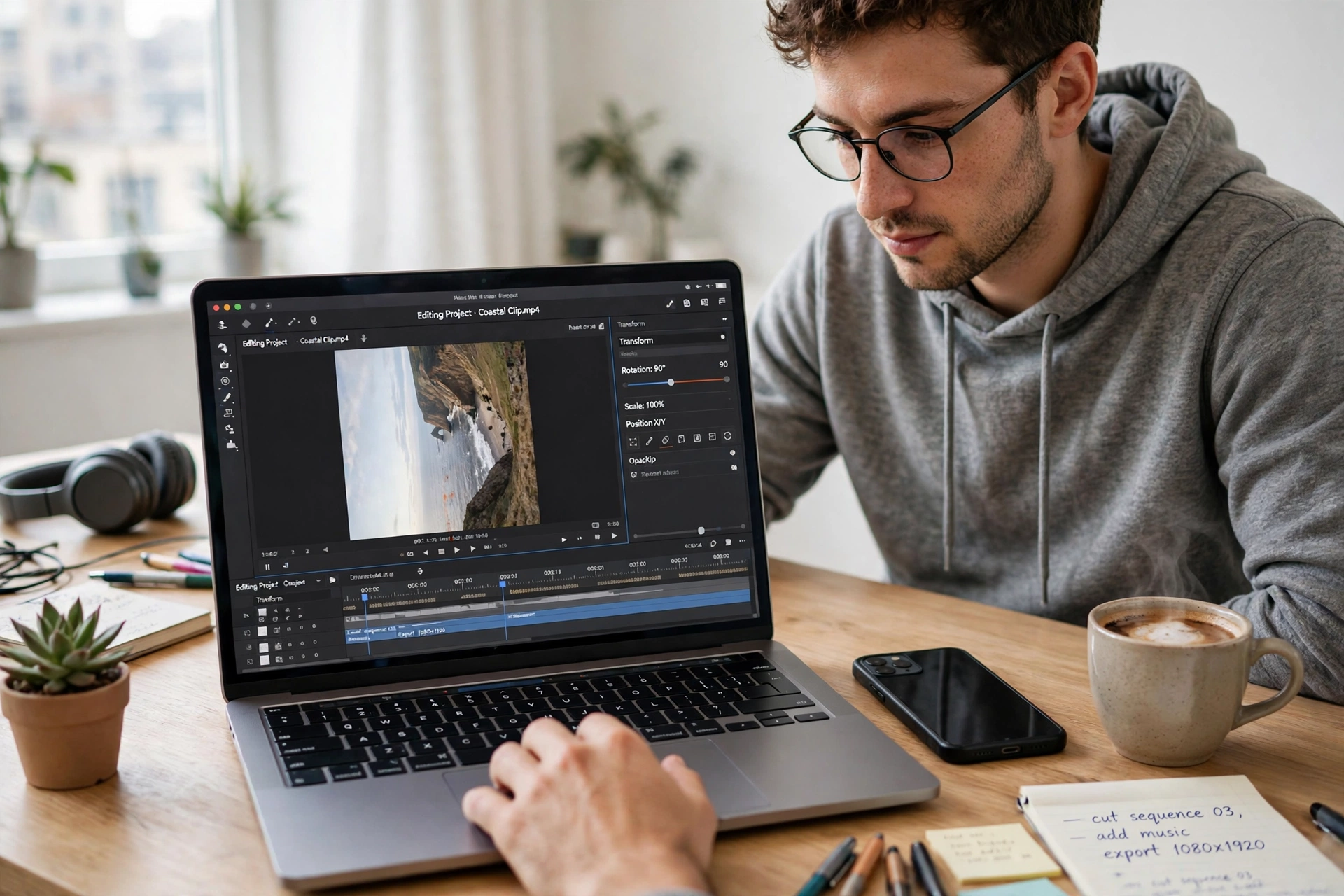
For professional work, Adobe Premiere Pro rotates a clip with its built-in Motion effect: select the clip on the timeline, open Window, then Effect Controls, expand Motion, and type the angle into the Rotation field — 90, 180 or 270 degrees, or any angle in between. Adobe explains the effect in its own apply Motion effect guide. The rotation only changes the picture — the audio is untouched.
How to Fix the Framing After You Rotate Video Online
When you rotate video online, a 90-degree turn swaps the clip’s shape: a wide landscape clip becomes tall, and a tall portrait clip becomes wide. That leaves empty space — black bars — at the sides or top and bottom. To fix it, crop or scale the clip after rotating: zoom in slightly until the frame is filled, or switch the project to the new orientation, such as 9:16 vertical for a phone video. Check the whole clip before exporting, because a face near the edge can get cropped out.
Rotate vs Flip: Which One Do You Need?
Use rotation when the video is sideways or upside down. Use a flip (mirror) when it faces the wrong way — a selfie video that looks reversed, or text that reads backwards. Rotating a sideways selfie video will not fix reversed text; only a horizontal flip does that. Our guide on how to mirror a video covers the flip side.
5 Quick Tips for a Clean Rotation
- Check which way it is lying first. Rotate clockwise if the top of the scene points right, counterclockwise if it points left.
- Rotation does not touch the audio. Your sound stays exactly as recorded.
- Export at the original resolution. Re-encoding at a lower setting is what causes quality loss, not the rotation.
- Keep a copy of the original. Save the rotated clip as a new file.
- Test one clip first. If you are rotating several clips, check the first export before doing the rest.
FAQ: Rotate Video Online
Can I rotate video online free?
Yes. Free online video rotators let you upload a clip, turn it 90 or 180 degrees, and download the result without installing anything or paying. Short clips work best; very long files are quicker in an app.
Does rotating a video reduce its quality?
Rotating itself does not damage the picture, but exporting re-encodes the video. Export at the same resolution and a similar bitrate, and the loss is too small to notice.
How do I rotate a video 90 degrees on iPhone?
Use iMovie: import the clip, select it on the timeline, and twist two fingers on the preview to rotate it 90 degrees. Repeat the gesture until the video is upright, then export it to Photos.
What is the difference between rotating and flipping a video?
Rotating turns the whole frame by 90, 180 or 270 degrees. Flipping mirrors it left to right, so text reads backwards. A sideways video needs a rotation; a reversed selfie needs a flip.
Can I rotate a video without downloading an app?
Yes. You can rotate video online in any browser, or use the tools already on your device — Google Photos on Android, iMovie on iPhone and Mac, and Clipchamp on Windows 11.
Try It Free
The fastest way to rotate video online is the browser method: upload, turn, download — done in under a minute. For a sideways clip on your phone, iMovie or Google Photos is just as quick. And when the job is a still image instead of a video, try the free Flip Image tool — flip or rotate any photo in seconds, with no sign-up and no software to install.

1 Comment
Pingback: How to Flip a Video in Premiere Pro: 5 Easy Ways