

How to Mirror a Video Free: 5 Easy Ways in Seconds
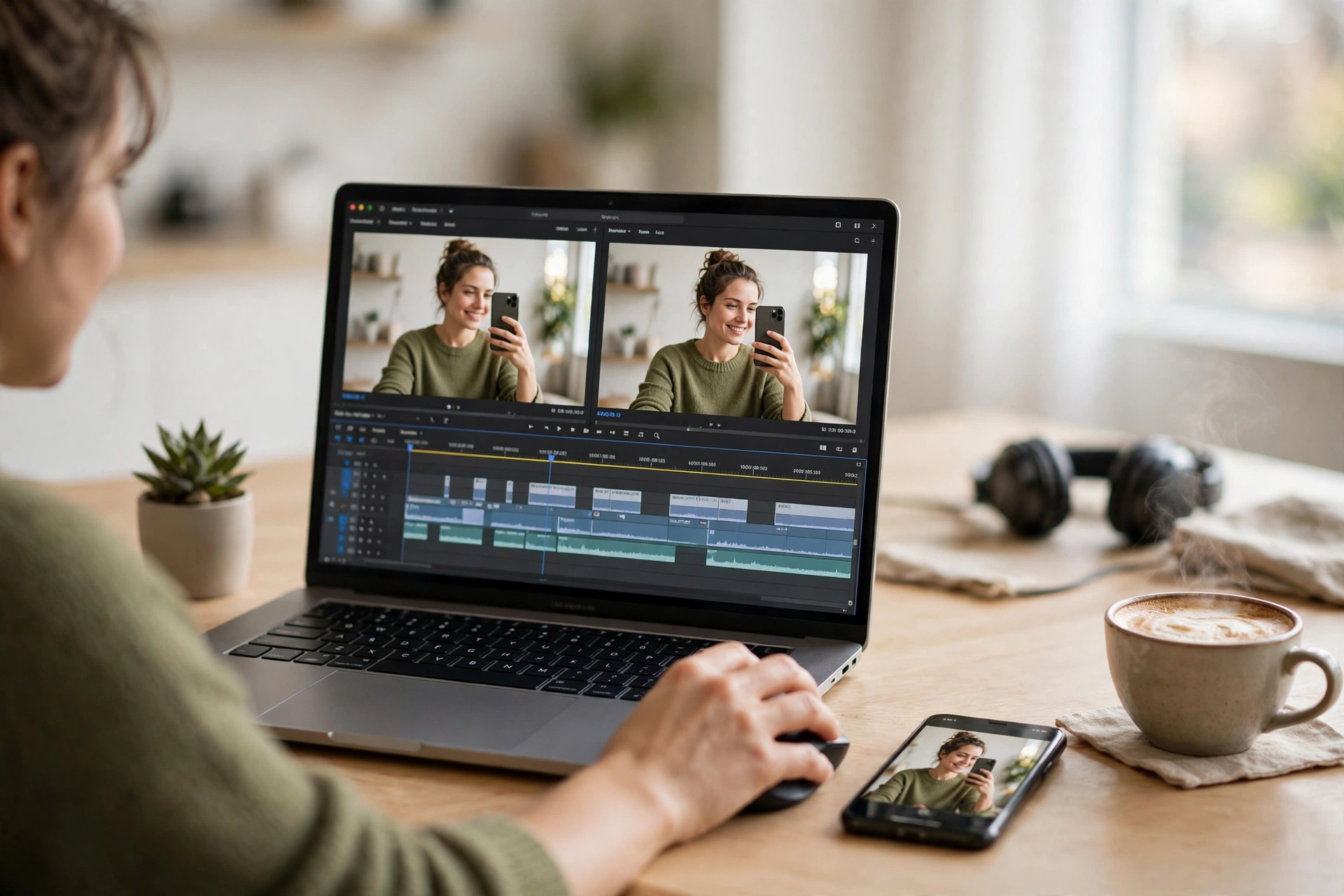
Learning how to mirror a video is easier than most people expect. Mirroring flips a clip from left to right, so everything on the left side of the frame moves to the right and everything on the right moves to the left. The video still plays forward, and the sound does not change at all. You can do it free in under a minute, on your phone or your computer.
What Does It Mean to Mirror a Video?
To mirror a video means to flip every frame of it horizontally, like looking at the footage in a mirror. A person facing left will face right after the mirror is applied, and any text in the frame will read backwards — or forwards again, if it was backwards to begin with.
Mirroring is not the same as rotating. Rotating turns the whole frame by 90 or 180 degrees, while mirroring swaps left and right without turning anything upside down. If you want the full picture of how these moves differ, read our guide on flip vs rotate vs mirror.
Why Would You Mirror a Video?
There are a few everyday reasons to mirror a video. The most common is the front camera: a selfie video often looks reversed, so your face, your hair parting, and any text on your shirt appear the wrong way round. Mirroring the clip fixes that in one step. Other reasons include text that reads backwards, a product facing the wrong way, and footage that must match another clip.
Method 1: How to Mirror a Video Online Free (Fastest Way)
The fastest way to mirror a video is with a free online video editor — nothing to install, and the whole job takes about a minute.
- Open a free online video flipper in your browser.
- Upload your video clip — MP4 and MOV files work in most tools.
- Choose the Flip Horizontal or Mirror option.
- Preview the result and check that any text now reads the right way.
- Export and download the mirrored video.
Online tools are best for short clips. Very long or high-resolution videos take longer to upload and process, so for a big file use a desktop app instead. And if you only need to mirror a single frame — for a thumbnail or a poster — you can flip that still image instantly with the free Flip Image tool, no upload or sign-up needed.
Method 2: How to Mirror a Video on iPhone
You can mirror a video on an iPhone without downloading anything, using the built-in Photos app.
- Open the Photos app and tap the video you want to mirror.
- Tap Edit at the bottom of the screen.
- Tap the Crop icon, then tap the Flip icon at the top left. The video flips horizontally right away.
- Tap Done to save the mirrored version. Your original stays in your library too.
For more control, use iMovie, free from Apple: import the clip, select it on the timeline, and use the crop and rotation controls to flip it. A detailed walkthrough is in this iMovie flip and rotate guide. The same flipping idea works for still photos as well — see our guide on how to mirror an image on iPhone.
Method 3: How to Mirror a Video on Android
On Android, the Google Photos app has a built-in flip option for videos.
- Open Google Photos and tap your video.
- Tap Edit, then tap Crop.
- Tap the Flip icon to mirror the clip horizontally.
- Tap Save copy to keep the mirrored version alongside the original.
If your phone does not show a flip option, a free editor such as CapCut can do it: import the clip, open the Edit menu, and choose the Mirror or Flip option. The steps are the same in most free Android editors. For a selfie clip, the same fix applies to photos, as our mirror selfie guide explains.
Method 4: How to Mirror a Video in Premiere Pro
Adobe Premiere Pro has a dedicated Horizontal Flip effect.
- Import your clip and drag it onto the timeline.
- Open the Effects panel and search for Horizontal Flip under Transform.
- Drag the effect onto your clip. The preview flips left to right at once.
- For a split-screen reflection instead of a full flip, use the Mirror effect under Video Effects, then Distort, and adjust the Reflection Centre to place the mirror line where you want it.
Adobe explains both effects in its own flip video guide. The Horizontal Flip effect only changes the picture — your clip still plays forward, and the audio is untouched.
Method 5: How to Mirror a Video on Windows or Mac
On Windows, open the video in the Photos app, choose Edit, and use the flip option to mirror it horizontally. On a Mac, iMovie works the same way as on iPhone: import the clip, select it, and use the crop controls to flip it. VLC media player is another free option on both systems: open your video, go to Tools, then Effects and Filters, then Video Effects, then Geometry, and turn on the mirror option. For a simple still image, the same horizontal flip is even easier — our guide on how to mirror an image walks through it.
How to Mirror a Video Still or Thumbnail
Sometimes you do not need to mirror the whole video — just one frame of it, for a thumbnail, a cover image, or a social post. Take a screenshot of the frame, then flip it in seconds with the free Flip Image tool. Upload the image, choose Flip Horizontal, and download the mirrored still. It is free and needs no sign-up.
5 Quick Tips for a Clean Mirror
- Check the text first. If a sign, shirt, or logo reads backwards, one horizontal flip fixes it. Flip twice and you are back where you started.
- Mirror does not touch the audio. Your sound stays exactly as recorded.
- Export at the original resolution. Re-encoding at a lower setting is what causes quality loss, not the mirror itself.
- Keep a copy of the original. Save the mirrored clip as a new file so you can always go back.
- Test one clip first. If you are mirroring several clips for one project, check the first export before doing the rest.
FAQ: How to Mirror a Video
Does mirroring a video change the audio?
No. Mirroring only flips the picture left to right; the audio plays exactly as before.
Is mirroring a video the same as rotating it?
No. Mirroring swaps left and right. Rotating turns the frame by 90 or 180 degrees. A video that is upside down needs a rotation, while a video that looks backwards needs a mirror.
Can I mirror a video on iPhone without an app?
Yes. The Photos app on iPhone has a built-in flip option under Edit and Crop. No extra app is needed.
Will mirroring a video reduce its quality?
The mirror itself does not reduce quality. Quality drops only if you export at a lower resolution or bitrate, so always export at the original settings.
Can I mirror only part of a video?
Yes. In Premiere Pro, cut the clip with the Razor tool and apply the Horizontal Flip effect to just that section. In most phone apps, trim the clip first, then mirror the trimmed part.
Related Guides
- How to Mirror an Image — flip any photo left to right in seconds.
- Mirror Photo Free — five easy ways to mirror a picture.
- Mirror Selfie — fix a backwards selfie photo fast.
- Flip vs Rotate vs Mirror — what each move does and when to use it.
- How to Mirror an Image on iPhone — the same fix for still photos on iOS.
Try It Free
Now you know how to mirror a video on any device — online, on iPhone or Android, in Premiere Pro, or on Windows and Mac. For a quick still frame or thumbnail, try the free Flip Image tool and mirror any image in seconds, free, with no sign-up.

4 Comments
Pingback: How to Flip a Video in Premiere Pro: 5 Easy Ways
Pingback: Video Flipper Free: 5 Best Tools to Flip Any Video
Pingback: Invert Video Free: 5 Easy Ways to Reverse Colors Fast
Pingback: How to Mirror a Video on YouTube Free: 5 Easy Ways