

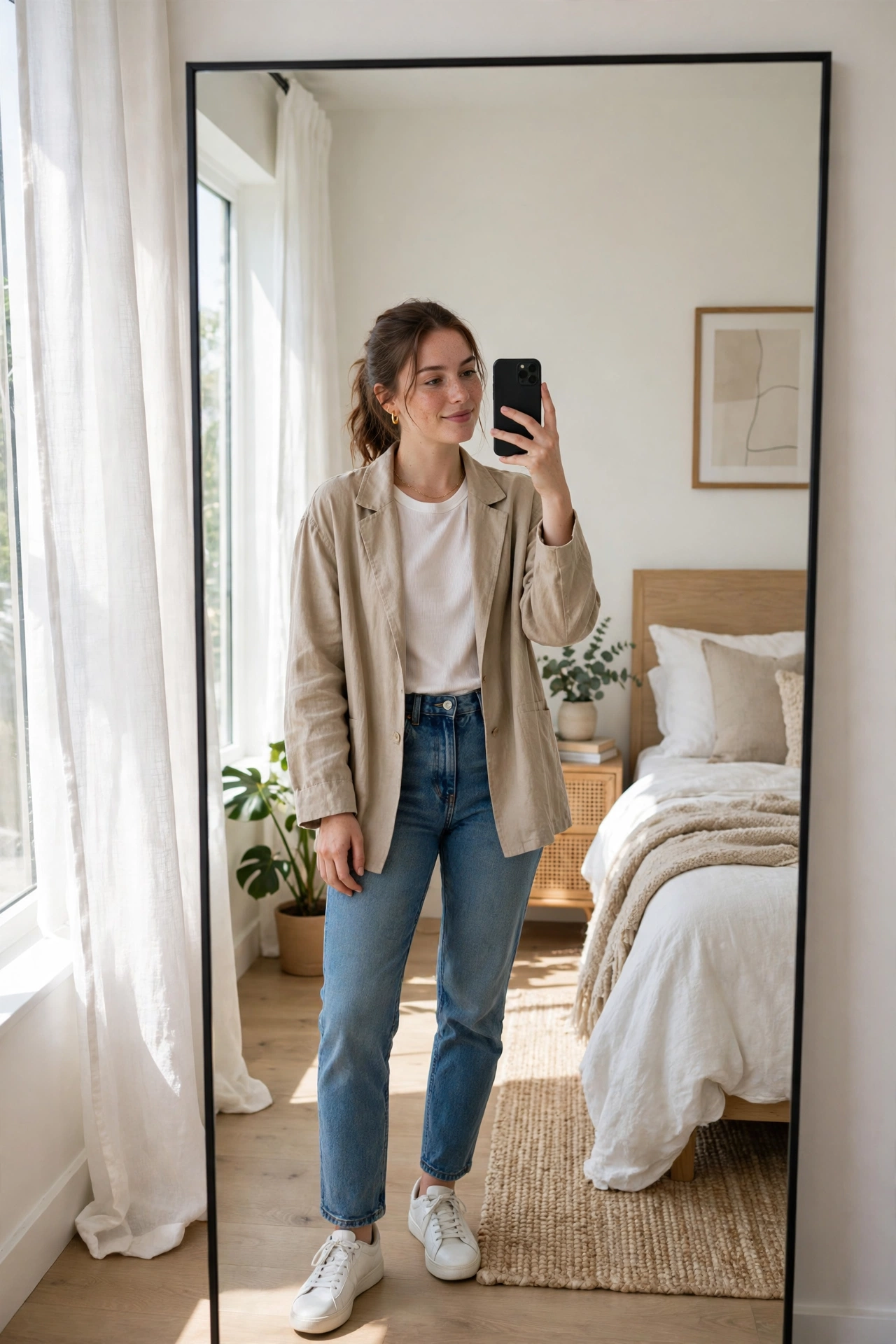
A mirror selfie is the fastest way to show off a full outfit, a new haircut, or a gym look — just stand in front of a mirror, raise your phone, and shoot. The trouble starts after you take it: the text on your T-shirt reads backwards and the whole photo feels slightly off. The fix is simple — flip the photo horizontally — and it takes less than a minute. This guide shows you five free ways to do it, plus tips for a better shot next time.
What Is a Mirror Selfie — and Why Does It Look Backwards?
A mirror selfie is a photo you take of your own reflection in a mirror, usually with your phone’s rear camera. Unlike a front-camera selfie, it can show your whole outfit and surroundings, which is why it is so popular for outfit posts.
The backwards look comes from the mirror itself. A mirror swaps left and right, so anything with text — a logo on a shirt, a sign behind you, a book title — appears reversed in the photo. Your face also looks slightly different from how others see you, since you are used to your mirrored face. Flipping the image horizontally puts everything back the way the world sees it, and the text reads normally again. If you want to understand the difference between the two effects, our guide on how to flip a selfie explains when a flip helps and when it does not.
5 Easy Ways to Flip a Mirror Selfie Free
Method 1: Flip It Online Free (Fastest Way)
The quickest fix is a free online tool — no app to install and no account to create.
1. Open the free Flip Image tool in your browser.
2. Upload your photo from your phone or computer.
3. Choose Flip Horizontal to mirror it left to right.
4. Download the flipped photo and post it straight away.
The whole thing takes under a minute, and the photo keeps its original quality because flipping only rearranges pixels — it does not compress or crop anything. This is the method to use when you want one photo fixed fast. For more detail on the same technique, see our guide on how to flip a photo mirror.
Method 2: Flip It on iPhone
If the photo is already on your iPhone, the built-in Photos app can flip it in a few taps.
1. Open the Photos app and pick your photo.
2. Tap Edit, then tap the Crop icon.
3. Tap the Flip button (the triangle icon at the top left).
4. Tap Done to save.
The edit is non-destructive — open the photo later and tap Revert to restore the original. If your front-camera selfies keep saving backwards, you can also stop the problem at the source: go to Settings > Camera and turn on Mirror Front Camera, so new selfies save exactly as they looked in the preview. See Setapp’s iPhone flip guide for screenshots of each tap, or our own guide on how to flip a photo on iPhone.
Method 3: Flip It on Android (Google Photos)
On Android, Google Photos has the same one-tap flip built in.
1. Open your photo in Google Photos.
2. Tap Edit, then tap Crop.
3. Tap the Flip horizontal icon.
4. Tap Save copy to keep both versions.
If your phone lacks Google Photos, the online tool in Method 1 works in any mobile browser. Our guide on how to flip an image in Google Photos covers the Android steps in more detail.
Method 4: Flip It in Canva
Canva is a good choice when you also want to add text, a frame, or a filter after flipping.
1. Open Canva and upload your photo to a new design.
2. Click the photo to select it.
3. Click Flip in the top toolbar, then choose Flip horizontal.
4. Download the finished design as a JPG or PNG.
Canva’s free plan is enough for this — you do not need a paid subscription just to flip a photo.
Method 5: Flip It in Photoshop
Photoshop gives you the most control, which helps when you want to flip only part of a photo or combine the flip with a bigger edit.
1. Open your photo in Photoshop.
2. Go to Image > Image Rotation > Flip Canvas Horizontal.
3. Save the file with File > Save As so your original stays untouched.
For one photo this is more effort than the other methods, but it is worth knowing if you already use Photoshop.
5 Quick Tips to Take a Better Mirror Selfie
Flipping fixes the backwards text, but a great shot starts with a good photo. These five habits make the biggest difference:
1. Clean the mirror and your lens. Smudges show up far more in a photo than to your eye, so a quick wipe before you shoot is the easiest upgrade there is.
2. Face the light, and turn the flash off. Stand so a window or a lamp lights your front, not your back. A flash fired at a mirror bounces straight back into the lens and leaves a bright white spot in the middle of the photo.
3. Hold the phone at chest height, slightly to one side. Holding it dead centre hides your face and flattens the shot. Off to one side, at chest height, keeps your face clear and your proportions natural.
4. Step back for a full outfit. About a metre from the mirror works for a half-body shot; step back further for a full-length photo — a mirror doubles the distance your camera sees.
5. Check the background. A tidy corner, a plain wall, or a neat bed behind you keeps the focus on you. Clutter in the background is the most common reason a mirror photo looks messy.
Perfect Corp’s mirror selfie guide covers the same ideas, with extra pose ideas to try. A related skill worth learning is how to mirror a photo in general, since the same flip fixes any photo that came out reversed.
Mirror Selfie vs Regular Selfie — What’s the Difference?
A regular selfie uses the front camera, so it is a close-up of your face and shoulders. A mirror selfie uses the rear camera pointed at a mirror, so it captures your full outfit, your pose, and the room around you. The rear camera is also usually sharper than the front camera, which is one reason these shots often look better. The trade-off is reversed text and the phone in the frame — both easy to fix with a flip and a slight side angle.
FAQ About Mirror Selfies
Why is the text backwards in my mirror selfie?
Because a mirror reverses left and right, so text on your clothes or signs behind you appears mirrored. Flip the photo horizontally and the text reads normally.
Should I flip my mirror selfie before posting?
Usually, yes — if there is readable text in the shot. If there is no text and you like the mirrored version, either way looks fine. Just avoid posting a photo where a brand name or slogan reads backwards, because that is the first thing people notice.
Does flipping a mirror selfie reduce quality?
No. Flipping only swaps pixels left to right; it does not compress or crop anything. The photo keeps the same resolution and detail as the original.
Can I flip a mirror selfie on Android without installing an app?
Yes. Open the free Flip Image tool in your phone’s browser, upload the photo, tap Flip Horizontal, and download it — nothing is installed.
Try It Free — Flip Your Mirror Selfie in Seconds
A mirror selfie should show your outfit, not backwards text. Pick the method that fits your device — the free online tool is fastest, your phone’s Photos app is closest at hand, and Canva or Photoshop are there for a bigger edit — then post with confidence. Try the free Flip Image tool now and fix your mirror selfie in under a minute.

1 Comment
Pingback: How to Flip a Video in iMovie Free: 5 Easy Ways