

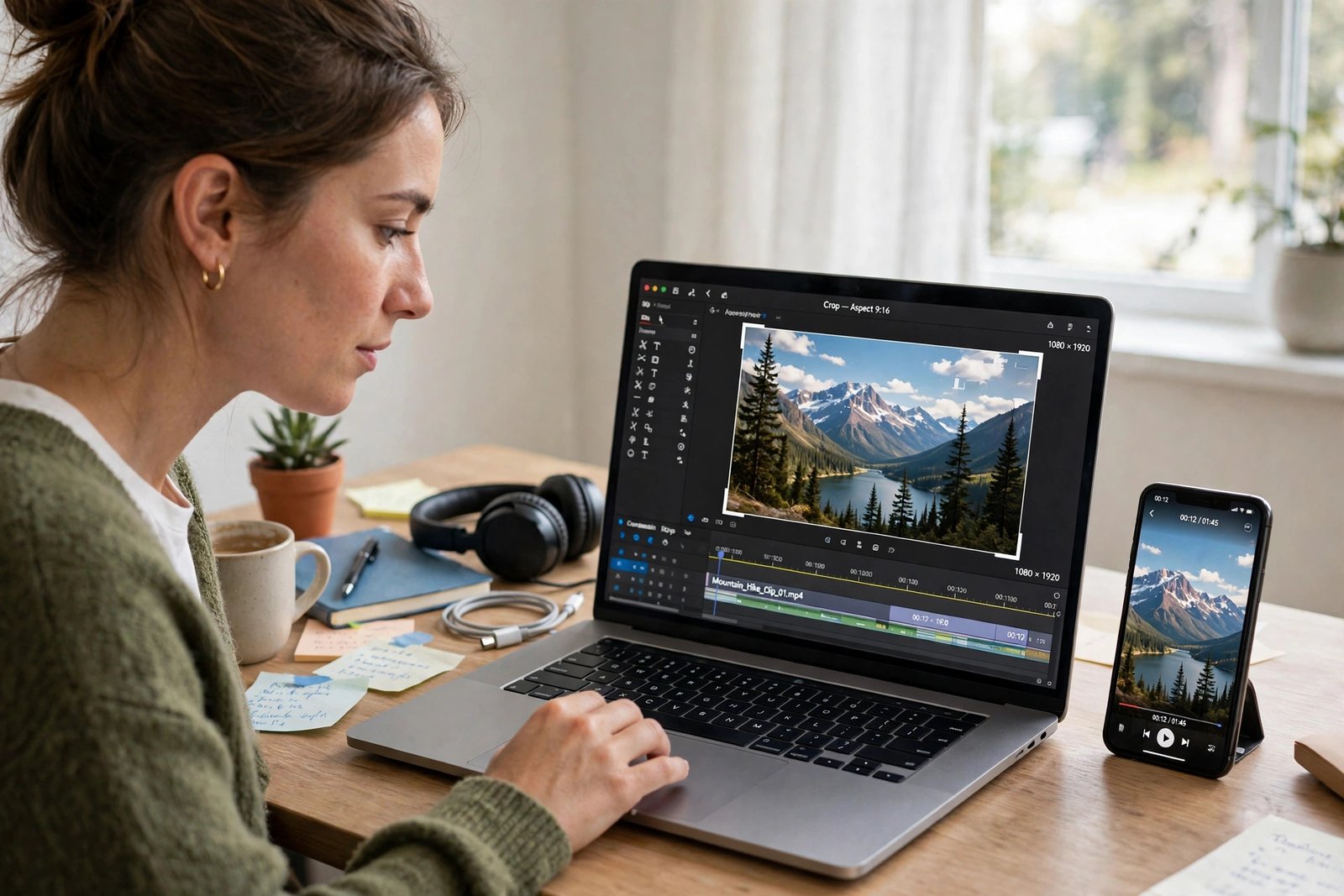
Crop video work is the fastest fix when a clip has the right moment but the wrong frame: a stranger’s elbow at the edge, black bars top and bottom, or a wide landscape shot that needs to become a vertical Reel. Cropping cuts away the edges of the picture and keeps only the part you want — the video gets shorter in width or height, not in time.
This guide shows five free ways to crop video — online, on iPhone, on Android, on Windows and on Mac — plus the aspect ratios each platform expects.
Crop vs Trim vs Resize: What Cropping Actually Does
People mix these three up, and picking the wrong one wastes the edit.
- Crop removes parts of the frame — the edges of the picture. The video keeps its full length, but the picture gets narrower or shorter. Use it to cut out clutter, remove black bars or reframe a subject.
- Trim shortens the video in time. It cuts seconds off the start or end and changes nothing about the frame.
- Resize changes the whole frame’s dimensions, usually by scaling everything down. It keeps the full picture, just smaller.
Many clips need both a crop and a trim: crop the frame first, then trim the length.
Method 1: Crop Video Online Free (Fastest Way)
The fastest way to crop video is a free online cropper. You upload the clip, drag the crop box, and download the result. No software, no account, and it works on any device.
- Open a free online video cropper — Adobe Express offers one that runs in the browser.
- Upload your video or drag it into the upload box.
- Choose a preset aspect ratio (9:16 for vertical, 16:9 for widescreen, 1:1 for square) or pick Freeform to set your own dimensions.
- Drag the handles on the video until only the part you want is inside the frame.
- Download the cropped video and save it where you need it.
Adobe’s own crop guide walks through the same flow — choose the aspect ratio, drag the handles, then download — so it is a good reference if a step looks different in your browser: Adobe Express: Crop videos.
Method 2: Crop Video on iPhone (Photos App, No Extra App)
Your iPhone already crops video — the Photos app has a crop tool built in, and it takes under a minute.
- Open Photos and tap the video you want to crop.
- Tap Edit, then tap the crop icon at the bottom of the screen.
- Drag the corners or edges of the frame until only the part you want is inside it.
- To fit a platform, tap the aspect-ratio button and pick 9:16, 16:9 or square — or pinch to zoom in on your subject.
- Tap Done. The cropped version replaces the original in your library; tap Revert in Edit at any time to get the full frame back.
Best for clips shot on the phone itself. If the video also faces the wrong way, fix that first — our guide to flipping a video on iPhone covers the mirror fix in the same app.
Method 3: Crop Video on Android (Google Photos)
On Android, Google Photos does the same job for free, and it works on almost every phone.
- Open Google Photos and tap the video you want to crop.
- Tap the Edit (pencil) icon at the bottom.
- Tap Crop, then drag the corners or edges of the frame to set the area to keep.
- Tap an aspect-ratio preset (Original, Square, 16:9, 4:3, 3:2) or drag freely.
- Tap Save copy. Google Photos saves the cropped video as a new file, so your original stays untouched.
One warning: cropping in Google Photos re-encodes the video, so a very heavy crop can look slightly softer than the original. Keep the crop gentle and the difference is invisible.
Method 4: Crop Video on Windows (Clipchamp)
On Windows 11, Clipchamp is Microsoft’s built-in editor and its crop tool is free. Microsoft’s own support page documents the same steps linked below.
- Open Clipchamp from the Start menu (on Windows 10, install it free from the Microsoft Store) and start a new video.
- Import your video and drag it onto the timeline.
- Click the clip on the timeline so it is highlighted, then click the crop button on the floating toolbar inside the stage.
- Freehand cropping handles appear on the sides, top and bottom of the video in the preview. Drag them inward until the unwanted area is outside the box.
- Click Done, then Export and choose 1080p.
If the clip has black bars, Clipchamp’s Fill button on the same toolbar removes them by enlarging the picture to fit the aspect ratio. Microsoft’s official instructions cover both buttons: Microsoft Support: How to crop videos or images in Clipchamp.
Method 5: Crop Video on Mac (iMovie)
On a Mac, iMovie is free and already installed on most machines, and its Crop to Fill mode is made for exactly this job.
- Open iMovie and create a new Movie project.
- Import your video and drag it onto the timeline.
- Click the clip in the timeline to select it, then click the Crop button above the viewer.
- Choose Crop to Fill. A frame appears over the video — drag it and resize it to the part you want to keep.
- Click the checkmark to apply, then Share and Export File to save the cropped video.
Do not pick Ken Burns in the same panel by mistake — it zooms and pans, it is not a crop. If your clip needs rotating instead, our guide to rotating a video online covers that fix.
Which Aspect Ratio Should You Crop Video To?
Crop video to the ratio of the place it will be watched: 16:9 wide for YouTube and TV, 9:16 tall for TikTok, Reels and Shorts, 1:1 square for feed posts, and 4:5 tall for the Instagram feed.
A 16:9 clip cropped to 9:16 throws away the left and right thirds of the picture, so check that your subject stays in the middle of the frame before you export. If the subject is off-centre, reposition the crop box instead of accepting the default centre cut.
After Cropping: Flip, Compress or Share Your Video
Once the frame is right, the clip may need one more touch. A cropped video is often still a large file: compressing the video shrinks it for email and uploads without changing the frame you just set. If a still frame you pull from the clip faces the wrong way, flip the image online free with our tool in seconds.
If you pull a still frame from your cropped video — a thumbnail, a poster frame, or a shot for a document — and that image needs to live inside a PDF for sharing, printing or a form upload, convert your PNG to PDF in seconds.
FAQs About Cropping a Video
Does cropping a video reduce quality?
It can, slightly. Cropping throws away pixels, so a heavy crop shown at the original resolution stretches fewer pixels across the same screen. Keep the crop gentle, export at the original resolution, and never crop the same clip twice.
Can I crop a video on my phone without an app?
Yes. iPhone Photos and Android Google Photos both crop video with no extra download, and both keep your original file recoverable.
What is the difference between cropping and trimming a video?
Cropping cuts the edges of the picture; trimming cuts seconds off the start or end. Cropping changes what you see, trimming changes how long it plays. Most edits need one of them, and many need both.
Will cropping remove a watermark at the edge of a video?
Only if the watermark sits entirely inside the area you cut away. Do not crop out someone else’s watermark to reuse their footage — that is their content, and removing the credit does not make it yours.
Try It Free
Crop video free in seconds once you know your device’s method: the online cropper, Photos on iPhone, Google Photos on Android, Clipchamp on Windows, or iMovie on Mac. Pick the ratio your platform wants and always crop from the original file. And when your stills are ready, flip, mirror or rotate them free with our online tool — no downloads, no sign-up.
