

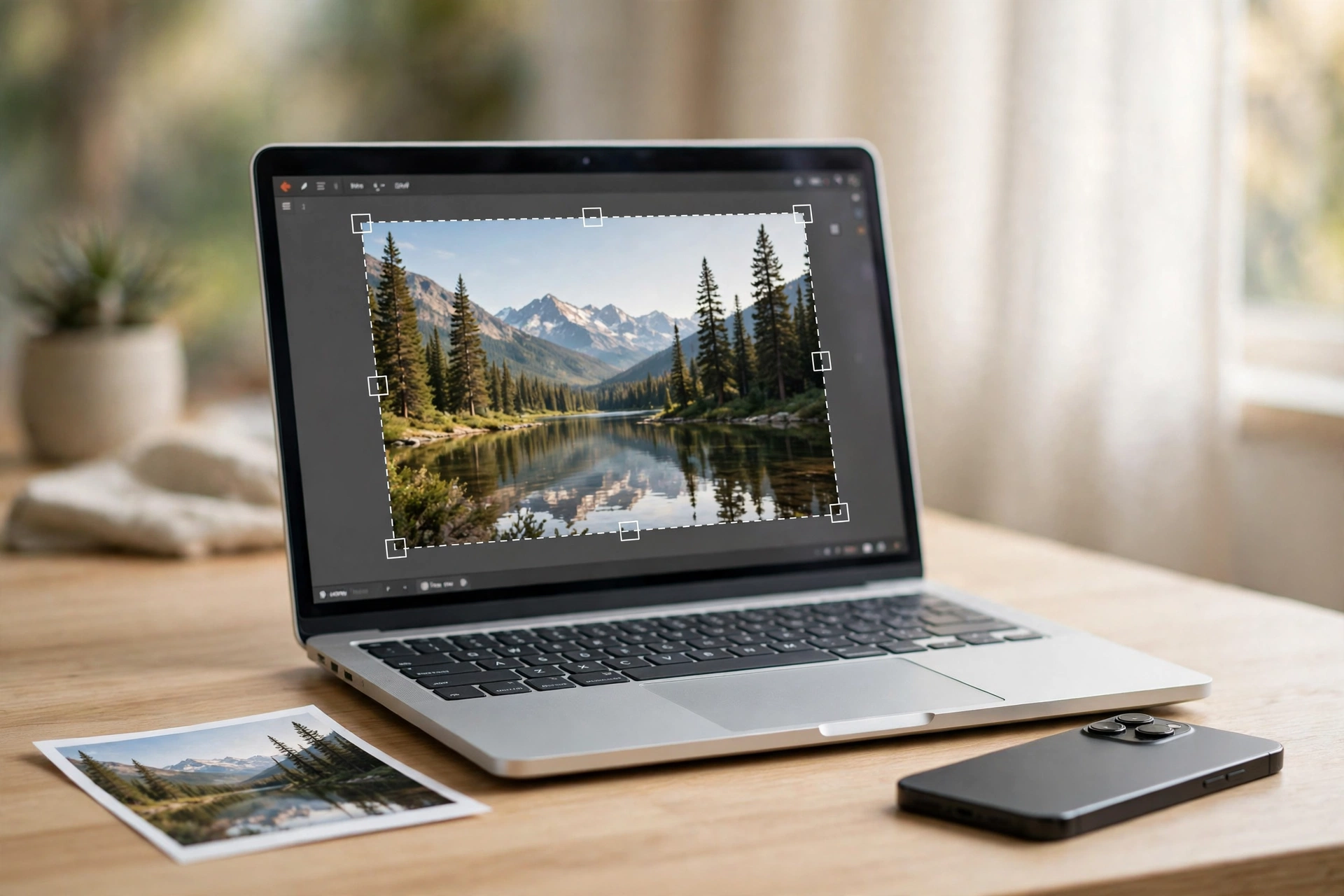
An image resizer is a free tool that changes a photo’s width and height in pixels, so it fits exactly where you need it. A profile picture, a blog header, a job application form, or an Instagram post all ask for different sizes, and an image resizer gets your picture to the right size in seconds.
Most phone photos are far bigger than any website needs: a single picture can be 4,000 pixels wide and several megabytes in size. Resize it to the size the site asks for and it uploads first time, loads fast, and still looks sharp. This guide compares the five best free image resizers and lists the exact sizes to use.
What Is an Image Resizer?
An image resizer is a tool that changes the pixel dimensions of a picture. You give it a photo and a target size — say 1080 by 1080 pixels — and it returns the same photo at that size. Nothing is cut out of the frame: the whole picture stays visible, just at different dimensions.
Good image resizers let you set the size in more than one way: pixels, a percentage, a print size in centimetres or inches with a DPI value, or a maximum file size in kilobytes — handy when a form says “under 100 KB” as well as giving exact dimensions. The best ones also resize a whole batch of photos at once.
Image Resizer vs Compressor vs Cropper: What’s the Difference?
These three tools sound similar, but they solve different problems. Resizing changes how many pixels an image has. Compression changes how many bytes each pixel costs — it shrinks the file without changing the dimensions. Cropping removes part of the picture to change its shape.
A photo that is too wide for a form needs resizing; a photo that is the right size but too heavy to email needs compression; a photo with distracting edges needs cropping. In practice you often need two of the three: resize a photo to 1200 pixels wide and it will usually be much smaller in file size too. If the file is still too large, you can also compress an image to shrink it further without touching its dimensions. And if you need to change a picture’s direction rather than its size, see our guide on how to flip an image in seconds.
5 Best Free Image Resizers Compared
Not every image resizer is equally good. Some need an account first, some add a watermark to free downloads, and some only resize one photo at a time. Here is how the five best free options compare.
| Tool | Free? | Exact pixels? | Batch resize? | Account needed? |
|---|---|---|---|---|
| Flip Image | Yes | Yes | No | No |
| Canva | Yes | Yes | No (Pro for bulk) | Yes |
| Windows Photos / Paint | Yes | Yes | No | No |
| Mac Preview | Yes | Yes | No | No |
| Squoosh | Yes | Yes | No | No |
1. Flip Image — Best Free Online Image Resizer
Flip Image is the fastest option when you want a resized photo without installing anything or creating an account. Open the free tool in your browser, upload your photo, enter the new width or height in pixels, and download the result. It works the same way on Windows, Mac, Chromebook, iPhone, and Android. See our step-by-step resize image guide for the full workflow.
2. Canva — Best Image Resizer for Social Media Designs
Canva is the best image resizer when the photo is part of a design, such as an Instagram post or a YouTube thumbnail. Drag a photo to the size you want, or type exact pixel values in the Position panel. The catch is that converting a whole design to a new format needs a Pro subscription. This guide to resizing images in Canva explains the free and paid options clearly.
3. Windows Photos and Paint — Best Built-in Image Resizer on Windows
In the Photos app, open your picture, choose the resize option, and pick a preset size or type in your own dimensions. For more control, open the picture in Paint, where you can resize by percentage or by exact pixel values. Save the result as a new file rather than overwriting your original.
4. Mac Preview — Best Built-in Image Resizer on Mac
On a Mac, Preview is the quickest built-in option. Open your image, go to Tools, then choose Adjust Size. Type the new width or height, keep the proportions box ticked, and save a copy. Preview also shows the resulting file size as you change the numbers.
5. Squoosh — Best Image Resizer for Exact Quality Control
Squoosh is Google’s free browser tool for resizing and compressing images, best when you want fine control over the result. Set exact dimensions, pick the output format, and watch the file size change as you move the quality slider. It runs entirely in your browser, so nothing is uploaded.
How to Use an Image Resizer in 5 Steps
Whichever tool you pick, the steps are the same.
- Find your target size first. Check what the website or form actually asks for.
- Keep a copy of the original. A photo made smaller cannot regain lost detail, so always work on a copy.
- Upload your photo and enter the new size. Type the width or the height, and keep the aspect ratio locked.
- Choose the right format. Use JPEG for photographs and PNG for graphics with sharp lines or transparency. The MDN image file type and format guide explains which format suits each kind of picture.
- Download and check the result. Zoom in on a face or a line of text and make sure the edges still look clean.
If you resized a PNG for a form that asks for a PDF instead, convert your PNG to PDF before uploading — it keeps the layout fixed.
Best Image Sizes for Social Media and the Web
Use these sizes as a starting point — platforms change their recommendations, so check the current guidance of the site you post to.
| Use | Suggested size |
|---|---|
| Profile picture | 400 x 400 pixels |
| Instagram post | 1080 x 1080 pixels |
| Instagram Story or Reel | 1080 x 1920 pixels |
| YouTube thumbnail | 1280 x 720 pixels |
| Blog post image | 1200 x 800 pixels |
If the file is still too heavy after resizing, compress a PNG to shrink it further. And if you need a different format afterwards, our guide shows how to convert PNG to JPG in seconds.
5 Mistakes to Avoid When You Resize an Image
First, do not turn off the aspect ratio lock — that stretches the picture. Second, do not overwrite your original file. Third, do not enlarge a tiny picture to a huge size and expect it to look sharp. Fourth, do not use a PNG for a large photograph when a JPEG would be much smaller. Fifth, do not resize when what you need is to crop an image — resizing changes the size of the whole picture, while cropping removes part of it.
Frequently Asked Questions
What is the best free image resizer?
It depends on what you need: for a quick resize with no account and no install, a free online tool is fastest. For photos inside a social media design, Canva is best. For exact quality control, Squoosh is best. All five tools in this guide are free.
Does an image resizer reduce quality?
Making an image smaller usually keeps it looking sharp. Enlarging an image often makes it look soft or blurry. Keep the aspect ratio locked.
Can I resize an image without losing quality?
You cannot add detail that was never there. But resize from the original file, keep the aspect ratio locked, and save photographs as JPEG and graphics as PNG.
What size should I resize an image to?
For most websites, 1200 pixels wide is a good balance between sharpness and file size. For a profile picture, 400 by 400 pixels is usually enough. For Instagram, use 1080 by 1080 pixels for a post and 1080 by 1920 for a Story or Reel.
Try It Free
Now you know what an image resizer does, which free tool suits your job, and the exact sizes to use. Open the free tool and resize your first picture in seconds — no sign-up, no software, no watermark.
