

Compress JPG Free: 5 Easy Ways to Shrink Any JPG in Seconds
Need to compress JPG files without ruining the photo? A JPG straight from a phone camera can weigh 4 MB or more — far too heavy for a website, an email attachment, or a form that only accepts files under 200 KB. The good news is that you can compress JPG images free in seconds and shrink them by 70 to 90 percent while keeping them sharp on any screen. This guide shows you five easy ways to do it — online, on Windows, on Mac, and on your phone.
Why Compress a JPG?
A JPG is already a compressed format, but cameras save photos at very high quality, which means very large files. Shrinking them means faster websites, since photos are often the heaviest part of a page; smaller email attachments, where a handful of full-size photos can hit the 25 MB limit; and uploads that fit, because job portals and applications often demand a photo under 100 KB or 200 KB. Push the compression too far, though, and the photo turns blurry, with blocky patches around edges and text. Keep the quality in the right range and nobody can tell the difference.
How JPG Compression Works
JPG uses lossy compression: it throws away some image data to make the file smaller. Lower the quality setting and the compressor groups nearby pixels into small blocks, keeping less detail in each one. That is also why you should never save the same JPG over and over again — every save re-compresses the file and throws away a little more detail. Always keep your original photo safe and compress a copy instead.
Method 1: Compress JPG Online Free (Fastest Way)
The quickest way to compress JPG files is a free online tool — no software to install and nothing to learn.
- Open the free Flip Image tool in your browser.
- Upload your JPG photo from your computer or phone.
- Choose your compression level and download the smaller file.
It works the same on Windows, Mac, Chromebook, iPhone, and Android. If you also need to flip a photo before sharing it, the same tool can flip your image horizontally or vertically in one click.
Method 2: Shrink a JPG to an Exact Size (50 KB, 100 KB, or 200 KB)
Many forms do not ask for “a smaller photo” — they ask for a photo under a specific size, such as 100 KB or 200 KB. This method hits that target exactly. Open your JPG in a compressor that lets you set a target file size. Adobe’s free JPG compressor is one reliable option: upload the photo and drag the slider until the size shown matches your target.
If the file is still too big at a reasonable quality, resize the photo first — cutting the width from 4000 pixels to 1600 pixels often halves the file size on its own. Then download the result and check the file size. If it is still slightly over, lower the quality by 5 points and try again.
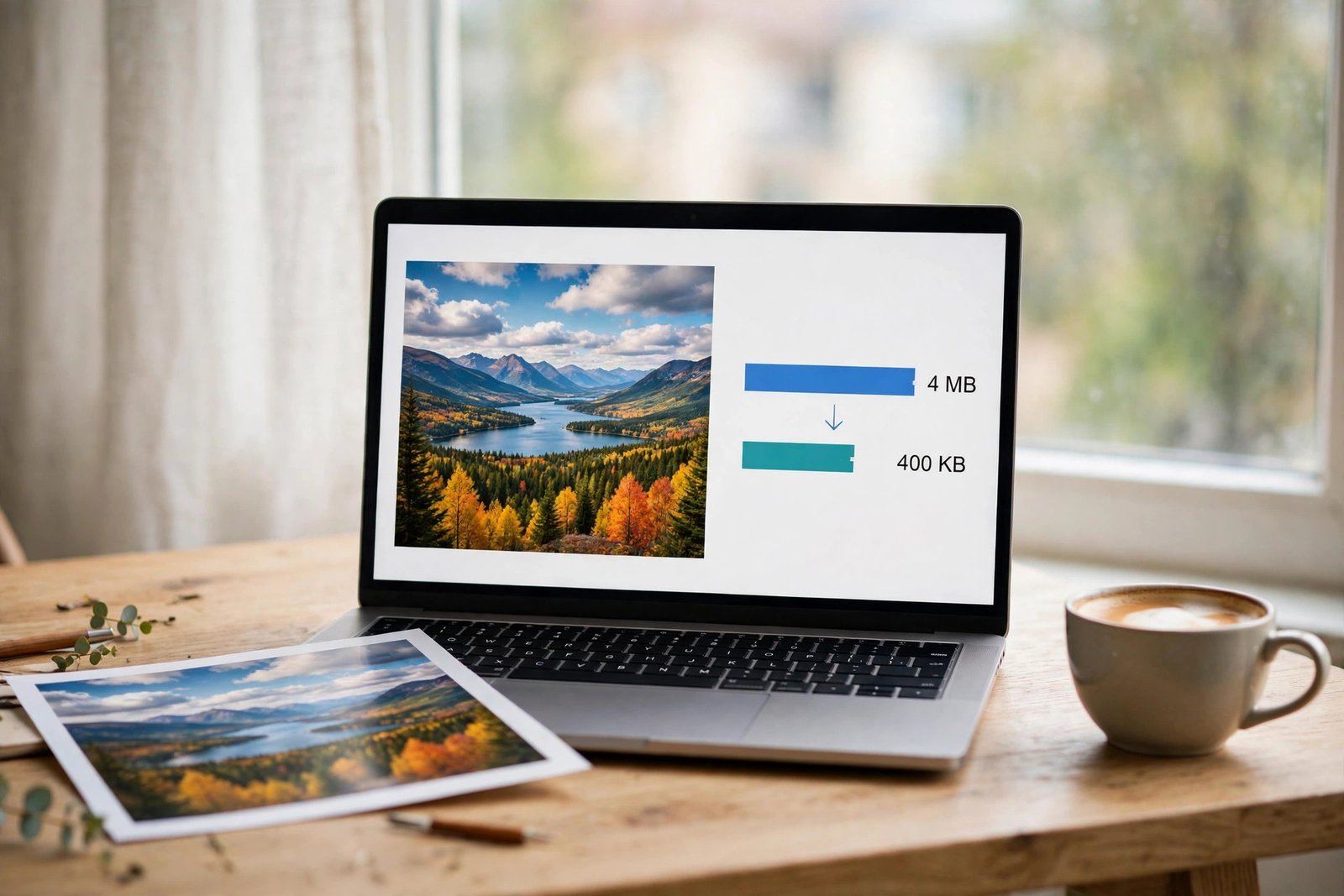
A typical phone photo of 4 MB drops to around 400 KB at quality 80 — a 90 percent saving. To reach 200 KB, most photos need quality 75 to 80 plus a resize to about 1600 pixels wide. For a strict 100 KB or 50 KB limit, resize first, then compress — never crush the quality slider to the bottom.
Method 3: Compress JPG on Windows
Windows has everything you need built in, and the Photos app is the simplest route. Right-click your JPG, choose Open With, then Photos. Click the three dots in the top bar, choose Resize, and pick a smaller size such as 1600 pixels wide, then save a copy. For finer control, open the photo in Paint, click Resize, reduce it to 50 or 60 percent, and save as a new JPG. And if your photo is in a different format, our guide on how to convert JPG to PNG explains when switching formats actually helps.
Method 4: Compress JPG on Mac
Mac users can shrink a JPG in seconds with Preview, which is already on every Mac. Open the JPG in Preview, go to Tools, then Adjust Size, and lower the width — 1600 pixels is a good size for the web — with “Resample image” ticked. Then choose File, then Export, pick JPEG, and drag the quality slider to around 80. Preview shows the estimated file size as you move the slider, so stop as soon as it drops under your target. Exporting creates a new file, so your original stays untouched.
Method 5: Compress JPG on iPhone and Android
Phone photos are the biggest JPGs most people deal with, because modern phones shoot at 12 megapixels or more. On iPhone, open the photo in the Photos app, tap Share, and save a smaller copy through the Shortcuts app — or open a browser-based compressor in Safari and upload the photo there. On Android, open the photo in Google Photos, tap Edit, and use the crop and resize tools to cut the dimensions down, then export the result. Before you share, check the size in the Files app.
Which Quality Setting Should You Pick?
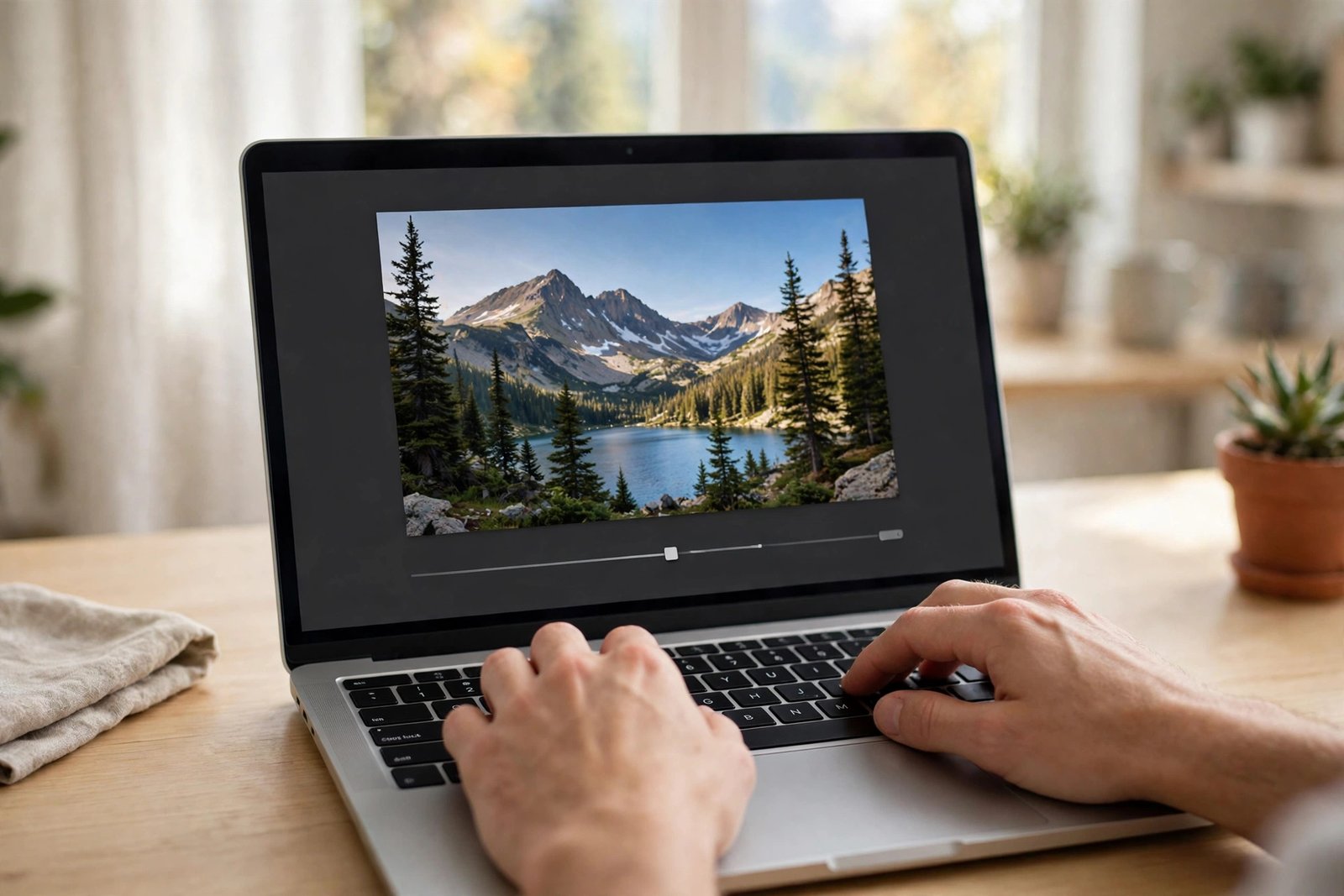
The quality slider is where most people go wrong. Quality 90 to 100 is for archiving and professional printing: the file only shrinks by 20 to 40 percent, but every detail survives. Quality 75 to 89 is the sweet spot for websites, social media, and email: most photos shrink by 50 to 70 percent and still look crisp on screen.
Quality 60 to 74 is fine for thumbnails and small previews, where nobody will zoom in. Below 60, blocky artefacts start to appear, especially around text and sharp edges. As a rule of thumb, start at 80 and look at the result.
If the file is still too big, resize the dimensions before you touch the quality slider again — shrinking the pixel size saves far more than crushing the quality. The same idea applies to other formats: see our guides on how to compress a PNG and compress GIF.
3 Mistakes That Ruin JPG Quality
First, re-saving the same file again and again: each save throws away more detail, so always work from the original. Second, compressing before resizing: a 4000-pixel photo compressed to 60 percent quality looks worse than a 1600-pixel photo compressed to 80 percent. Third, using JPG for text and line art: JPG is built for photographs, so screenshots full of small text turn blurry — PNG is better for those, as explained in our guide to compressing images the right way.
Frequently Asked Questions About Compressing JPG
What is the best quality setting for a JPG?
For the web and social media, quality 75 to 85 is the best balance. For printing or archiving, stay at 90 or above. For thumbnails, 60 to 74 is fine. Below 60, blocky artefacts appear, especially around text and sharp edges.
Can I compress a JPG to exactly 100 KB?
Yes. Use a compressor with a target-size option, or resize the photo to around 1200 to 1600 pixels wide first, then lower the quality in small steps until the file lands under 100 KB.
JPG vs JPEG — is there a difference?
No. JPG and JPEG are the same format. The shorter .jpg extension comes from older Windows systems that only allowed three-letter extensions. Every method in this guide works for both .jpg and .jpeg files — you can read the full history on the JPEG Wikipedia page.
Try It Free
Now you know how to compress JPG files the right way — pick a target size, resize first, and keep the quality between 75 and 85 for anything you share online. If you only need one photo shrunk right now, try the free Flip Image tool: upload your JPG, compress it, and download the smaller file in seconds, with no sign-up and no software. And if that photo needs to end up inside a PDF — for a form, a job application, or printing — you can convert your PNG to PDF free once it is in PNG format. For more help, see our guides on resizing images and cropping images.
