

JPG to WebP Free: 5 Easy Ways to Convert Any Photo in Seconds
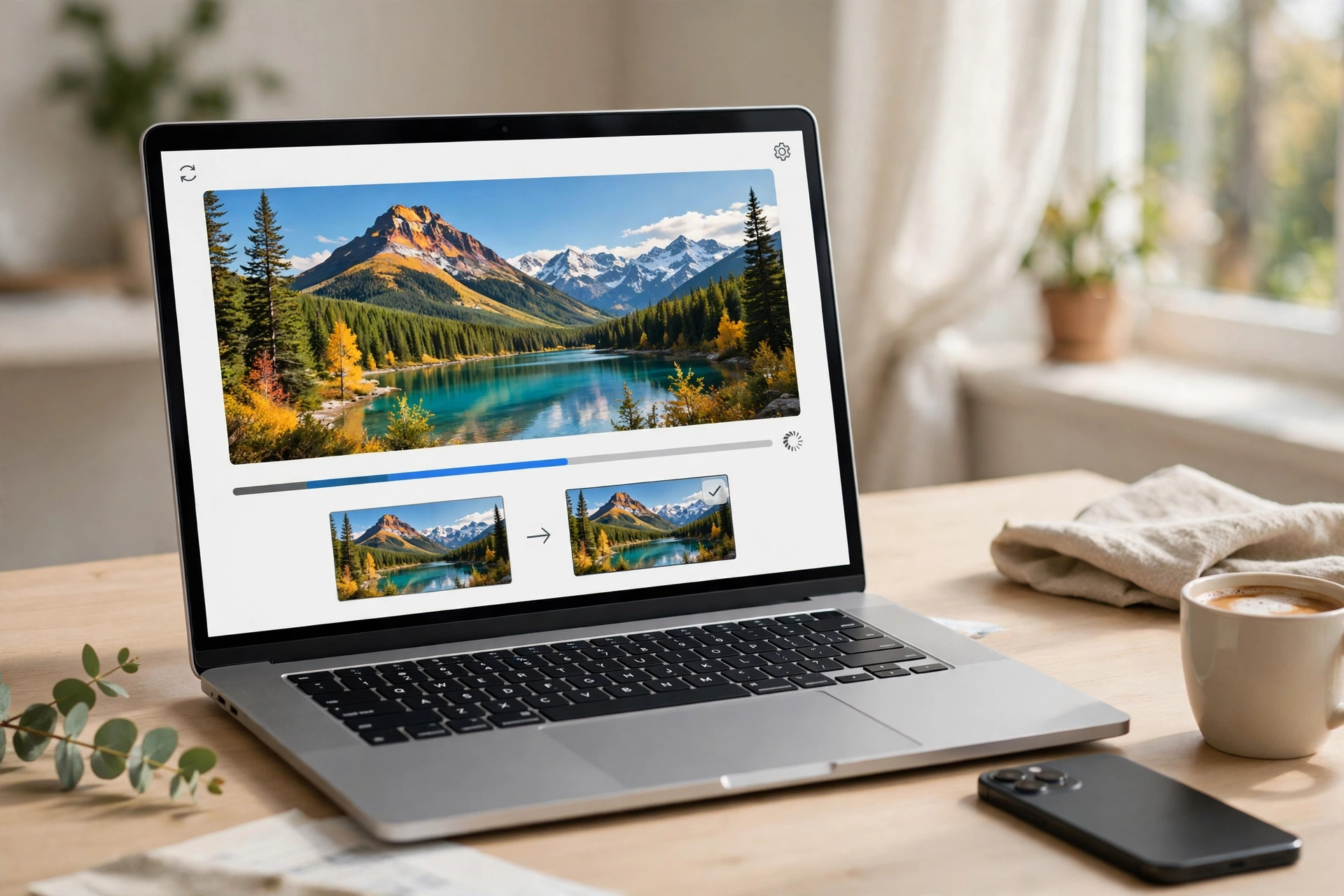
Converting JPG to WebP is the fastest way to make your photos smaller without making them look worse. A 2 MB JPG photo can shrink to around 1 MB or less as WebP, and most people cannot tell the two apart. Below are five free ways to convert JPG to WebP, on any device, plus the quality settings that keep your photos sharp.
Why Convert JPG to WebP?
WebP is a modern image format built by Google. It was designed to do the same job as JPG, only with smaller files. Here is what makes it worth switching to:
- Much smaller files. WebP photos are typically 25–50% smaller than the same photo saved as JPG at similar visual quality.
- Faster loading pages. Smaller images download faster, which matters on phones and slow connections.
- Transparency and animation in one format. JPG cannot show transparent areas, and it cannot animate. WebP supports both.
- Wide support. Every major modern browser — Chrome, Edge, Firefox and Safari — now opens WebP files, and most image editors can save them too.
The only real downside is older software. A very old photo editor may not open WebP, which is why some people still keep a JPG copy of important photos. For everyday use on the web, though, WebP is the better choice.
JPG vs WebP at a Glance
| Feature | JPG | WebP |
|---|---|---|
| File size (same photo) | Larger | 25–50% smaller |
| Image quality | Good | Same quality at smaller size |
| Transparency | No | Yes |
| Animation | No | Yes |
| Browser support | Everywhere | All modern browsers |
| Best for | Maximum compatibility | Websites, shops and blogs |
Method 1: Convert JPG to WebP Online Free (Fastest Way)
The quickest way to convert JPG to WebP is a free online tool. You do not need to install anything, and the whole job takes under a minute.
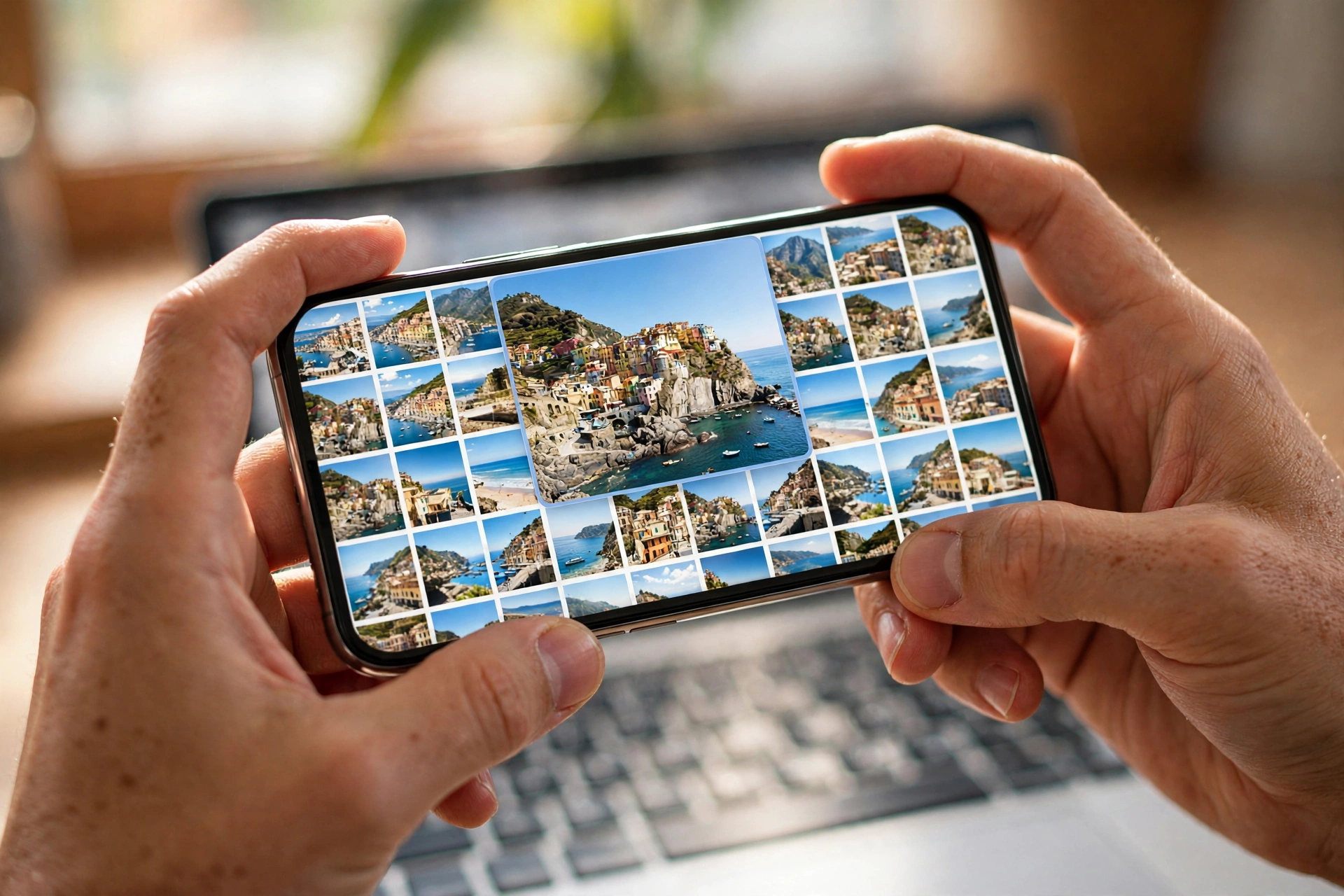
- Open the free Flip Image tool in your browser.
- Upload your JPG photo by clicking the upload button or dragging the file onto the page.
- Choose WebP as the output format and pick your quality level.
- Click convert, then download the finished WebP file.
This method works on Windows, Mac, Chromebook, iPhone and Android, because everything happens in the browser. If you also need to change a photo’s size before converting, our resize image guide shows how to do that in seconds.
Method 2: Convert JPG to WebP in Photoshop
If you already use Adobe Photoshop, you can save any JPG as WebP without leaving the program.
- Open your JPG photo in Photoshop.
- Go to File, then Export, then Save for Web (Legacy) or Export As.
- In the format menu, choose WebP.
- Set the quality slider to around 80–85 for photos. Higher values keep more detail but make bigger files.
- Click Save and choose where the WebP file goes.
If you work with PNG files too, our PNG to WebP guide covers that conversion as well.
Method 3: Convert JPG to WebP on iPhone
iPhones save photos as HEIC by default, but any JPG on your iPhone can still be turned into WebP with a free app or a browser tool.
- Open Safari and go to the free online converter above.
- Pick the JPG photo from your Photos library.
- Choose WebP as the output format.
- Convert and save the new file to your Files app or Photos.
A quick tip: convert photos to WebP before uploading them to a website or blog — the smaller files load faster for your readers and use less of their mobile data. To change them back later, see our WebP to JPG guide.
Method 4: Convert JPG to WebP on Android
Android phones handle WebP natively, so converting on Android is simple.
- Open your browser and go to a free online JPG to WebP converter.
- Tap the upload button and choose the JPG from your gallery.
- Select WebP as the output format and set the quality if the tool offers it.
- Download the WebP file.
Some Android gallery apps also offer a “Save as WebP” option in the share menu, so check there before installing anything new.
Method 5: Batch Convert JPG to WebP
Converting one photo at a time is fine, but a whole folder of product photos or blog images needs a batch method.
- Pick a converter that supports batch uploads — most free online tools let you add many files at once.
- Upload all your JPG files in one go.
- Set one quality level for the whole batch, usually 75–90 for photos.
- Convert everything, then download the results as a ZIP file.
Batch conversion is where WebP really pays off. A shop with 50 product photos can cut its total image weight in half in a few minutes, and every page on the site loads faster afterwards. If your photos are also too large in dimensions, shrink them first with our compress image guide, then convert to WebP for the smallest possible file.
Best Quality Settings for JPG to WebP
The quality setting is the one choice that decides how small your WebP file gets and how good it looks. Here is a simple rule to follow:
- Quality 75–90: the sweet spot for most photos. Files shrink a lot, and the quality loss is hard to notice.
- Quality 90–100: use this only for photos where every detail matters, such as portfolio work. Files stay bigger.
- Lossless: WebP also has a lossless mode that keeps every pixel exactly. It makes larger files than lossy WebP, but still smaller than a PNG of the same image.
- Resize first: a photo that is 4000 pixels wide does not need to stay that big for a website. Resizing it to the size it will actually be shown at gives the biggest saving of all.
Google’s own documentation on WebP compression explains how the format squeezes photos smaller than JPG while keeping them sharp. You can read the full background on the format in the WebP Wikipedia article if you want the technical detail.
What to Do After Converting
Once your photos are WebP files, use them anywhere a smaller image helps: your website, your online shop, your blog, social media posts and email newsletters.
One more practical tip: if you need to send a photo inside a document or attach it to a form, a PDF is often the format people ask for. In that case you can convert your PNG to PDF with a free tool, which works well when a photo has to sit inside a printable document.
FAQ — JPG to WebP
Is WebP really better than JPEG?
For the web, yes. WebP files are 25–50% smaller than JPG files at similar visual quality, and WebP also supports transparency and animation, which JPG cannot do. JPG still wins when you need maximum compatibility with very old software.
What is the difference between JPG and WebP?
JPG is an older format from the 1990s that compresses photos by throwing away some detail. WebP is a newer format from Google that compresses photos more efficiently, so the same photo takes up less space.
Does converting JPG to WebP lose quality?
A little, if you use lossy compression — but at quality 75–90 the loss is so small that most people cannot see it.
Why does no one like WebP?
Some people dislike WebP because older programs and systems could not open it when it was new. That problem has mostly gone away: all major browsers and most modern editors support WebP now.
Can I convert WebP back to JPG?
Yes. The process is the same in reverse — upload the WebP file to a converter and choose JPG as the output. Our JPG to PNG guide covers a similar format change if you need a PNG instead.
Try It Free
Converting JPG to WebP takes less than a minute and can cut your photo sizes in half. Open the free Flip Image tool now, upload a JPG, and download your smaller WebP file — no sign-up, no software, no cost.
