

Resize Video Free: 5 Easy Ways to Resize Any Video in Seconds
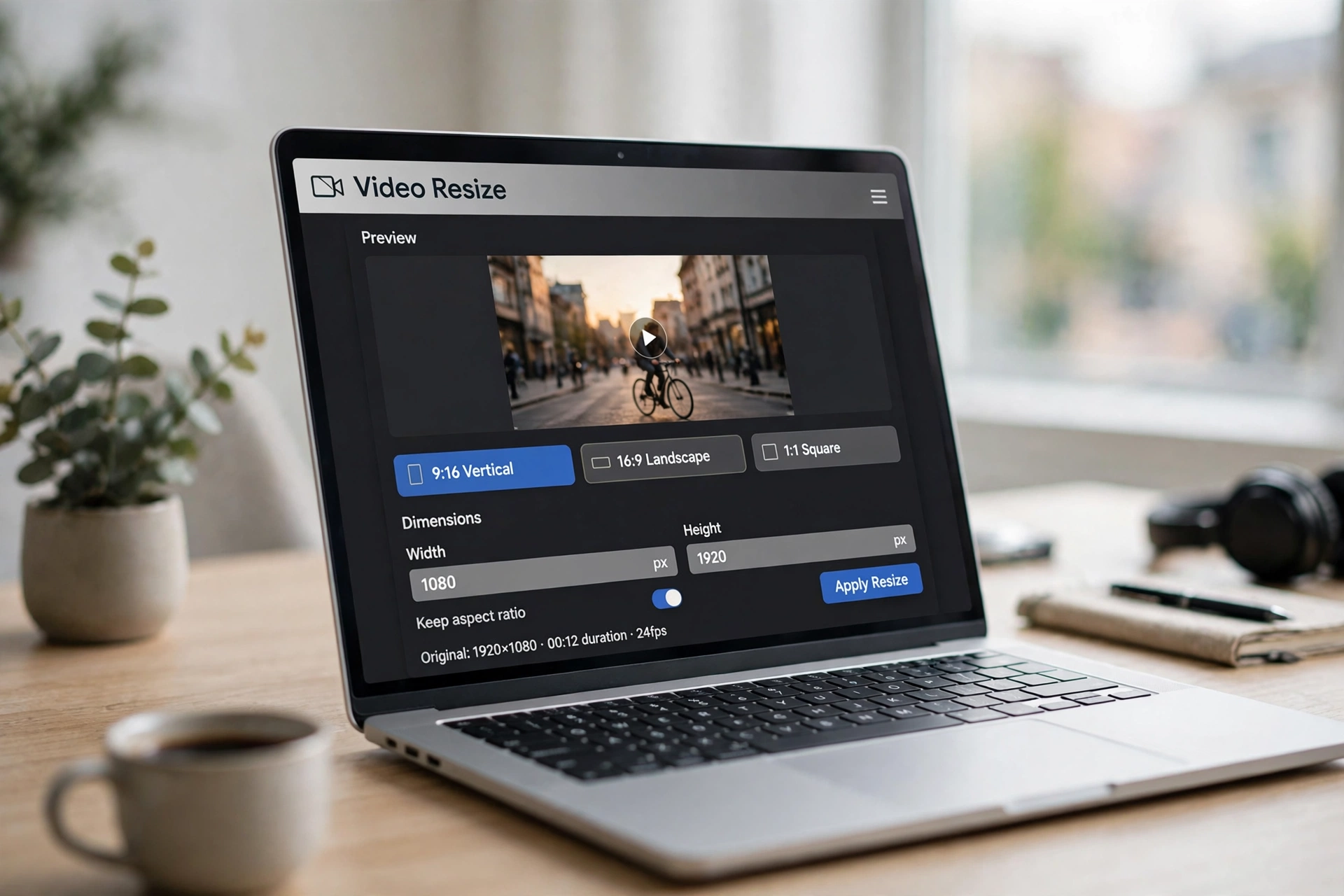
To resize video clips for TikTok, YouTube or Instagram, you only need to change their dimensions or aspect ratio — free, in seconds, with no software installed. A landscape clip at 1920×1080 can become a vertical 1080×1920 Reel, a square 1080×1080 feed post, or a smaller 720p file. Here are five free ways to resize video.
What Does It Mean to Resize a Video?
When you resize a video, you change its frame size — its width and height in pixels. That is different from trimming, which shortens the clip, and from cropping, which cuts away part of the picture. Resizing keeps the whole scene and scales it to fit a new frame.
There are two kinds of resizing. Change the dimensions: a 1920×1080 landscape video becomes 1080×1920 vertical, or 1280×720 for a smaller file. Change the file size: lowering the resolution — from 4K down to 1080p or 720p — also shrinks the file. Keep the aspect ratio locked while you resize, or the picture will stretch; most tools do this automatically when you enter only the width.
Video Sizes for Every Platform
Pick your target before you resize. These are the standard sizes the platforms recommend:
| Platform / use | Size | Aspect ratio |
|---|---|---|
| TikTok, Reels, YouTube Shorts | 1080×1920 | 9:16 vertical |
| YouTube, Vimeo, landscape | 1920×1080 (1080p) or 3840×2160 (4K) | 16:9 |
| Instagram feed post | 1080×1080 | 1:1 square |
| Instagram / Facebook portrait post | 1080×1350 | 4:5 |
| Small file for messaging or email | 1280×720 or 854×480 | 16:9 |
Method 1: Resize Video Online Free with Ezgif
The fastest way is a free online resizer. Ezgif’s free video resizer needs no sign-up, adds no watermark, and accepts MP4, WebM, AVI, MOV, MKV and most other formats up to 200 MB. Files are deleted automatically one hour after upload.
- Open the Ezgif resize video tool and upload your clip, or paste a video URL.
- Enter the width and height you want, or resize by a percentage — 50% gives a file half the size.
- Choose the output format: keep the original, or convert to MP4. Click “Resize video!” and download the result.
Tip: enter only the width and leave the height empty, and the height is calculated automatically so the picture keeps its proportions.
Method 2: Resize Video Free with Adobe Express
If you want ready-made presets for each platform, Adobe Express offers a free online video resizer that works in the browser on desktop and mobile, with no credit card required. The free plan handles videos up to one hour long and 1 GB.
- Open Adobe Express and upload your video.
- Pick your destination — Instagram, TikTok, YouTube — or enter a custom size.
- Adjust the framing by dragging the corners, then trim the clip if needed.
- Download the resized video, or keep editing it in the same tool.
Adobe Express is the strongest free option here for limits, and its built-in trim and scale tools mean you rarely need a second app. Its only catch is that you need a free Adobe account to save your work.
Method 3: Resize a Video on iPhone or Android with CapCut
On your phone, CapCut is the simplest free way to resize a video. It works on iPhone and Android, and its aspect-ratio control takes seconds.
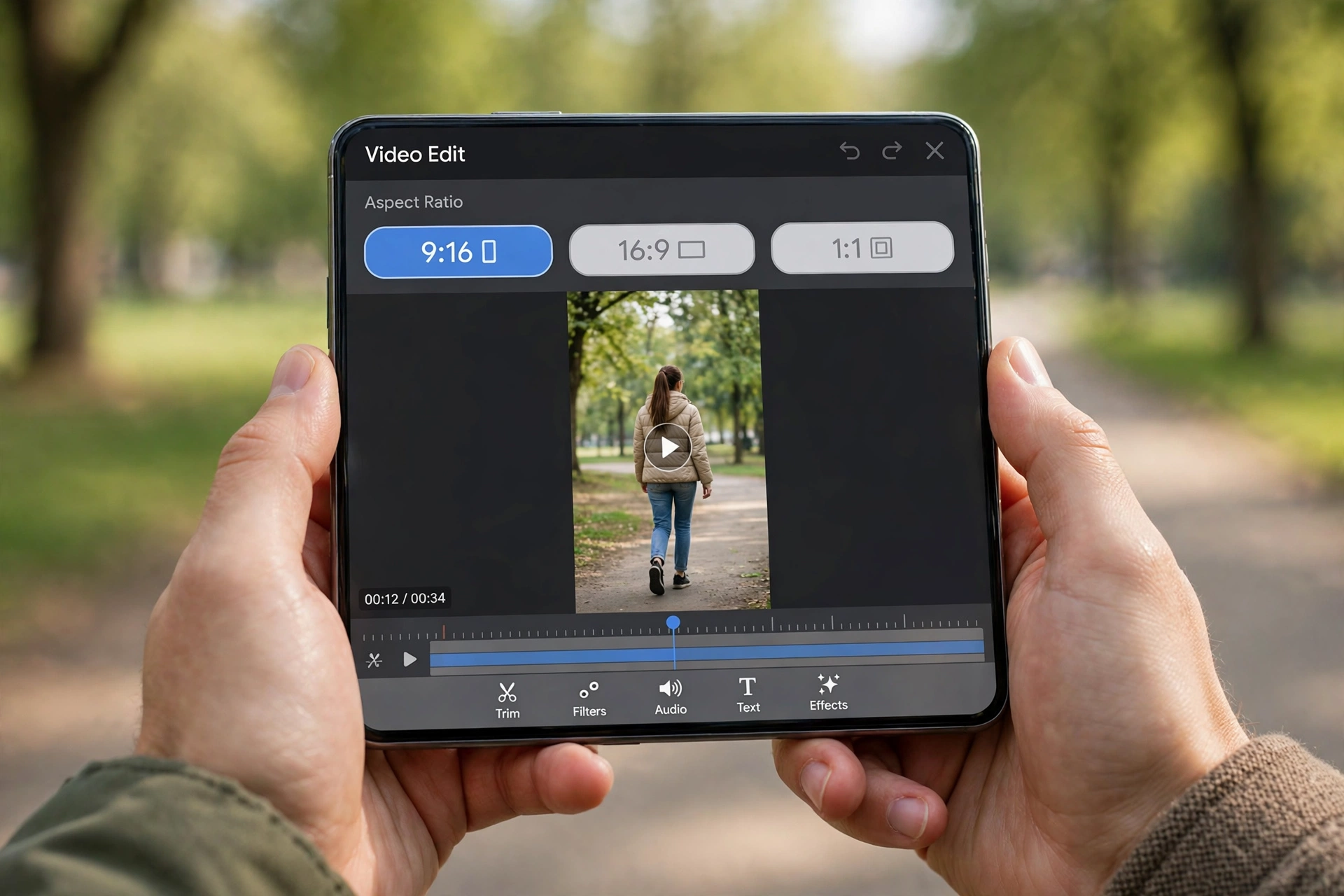
- Open CapCut and import the video from your gallery.
- Tap “Aspect Ratio” on the bottom toolbar.
- Choose 9:16 for TikTok and Reels, 16:9 for YouTube, or 1:1 for a square post.
- Pinch or drag the video to reframe it inside the new shape, so nothing important is cut off.
- Set your resolution, then export.
CapCut also lets you add a blurred background instead of cropping when a wide clip must fit a vertical frame. If you would rather cut away the edges, our guide to crop video walks through that option.
Method 4: Resize Video on Desktop with Clipchamp
Microsoft Clipchamp, free on Windows and in the browser, is a solid desktop option, especially if you also want to trim or add text. Open Clipchamp, start a new project, import your clip and drag it onto the timeline. Then open the aspect-ratio menu, choose your target — 9:16, 16:9 or 1:1 — drag the video in the preview to reposition it, and add a background colour or blur if bars appear at the sides. Export at 720p or 1080p and save the file.
Exporting at 720p instead of 1080p is a quick way to shrink a video that is too large to email, and on most phone screens the difference is hard to notice.
Method 5: Shrink a Video’s File Size by Lowering Resolution
Sometimes the goal is not a new shape but a smaller file. A 4K clip can be hundreds of megabytes; the same clip at 1080p is often a quarter of the size, and at 720p smaller still. Lowering the resolution is the most reliable way to resize a video file down. Open your video in any of the tools above, keep the aspect ratio the same, set the resolution lower — 4K to 1080p, or 1080p to 720p — then export and check the new file size before you send it.
To shrink a clip without changing its dimensions, use a dedicated video compressor instead — it lowers the bitrate, not the resolution. See our guide to compress video.
Resize Video Without Cropping: 3 Rules
- Lock the aspect ratio. Change the width and let the height follow, or the picture stretches. Every tool above has a lock or “maintain aspect ratio” option — keep it on.
- Never upscale more than you must. Enlarging a 720p clip to 4K adds no detail; it only makes a bigger, softer file. Resize down, not up, whenever you can.
- Match the platform, not the camera. A clip shot in landscape does not have to stay landscape. Decide where it will be watched first, then resize to that platform’s size.
Tip: if you save a still frame from your video as a PNG thumbnail, you can convert your PNG to PDF in seconds to share it as a single file.
Resize Video vs Crop Video vs Compress Video
These three jobs sound alike but do different things, and picking the wrong one is the most common mistake. Resize video changes the frame size — the width and height in pixels — while the whole scene stays visible. Crop video cuts away part of the picture to fit a new shape; use it when the edges do not matter. Compress video reduces the file size by lowering quality or bitrate, usually without changing the dimensions. To flip a clip left to right instead, see our video flipper guide — a mirror image is a different fix for a different problem.
FAQ: Resize Video
How do I resize a video on my phone?
Open CapCut, import the clip, tap “Aspect Ratio” and choose 9:16, 16:9 or 1:1, then pinch to reframe and export. Canva’s app also offers preset social sizes, though its one-click resize needs a Pro plan.
How can I resize an MP4 file?
Use a free online tool such as Ezgif: upload the MP4, enter the new width and height (or a percentage), and download the resized file. No software is needed and there is no watermark.
Will resizing a video reduce its quality?
Resizing down (for example 4K to 1080p) keeps the picture sharp. Resizing up adds no detail and can look soft, so keep the aspect ratio locked.
What size should I resize a video to for TikTok?
Use 1080×1920 (9:16 vertical) — the full-screen size for TikTok, Instagram Reels and YouTube Shorts.
How do I make a video file smaller?
Lower the resolution (4K to 1080p or 720p), trim excess footage, or compress the file by lowering its bitrate. Lowering resolution is the simplest single step.
Try It Free
Now you know how to resize a video for any platform — free, in seconds, and without installing software. Pick the method that fits your device and export at the right size. And if you need to resize a still image from your video, try our free tool at Flip Image — it flips, mirrors and resizes photos free, with no sign-up.
