

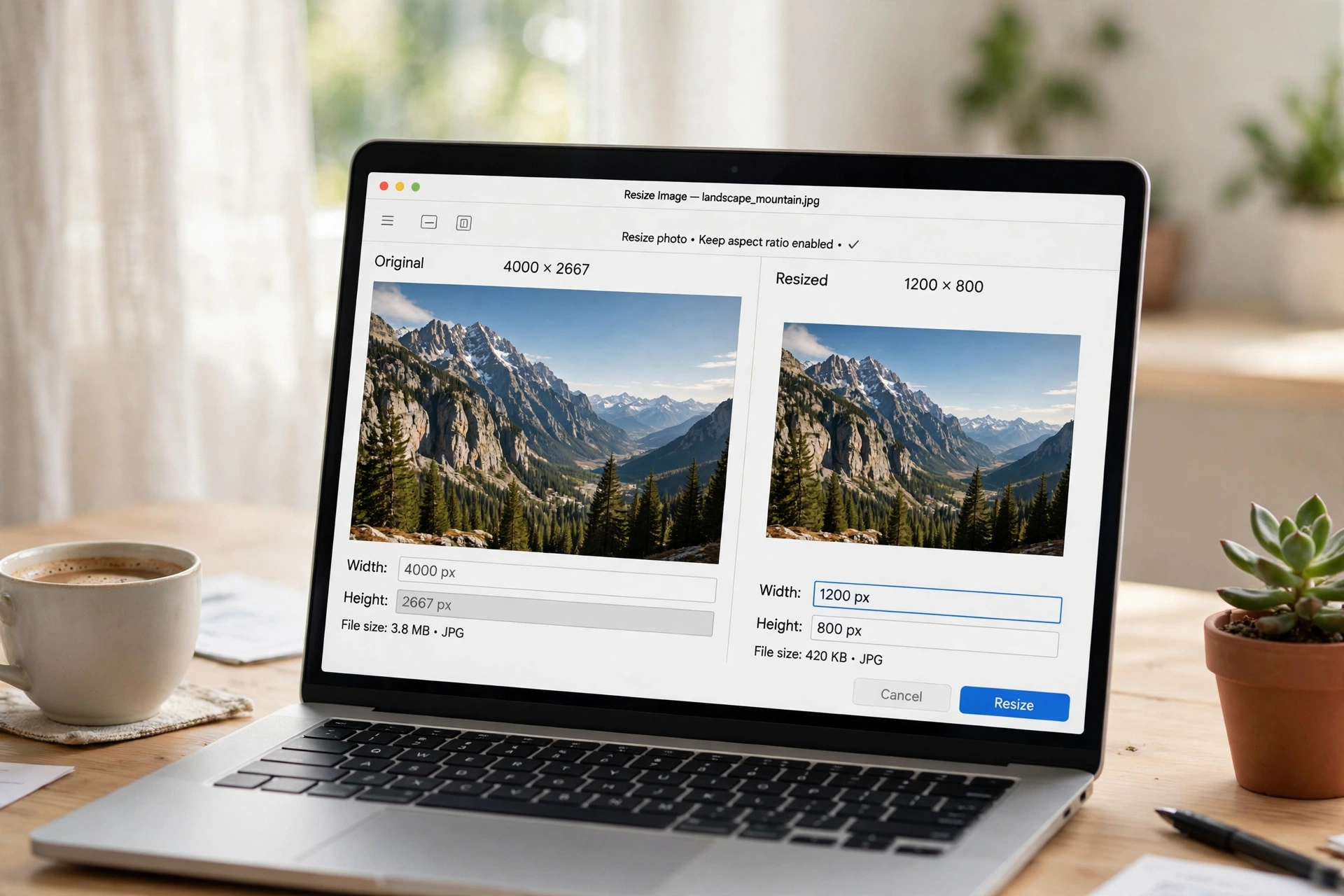
Need to resize JPG photos? A JPG that is too large gets rejected by upload forms, loads slowly on a website, or eats up your phone storage. It takes less than a minute, and you do not need Photoshop or any paid app. This guide shows you five free ways to resize JPG files — by exact pixels, by percentage, or to a target file size such as 200KB or 1MB — online, on Windows, on Mac, and on your phone. Pick the method that fits your device, and your photo will be the right size in seconds.
What Does It Mean to Resize a JPG?
When you resize JPG files, you change their pixel dimensions — for example, from 4000 × 3000 pixels down to 1200 × 900. Fewer pixels means a smaller file, so a photo that was 4 MB can drop to 300 KB or less. That is why resizing is the first fix whenever a site rejects your upload for being too big.
Resizing is not the same as compressing. Resizing changes the width and height; compressing lowers the image quality to shrink the file while keeping the same dimensions. If your photo already has the right dimensions and only the file size is too big, compress a JPG instead. If the photo is too wide or too tall for the place it is going, resizing is the right fix. If you work with other formats too, you can resize a PNG the same way.
Method 1: Resize JPG Online Free (Fastest Way)
The quickest way to resize JPG photos is a free online tool — nothing to install, and it works the same on a computer or a phone.
- Open the free Flip Image tool.
- Upload your JPG photo.
- Enter the new width or height in pixels, or pick a percentage such as 50%. Keep the aspect-ratio lock on so the photo does not stretch.
- Download the resized JPG.
The whole job takes under a minute, and your original stays untouched on your device. Online tools are also the easiest option for exact sizes — a form that wants 600 × 600 pixels, for example. It runs in your browser, so you can resize any image the same way.
Method 2: Resize JPG to a Target File Size (200KB, 500KB or 1MB)
Sometimes the problem is not the dimensions at all — a form simply says “maximum 200KB” or “maximum 1MB”. In that case, resize JPG files to a target file size instead of a target width.
Start by shrinking the dimensions: a photo at 1920 pixels wide is usually under 1MB, and one at 1200 pixels wide is often under 300KB. If the file is still too big, lower the JPG quality a little — quality 80 still looks sharp on screen and cuts the size a lot. Some tools let you type the exact target size and do the maths for you, so you can resize a JPG to a target KB size directly instead of guessing.
Use these starting points, then adjust once if needed:
| What it is for | Target size | Try these dimensions |
|---|---|---|
| Profile photo | 200KB | 400 × 400 |
| Job portal or form upload | 500KB | 1200 × 900 |
| Email attachment | 1MB | 1920 × 1440 |
| Website or blog image | 200–300KB | 1200 × 800 |
| Social media post | 500KB | 1080 × 1080 |
Tip: if a portal asks for a PDF rather than an image file, convert your PNG to PDF free in seconds — the same idea, a different format for the same upload.
Method 3: Resize JPG in Windows Paint
If you are on Windows, Paint is already installed and does the job in four clicks.
- Right-click your JPG and choose Open with > Paint.
- Click Resize in the toolbar.
- Choose Pixels, make sure “Maintain aspect ratio” is ticked, and type the new width. Paint fills in the height for you.
- Click OK, then File > Save As, and save it under a new name so your original stays safe.
Paint is perfect for quick jobs, but it only handles one photo at a time and it cannot resize to an exact file size in KB — for that, use the online method above.
Method 4: Resize JPG on Mac Preview
On a Mac, Preview is the built-in answer, and it is just as fast.
- Open the JPG in Preview (double-click it).
- Go to Tools > Adjust Size.
- Type the new width or height in pixels. Keep “Scale proportionally” ticked.
- Click OK, then File > Save, or duplicate the file first if you want to keep the original.
Preview also shows the resulting file size before you save, which makes it easy to hit a target like 500KB.
Method 5: Resize JPG on Your Phone (iPhone and Android)
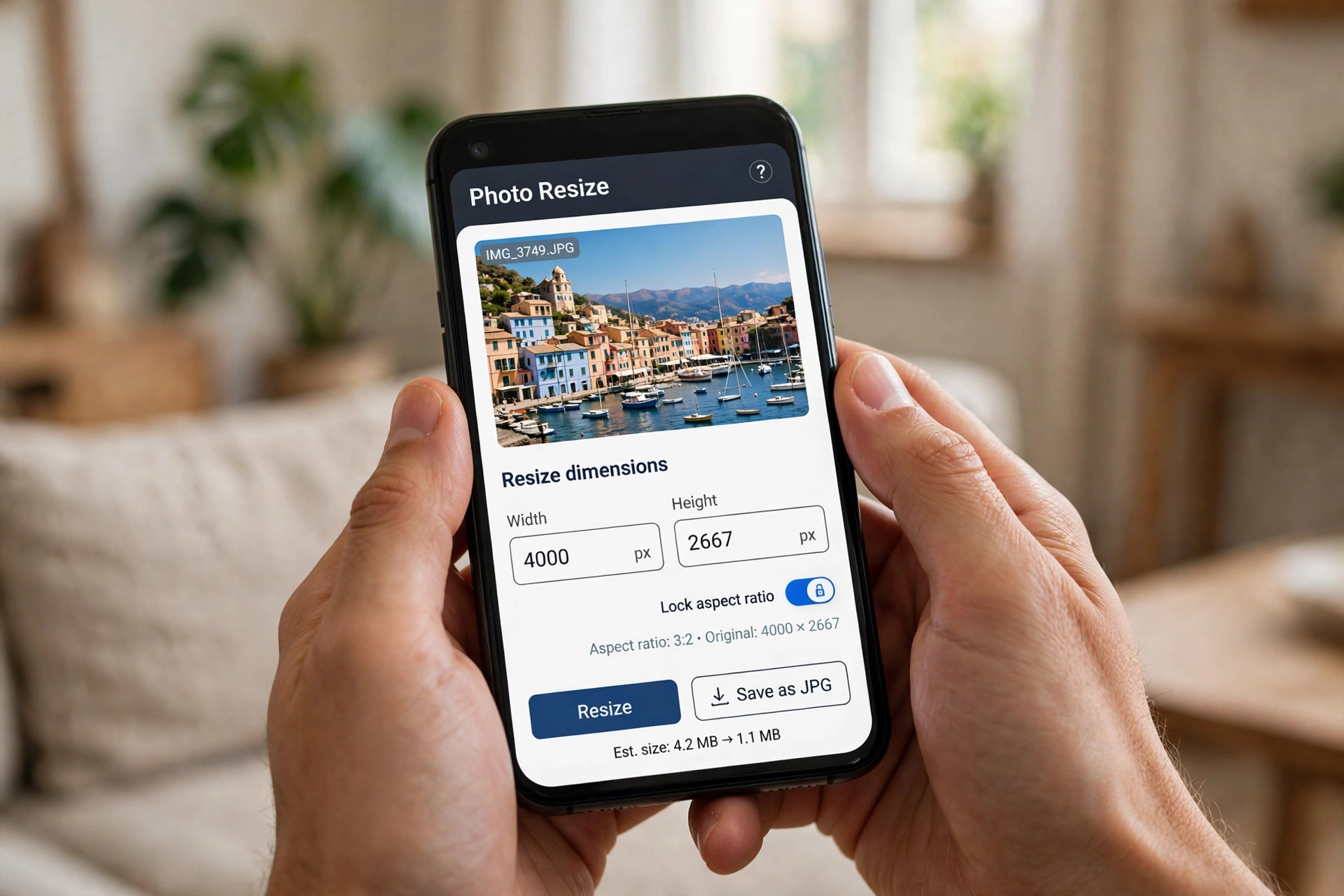
Phone cameras save huge JPGs — a single photo can be 4–6 MB — so resizing on your phone is often the fastest fix of all.
The simplest way is the same free online tool from Method 1: open it in your phone’s browser, upload the photo, set the new size, and download the result. It works on both iPhone and Android, with nothing to install.
On iPhone, the Shortcuts app can build a one-tap resize shortcut; on Android, most gallery apps let you export a smaller copy, and the free online tool in Chrome covers the rest.
If you have a whole album to shrink, do not resize one photo at a time. Batch tools let you resize many JPGs at once — upload the set, pick one size, and download them all together.
Common JPG Sizes for Social Media, Profiles and Forms
Different platforms expect different sizes — always check the platform’s own help page, because sizes change.
| Where it goes | Common size |
|---|---|
| Instagram post | 1080 × 1080 |
| Facebook profile photo | 170 × 170 (shown) |
| LinkedIn profile photo | 400 × 400 |
| Passport photo | 600 × 600 |
| YouTube thumbnail | 1280 × 720 |
| Website hero image | 1920 × 1080 |
A square crop is not the same as a resize: cropping cuts part of the photo away, while resizing keeps the whole photo and makes it smaller.
3 Rules to Resize JPG Without Losing Quality
- Always lock the aspect ratio. If you change the width without the height, faces and circles stretch. The lock keeps the shape true.
- Shrink, do not stretch. Making a big photo smaller keeps it sharp; making a small photo bigger makes it blurry, because the extra pixels are invented.
- Always save a copy. Keep the original full-size JPG and save the resized version under a new name — you can always make a smaller copy later.
FAQ: Resize JPG
How can I resize a JPEG image?
Use a free online tool, Windows Paint, Mac Preview, or a photo editor, and change the pixel dimensions, a percentage, or a target file size.
How do I reduce the size of my JPG photo?
Resize it to smaller dimensions first, then lower the JPG quality slightly if it is still too big. If the dimensions are already right, compressing is the faster fix.
How can I resize a JPG image for free?
The free online tool above needs no download and no sign-up. Paint on Windows and Preview on Mac are also free and already installed. If you need a general-purpose image resizer, the same free tool handles it.
Can I resize a JPG without losing quality?
Yes, when you shrink it. Downsizing keeps a photo sharp. Enlarging makes it soft, so always start from the biggest original you have.
How can I resize an image and convert it to a JPEG?
Resize it first, then save or export it as a JPG — in Paint use Save As > JPEG, in Preview use File > Export and choose JPEG. To go the other way, convert a JPG to PNG free.
How do I resize many JPGs at once?
Use a batch resizer: upload the whole set, choose one size, and download them together instead of repeating the steps for every photo.
Try It Free
Your JPG does not need to stay oversized for one more upload. Resize JPG files free right now with the Flip Image tool — no download, no sign-up, and your photo is ready in seconds.
