

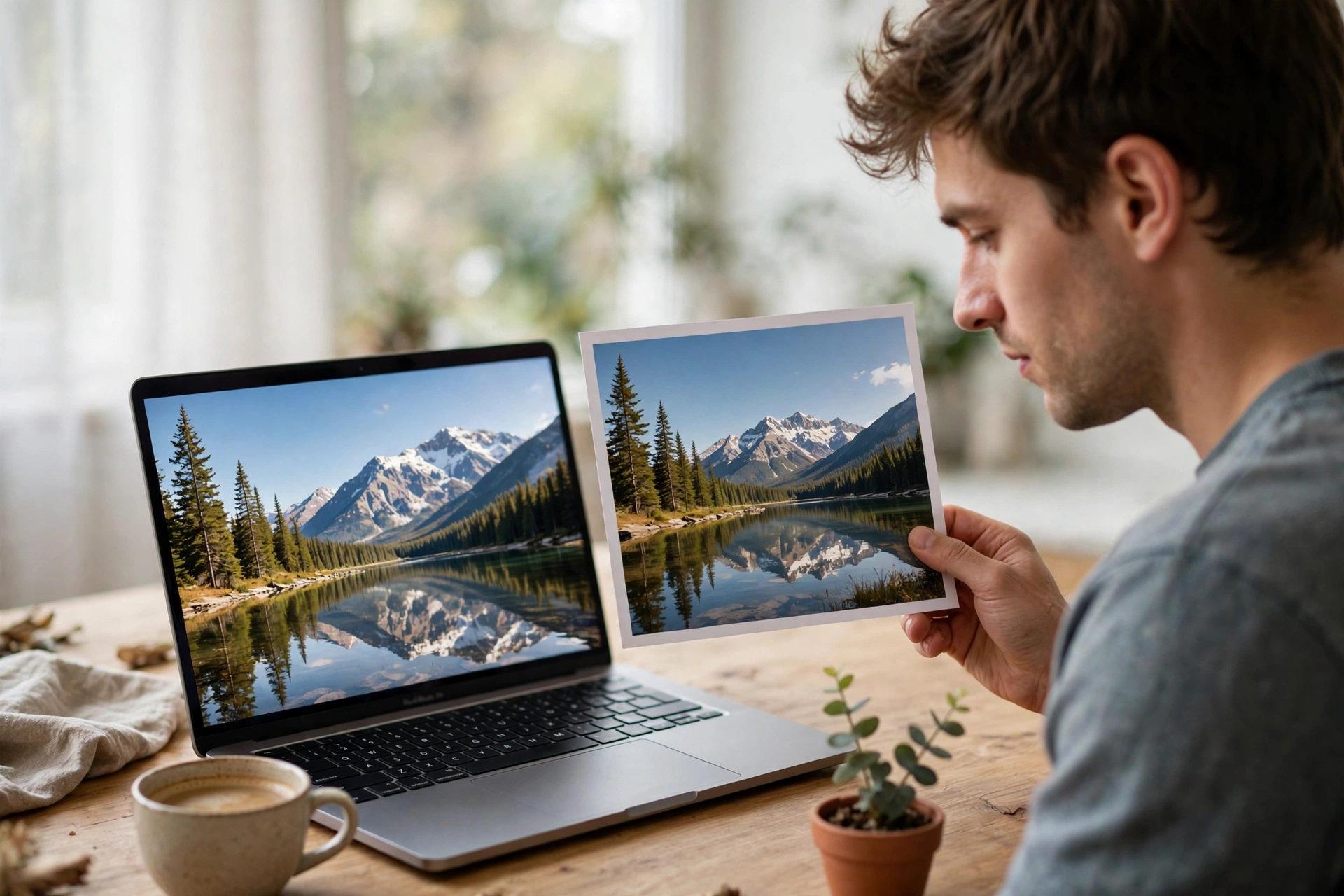
How to flip a picture online is a question with a very simple answer: open a free browser tool, upload your picture, click Flip Horizontal or Flip Vertical, and download the result. The whole job takes less than a minute, and you never have to install an app or open a heavy photo editor. This guide shows you five free ways to do it, all in your browser, and helps you pick the right one for your picture.
Flipping online is the fastest option when you only need to fix one picture. There is nothing to download and nothing to learn, and it works the same on a Windows laptop, a Mac, a Chromebook, or a phone browser.
What Does It Mean to Flip a Picture Online?
To flip a picture online means to mirror it with a free tool in your web browser. A horizontal flip swaps the left and right sides, like looking in a mirror. A vertical flip swaps the top and bottom.
Flipping is not the same as rotating. Rotating turns the whole picture by 90 or 180 degrees, while flipping mirrors it across an axis. If your selfie looks backwards or the text in your photo reads the wrong way, flipping is the fix you need. If your photo is sideways, you need to rotate it instead — our guide on how to rotate a picture covers that in five easy steps.
When Should You Flip a Picture Online?
A backwards selfie. Front cameras mirror what they see, so a selfie can come out with your hair parted on the wrong side or a logo on your shirt reading backwards. One horizontal flip puts it right.
Reversed text in a photo. Pictures of signs, whiteboards, or book covers often end up mirrored when taken with a front camera or through a mirror. Flipping the picture online makes the text readable again.
A product facing the wrong way. If you sell things online, a product photo that faces left when the rest of your listing faces right looks untidy. A quick flip lines everything up.
A scanned photo. Old printed photos scanned the wrong way round, or a page scanned upside down, can be fixed in seconds with a vertical flip.
How to Flip a Picture Online: 5 Free Ways
All five methods below run entirely in your browser. You do not need to install anything, and every one of them is free for a basic flip.
Method 1: How to Flip a Picture Online Free with FlipImage (Fastest Way)
Flip Image is a free tool built for exactly this job, and it is the fastest of the five. There is no sign-up, no watermark, and no software to install.
- Open the Flip Image tool in your browser.
- Upload your picture — JPG, PNG, and other common formats all work.
- Click Flip Horizontal to mirror it left to right, or Flip Vertical to turn it upside down.
- Preview the result and download your flipped picture.
That is the whole process — no menus to learn, no extra steps. If you flip pictures often, bookmark it.
Method 2: How to Flip a Picture Online with Kapwing
Kapwing offers a free online image flip tool that works on any device. Upload your picture, select it, and use the Rotate controls to flip it horizontally or vertically. It supports JPG, PNG, GIF, and WebP files.
One honest note: on a free Kapwing account, exported images can carry a watermark, so if you need a clean download, the dedicated flip tool in Method 1 is the better choice. Kapwing’s own flip image tool explains the steps in detail.
Method 3: Flip a Picture Online with Fotor
Fotor is a full online photo editor, and its mirror tool flips pictures in one click. Open Fotor’s photo editor, upload your picture, and find Rotate and Flip in the left-hand menu. The last two buttons there mirror your photo horizontally or vertically.
Fotor works well when you want to do more than flip — for example, brighten a dark photo after mirroring it. See Fotor’s mirror image tool for the full steps.
Method 4: Flip a Picture Online with Pixlr X
Pixlr X is a free browser-based photo editor, and flipping is built into it. Upload your picture, open the Arrange or Transform controls, and choose Flip Horizontal or Flip Vertical. The picture flips instantly, and you can download it as JPG or PNG.
Pixlr X is a good pick when your picture also needs a crop or a colour fix after the flip, because all of those tools sit in the same editor.
Method 5: Flip a Picture Online with Photopea
Photopea is a free editor that works like Photoshop but runs entirely in your browser. Open your picture, go to Image, then Transform, and choose Flip Horizontal or Flip Vertical. You can save the result in JPG, PNG, or PSD format.
It is the strongest option if you work with layers — for example, flipping just one layer of a design. For a simple flip it is more power than you need, but it costs nothing and needs no account.
How to Flip a Picture Online: Which Online Method Should You Pick?
The right choice depends on what else you need to do with the picture:
- Just a quick flip: use FlipImage. It is free, instant, and adds no watermark. Our guide to flip photo online shows the same idea with five different tools.
- Flip plus rotate to an exact angle: use Kapwing, which lets you rotate to any degree, not just 90 or 180.
- Flip plus photo edits: use Fotor or Pixlr X, which both add brightness, crop, and filter tools.
- Flip one layer of a design: use Photopea, which handles layers like a desktop editor.
- Flip on your phone’s built-in app instead: our guide on how to flip a picture covers iPhone, Android, and Windows Photos.
If you only need the picture mirrored and nothing else, a dedicated image flipper is always the fastest route. General guides on how to flip an image cover desktop apps too, if you ever want to flip without a browser.
Tips: How to Flip a Picture Online Without Losing Quality
Flipping a picture does not have to cost you quality. Keep these tips in mind:
Download as PNG for graphics and text. If your picture has sharp text or a logo, save it as PNG after flipping. JPG compression can blur fine edges, especially after a second save.
Keep the original. Always flip a copy, not your only version of a photo. Save the flipped picture under a new name so you can go back if you change your mind.
Flip once, not twice. Every save as JPG loses a little detail. Flip the picture once, check the preview, and download it — do not flip, download, and flip again.
Do not confuse flipping with rotating. If your picture is sideways rather than backwards, flipping will not fix it. A sideways picture needs a 90-degree rotation — see our guide on how to rotate a picture for that.
FAQ: How to Flip a Picture Online
Can I flip a picture online for free?
Yes. Free browser tools — FlipImage, Kapwing, Fotor, Pixlr X, and Photopea — flip pictures at no cost. Upload the picture, click Flip Horizontal or Flip Vertical, and download the result. No payment or account is needed.
Does flipping a picture online reduce its quality?
No, not if you save it in the right format. Flipping only rearranges the pixels — it does not remove any. Quality loss comes from saving as a low-quality JPG afterwards, so choose PNG for graphics and text, and keep the original file as a backup.
What is the difference between flipping and rotating a picture?
Flipping mirrors a picture across an axis — left becomes right, or top becomes bottom. Rotating turns the whole picture by an angle, such as 90 degrees. A backwards selfie needs a flip; a sideways photo needs a rotation.
Is it safe to upload pictures to online flip tools?
It is safe with well-known tools, but use common sense. Avoid uploading sensitive or private photos to a site you do not recognise, and prefer tools that process the picture in your browser. Never upload pictures of documents or IDs just to flip them.
Try It Free: Flip Your Picture Now
Now you know how to flip a picture online — and it really does take less than a minute. Open the free Flip Image tool, upload your picture, click Flip Horizontal or Flip Vertical, and download the fixed version. No sign-up, no watermark, no software to install.
