

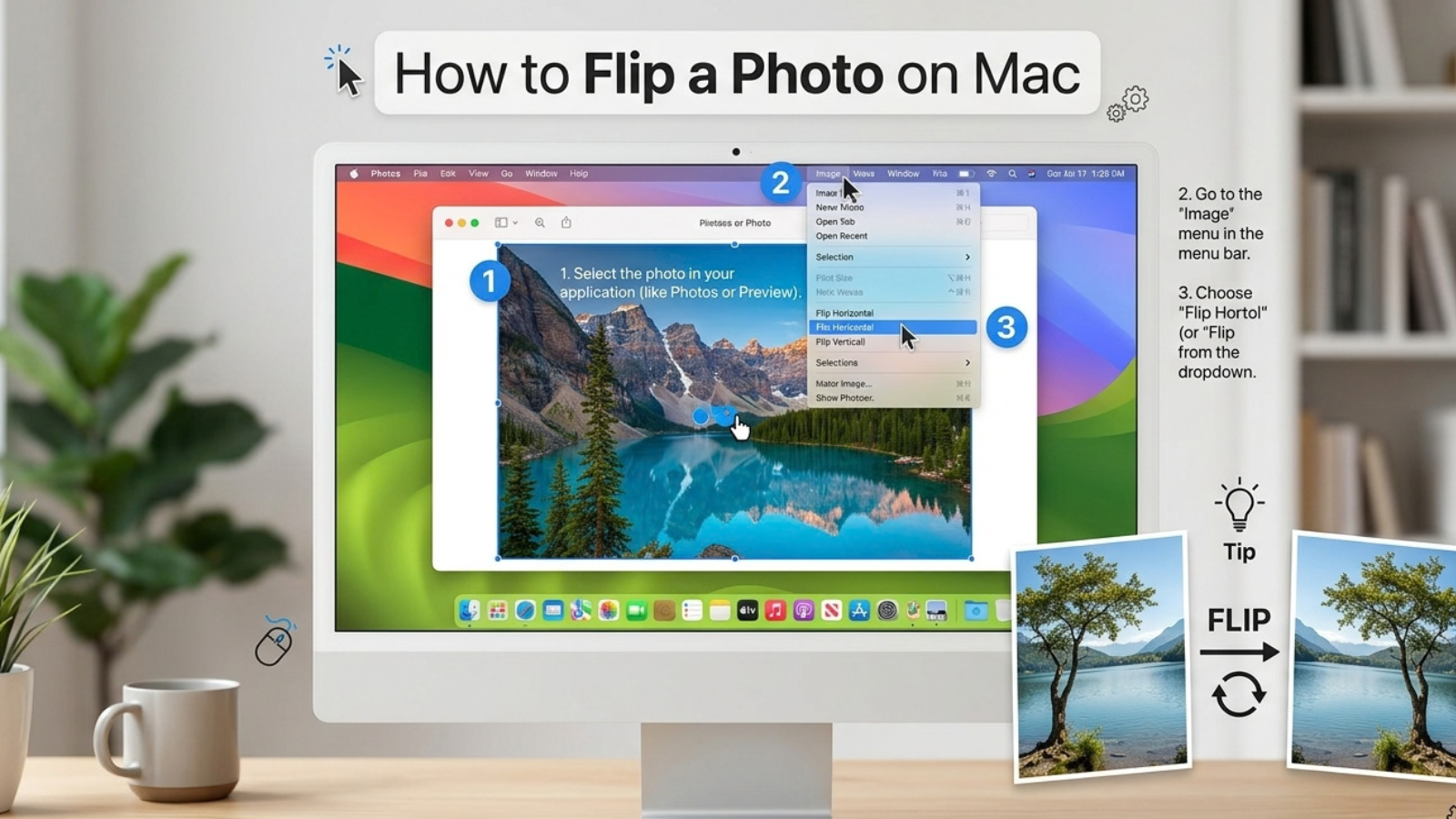
If you use a Mac, you don’t need Photoshop or another advanced photo editor to flip an image. Apple’s built-in Preview app can quickly flip photos horizontally or vertically.
Whether you want to create a mirror image, reverse the direction of a subject, or turn a photo upside down, Preview provides simple tools for changing image orientation. Apple currently provides Flip Horizontal and Flip Vertical options through the Tools menu in Preview.
You can also flip multiple images at once when they are displayed together in Preview.
If you only need to flip a single photo quickly without opening Preview, you can use an online image flipper directly in your browser.
What Does Flipping a Photo Mean?
Flipping a photo creates a mirrored version of the original image.
There are two main types of flipping:
- Flip Horizontal: Reverses the image from left to right.
- Flip Vertical: Reverses the image from top to bottom.
For example, if a person is facing toward the right side of a photo, a horizontal flip makes them face toward the left.
Flipping is different from rotating. Rotation turns the image around its center, while flipping mirrors its orientation.
| Action | Result |
| Flip Horizontal | Left and right are reversed |
| Flip Vertical | Top and bottom are reversed |
| Rotate Left | Image turns counterclockwise |
| Rotate Right | Image turns clockwise |
How to Flip a Photo Horizontally on Mac Using Preview
Preview makes horizontal flipping straightforward.
Step 1: Open the Photo in Preview
Find the photo you want to edit in Finder.
You can double-click the image if Preview is your default image viewer, or right-click the file and choose Open With → Preview.
Apple also documents opening images directly from Preview using File → Open.
Step 2: Open the Tools Menu
Once the photo is open in Preview, look at the menu bar at the top of your Mac screen.
Click:
Tools
Step 3: Choose Flip Horizontal
From the Tools menu, select:
Flip Horizontal
Preview immediately mirrors the image from left to right.
Step 4: Review the Result
Look at the photo to make sure the orientation is what you want.
For example, a person facing right should now face left.
Step 5: Save the Photo
When you’re satisfied with the result, save the image.
Preview can automatically save changes as you work, and you can also use File → Save to save the edited image.
If you want to preserve the original file, consider using Save As or creating a duplicate before making the edit.
How to Flip a Photo Vertically on Mac
You can also flip a photo from top to bottom in Preview.
Follow these steps:
- Open the photo in Preview.
- Click Tools in the menu bar.
- Select Flip Vertical.
- Review the result.
- Save the image.
Apple’s current Preview guide lists Tools → Flip Vertical as the built-in method for vertically flipping an image.
A vertical flip can make a photograph appear upside down, so it’s less commonly used for ordinary photos. However, it can be useful for creative compositions, reflections, and other visual effects.
How to Mirror a Photo on Mac
If you want to create a mirror effect, use Flip Horizontal.
For example, suppose you have a portrait where the person is looking toward the right side of the frame. After flipping horizontally, the person will appear to look toward the left.
This can be useful when:
- Changing the direction of a subject
- Preparing photos for a design
- Creating symmetrical compositions
- Matching a subject with nearby text
- Creating creative mirror effects
- Adjusting the visual flow of a photograph
A horizontal flip changes the direction without rotating the image.
How to Flip Multiple Photos in Preview
Preview can also flip multiple images at the same time.
This is useful when you have several photos that all need the same orientation.
Step 1: Open the Images in Preview
Open the images you want to edit in Preview.
They can be displayed together in the same Preview window.
Step 2: Show Thumbnails
Choose:
View → Thumbnails
This displays the images in the sidebar.
Step 3: Select Multiple Photos
Click one image in the sidebar, then hold Command while selecting additional images.
You can select the photos that need the same transformation.
Step 4: Flip the Selection
Go to:
Tools → Flip Horizontal
or:
Tools → Flip Vertical
Preview applies the selected transformation to the chosen images. Apple’s documentation specifically supports rotating or flipping multiple images when they are displayed in the same Preview window.
Flip Horizontal vs. Flip Vertical
It’s important to understand the difference between the two options before editing your photo.
Flip Horizontal
This reverses the left and right sides.
Example: A person looking left will appear to look right.
This is usually what people mean when they want to create a mirror image.
Flip Vertical
This reverses the top and bottom.
Example: A landscape photograph will appear upside down.
Vertical flipping is more commonly used for creative effects than everyday photo corrections.
What Happens to Text When You Flip a Photo?
Flipping affects the entire image, including any text that is part of the photograph.
For example, if you take a photo of a sign containing the word:
OPEN
and flip the image horizontally, the lettering will also appear backward.
This is normal behavior.
Be especially careful when flipping photos containing:
- Signs
- Logos
- Product labels
- Screenshots
- Posters
- Documents
- Packaging
- Storefronts
- Infographics
If the text needs to remain readable, check the image carefully after flipping it.
How to Flip a Photo Without Rotating It
If your goal is to reverse the direction of the photo without changing its orientation, use Flip Horizontal.
For example:
- Original: person faces right
- Flip Horizontal: person faces left
- Rotate 90°: person appears sideways
- Flip Vertical: image becomes vertically reversed
Choosing the correct command prevents accidental changes to the composition.
Does Flipping a Photo Reduce Quality on Mac?
Flipping an image does not inherently reduce its pixel dimensions.
However, image quality can be affected by other changes, such as resizing, compression, or exporting the photo in a different format.
For best results:
- Keep the original photo.
- Avoid unnecessary resizing.
- Use an appropriate image format.
- Check the final image before sharing.
- Preserve a backup of important photographs.
If you need to resize the image in Preview, Apple provides a separate Tools → Adjust Size function.
How to Undo a Flip in Preview
If you accidentally flip the photo, you can undo the change.
Use:
Edit → Undo
immediately after the transformation.
Preview also maintains versions of edited files, allowing you to revert to an earlier version in supported workflows. Apple notes that Preview saves versions as you work and provides options for reverting to previous versions.
If you’re working with an important original, keeping a duplicate before editing is still a good precaution.
How to Save a Flipped Photo in Preview
After flipping your image, you can save the result from Preview.
Choose:
File → Save
to save changes to the current file.
If you want to create a separate file instead of changing the original, use Save As where available, or duplicate the original file before editing.
A separate copy is useful when you want to keep both versions:
- Original photo
- Flipped photo
Common Problems When Flipping Photos on Mac
I Can’t Find the Flip Option
Make sure the image is actually open in Preview.
Then check the macOS menu bar and choose:
Tools → Flip Horizontal
or:
Tools → Flip Vertical
Apple’s current Preview documentation places both commands under the Tools menu.
My Photo Is Upside Down
You may have selected Flip Vertical instead of Flip Horizontal.
If you want a normal mirror effect, choose Flip Horizontal.
My Text Is Backward
If the text is part of the photograph, it will be reversed along with everything else.
This is expected when flipping the entire image.
I Only Wanted to Rotate the Photo
Flipping and rotating are different.
If you want to turn the photo sideways, use Preview’s rotate controls instead.
If you want to reverse left and right, use Flip Horizontal.
I Need to Flip Several Photos
Open the images in the same Preview window, choose View → Thumbnails, select the photos, and then use the appropriate flip command under Tools.
Flip a Photo Online Instead of Using Preview
Preview is a convenient choice when you’re already using a Mac and only need a simple image transformation.
However, if you don’t want to open an image-editing application, you can use an online image flipper in your browser.
The general process is:
- Upload your photo.
- Choose horizontal or vertical flipping.
- Apply the transformation.
- Save the flipped image.
This can be useful when you need a quick mirror effect and don’t need additional editing tools.
Tips for Flipping Photos on Mac
Keep these tips in mind:
- Use Flip Horizontal for a normal mirror effect.
- Use Flip Vertical to reverse the image from top to bottom.
- Check text and logos after flipping.
- Keep the original photo before making important edits.
- Use Preview’s thumbnail view when flipping multiple images.
- Don’t confuse flipping with rotating.
- Check the final image before sharing or publishing.
- Use an online image flipper when you only need a quick standalone transformation.
Frequently Asked Questions
How do I flip a photo horizontally on Mac?
Open the photo in Preview, choose Tools, and select Flip Horizontal. Preview will mirror the image from left to right.
How do I flip a photo vertically on Mac?
Open the image in Preview and choose Tools → Flip Vertical. This reverses the image from top to bottom.
Can I mirror a photo using Preview?
Yes. A horizontal flip creates a mirror image by reversing the left and right sides of the photo.
Can I flip multiple photos at once on Mac?
Yes. Preview allows you to display multiple images in the same window, select them from the thumbnail sidebar, and apply a flip command to the selection.
Does flipping a photo reduce its quality?
Flipping itself does not inherently reduce the image’s pixel dimensions. However, resizing or compression during other editing or export steps can affect quality.
Will flipping a photo reverse the text?
Yes. Any text that is part of the image will also be mirrored.
Can I undo a flip in Preview?
Yes. You can use the Undo command after making the change. Preview also supports saved versions that can help you return to an earlier version of an edited file.
Is Preview free on Mac?
Preview is Apple’s built-in application for viewing and working with PDFs and images on Mac, so you don’t need to install a separate image-flipping application for basic flipping tasks.
Can I flip a photo without Preview?
Yes. You can use an online image flipper if you want to flip a photo directly in your browser.
Conclusion
Flipping a photo on Mac is easy with Apple’s built-in Preview app. You don’t need advanced photo-editing software for a simple horizontal or vertical mirror effect.
To reverse the left and right sides of an image, use Tools → Flip Horizontal. To reverse the top and bottom, choose Tools → Flip Vertical. Preview also lets you select multiple images and apply the same transformation to them.
Before saving, check the photo for backward text, logos, and other details that may look different after flipping. If you want to keep the original unchanged, save a separate copy.
For a quick standalone edit, an online image flipper is another convenient option when you don’t need the additional features of Preview.

1 Comment
Pingback: Flip vs Rotate vs Mirror: What's the Difference? - Flip Image Online Free