

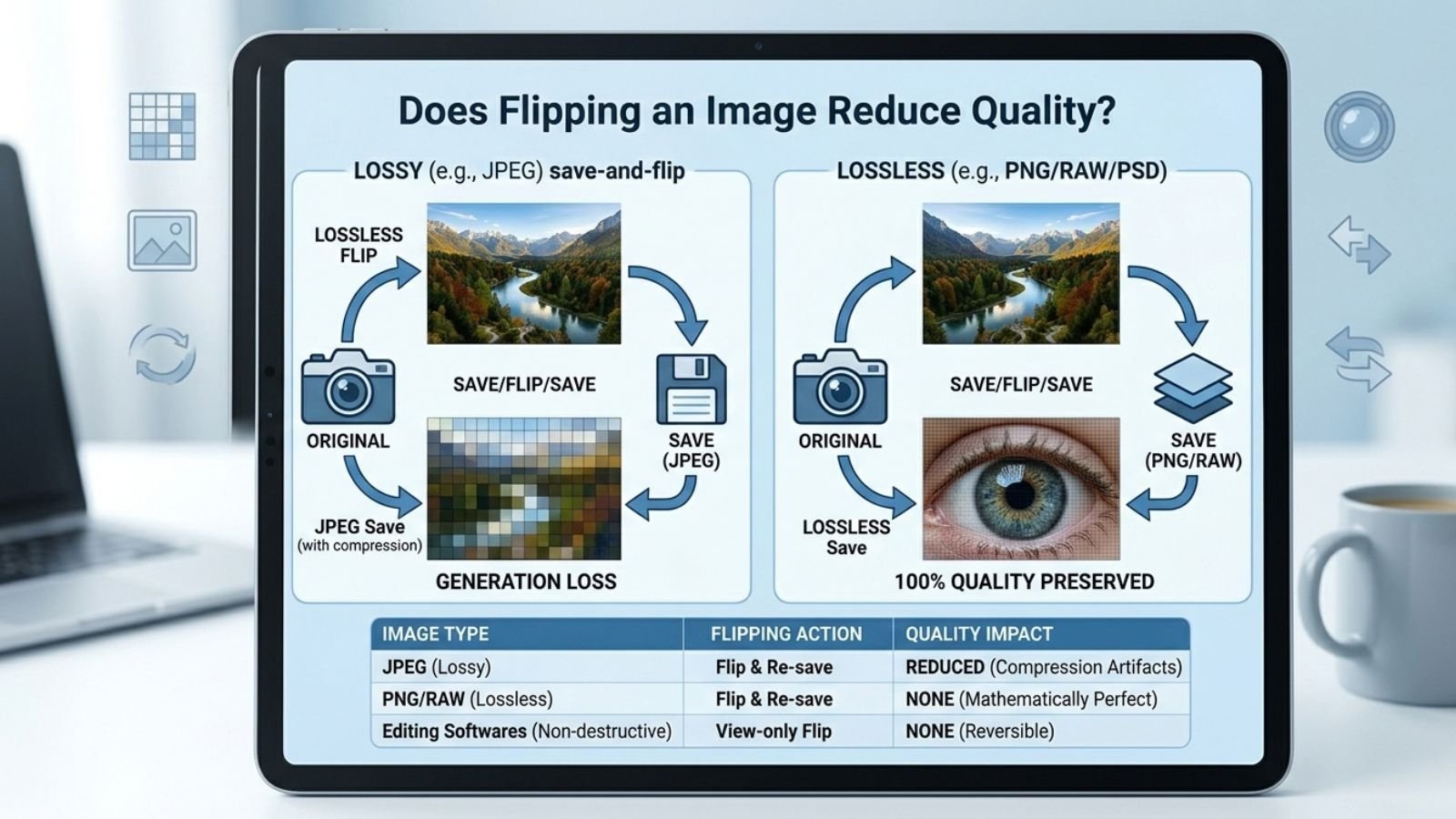
If you’re worried that flipping an image will make it blurry, pixelated, or lower resolution, there’s good news: a simple image flip does not inherently reduce image quality.
Flipping an image horizontally or vertically is a geometric transformation. It changes the position of the pixels but does not, by itself, remove pixels or reduce the image’s dimensions.
However, the way an image is saved, exported, resized, or compressed after flipping can affect its quality.
That distinction is important.
What Happens When You Flip an Image?
When you flip an image horizontally, the pixels are rearranged from left to right.
For example:
Original
A B C D
Horizontally flipped
D C B A
The image still contains the same number of pixels.
If the original image is:
4000 × 3000 pixels
a simple flip keeps it:
4000 × 3000 pixels
The orientation changes, but the dimensions remain the same.
A vertical flip works in a similar way, except the pixels are rearranged from top to bottom.
Does a Horizontal Flip Lower Resolution?
No.
A basic horizontal flip does not inherently lower the resolution of the image.
If you start with a 3000 × 2000-pixel photograph and flip it horizontally without resizing or compressing it, the result is still 3000 × 2000 pixels.
The same applies to a vertical flip.
This is why flipping is generally considered a lossless transformation when performed without a lossy re-encoding step.
Why Can a Flipped Image Sometimes Look Worse?
If the image appears blurry after flipping, the flip itself probably isn’t the reason.
Other parts of the editing process may have changed the image.
Common causes include:
- Resizing
- JPEG compression
- Exporting at lower quality
- Converting file formats
- Repeated editing and saving
- Screenshotting an already compressed image
- Using an editor that automatically optimizes images
In other words:
Flip ≠ quality loss
but:
Flip + compression/export settings = potentially lower quality
JPEG vs PNG: Does the Format Matter?
Yes.
The image format can have a much bigger effect on quality than the flipping operation itself.
JPEG
JPEG uses lossy compression. When a JPEG is saved, some image information can be discarded to reduce file size.
If you repeatedly open, edit, and save a JPEG, quality can gradually deteriorate.
So if you flip a JPEG and export it using aggressive compression, the resulting image may look worse—but the quality loss comes from the JPEG encoding, not from the horizontal flip.
PNG
PNG uses lossless compression for standard image data.
This makes it useful for screenshots, graphics, text-heavy images, and designs where preserving sharp edges matters.
If you flip a PNG without resizing it, the transformation itself doesn’t reduce its resolution.
WebP and Other Formats
Modern formats such as WebP can also use different compression modes and settings.
When quality matters, pay attention to the export settings rather than simply choosing a file format based on its name.
Does Flipping a Screenshot Reduce Quality?
A screenshot is no different.
Suppose you capture a screenshot at:
1920 × 1080 pixels
If you horizontally flip it and save it without resizing, it remains:
1920 × 1080 pixels
Small text should remain the same size and resolution.
However, screenshots can become difficult to read if they’re later:
- Resized too small
- Exported with heavy compression
- Converted from PNG to low-quality JPEG
- Uploaded to a platform that compresses images
For screenshots containing small text, preserving the original dimensions is particularly important.
What About Flipping Images on a Phone?
Phone photo editors generally perform the flip without requiring you to reduce the image dimensions.
For example, you might take a photo at:
4032 × 3024 pixels
After a simple horizontal flip, it can remain:
4032 × 3024 pixels
The exact behavior depends on the editing app and export settings.
If you notice a quality difference, check whether the app has resized or compressed the image during saving.
Does Flipping an Image Online Reduce Quality?
An online image flipper can preserve the original dimensions, but the result ultimately depends on how the service processes and exports the file.
If you want to flip an image in a browser, FlipImage.co can be used for a quick horizontal or vertical flip.
When using any online image editor, check the resulting file’s dimensions and format if image quality is important.
A useful test is to compare:
Original dimensions: 3000 × 2000
Edited dimensions: 3000 × 2000
If the dimensions remain unchanged, the flip itself has not reduced the image’s resolution.
Does Flipping an Image Change DPI?
This can be confusing because pixel dimensions and DPI/PPI metadata are not exactly the same thing.
An image might have a particular DPI value stored in its metadata while still containing the same number of pixels.
For digital images, pixel dimensions are usually more important when you’re talking about visible image detail.
For example:
3000 × 2000 pixels
describes the actual pixel dimensions.
DPI can become more relevant when preparing images for printing.
A simple flip doesn’t inherently remove image detail, but some applications may change metadata during export.
What About RAW Photos?
If you’re working with RAW photographs, the editing workflow can be different.
Professional photo applications often store edits as instructions rather than immediately rewriting the original image data.
In such a workflow, flipping an image can simply become another non-destructive adjustment.
The original RAW file remains available while the software records the orientation change.
This is one reason professional photo editors often provide non-destructive transformation tools.
Does Repeated Flipping Reduce Quality?
Repeated flipping itself does not necessarily cause cumulative quality loss.
If an image is simply transformed without being repeatedly re-encoded, you can flip it horizontally and vertically without progressively losing detail.
The bigger concern is repeated saving in a lossy format.
For example:
- Open JPEG
- Flip it
- Save as compressed JPEG
- Edit it again
- Flip it again
- Save another compressed JPEG
Each lossy JPEG export can introduce additional compression artifacts.
The safest approach is to keep an original master file and export a final copy when you’re finished editing.
How to Flip an Image Without Losing Quality
If preserving quality is important, follow these practices.
- Keep the Original
Don’t overwrite your only copy.
Create a duplicate before editing or use a non-destructive editor.
- Don’t Resize Unless Necessary
If you only need to flip the image, there’s usually no reason to change its dimensions.
- Avoid Unnecessary JPEG Re-Exports
If you’re working with a JPEG, avoid repeatedly saving it at low quality.
- Use Suitable Export Settings
When exporting, choose a quality level appropriate for your intended use.
For important photographs, avoid aggressive compression.
- Preserve the Original Dimensions
Check the pixel dimensions before and after editing.
For example:
Before: 4000 × 3000
After: 4000 × 3000
That’s a good sign that the image hasn’t been resized.
How to Check Whether Quality Was Lost
You don’t always need advanced software to check the result.
Compare Dimensions
Check the width and height of the original and flipped files.
Zoom In
Look closely at:
- Fine hair
- Small text
- Edges
- Skin details
- Thin lines
- Textures
Compare File Formats
If the original is PNG and the edited version is a heavily compressed JPEG, the format change may explain a quality difference.
Check File Size Carefully
A smaller file isn’t automatically worse, and a larger file isn’t automatically better.
File size is only one clue. Pixel dimensions, compression, and visual detail matter more.
Why Some Websites Make Images Look Lower Quality
Sometimes the image looks perfect on your computer but appears softer after uploading it to a website.
That’s usually because the website may:
- Resize the image
- Compress it
- Generate a smaller version
- Optimize it for faster loading
This can happen on social media platforms, messaging services, websites, and content-management systems.
If this occurs, don’t assume that flipping caused the problem.
The image may have been changed during upload or delivery.
Does Flipping Affect Metadata?
The visible image and its metadata are separate things.
Depending on the application, editing an image can affect metadata such as:
- Camera information
- Orientation tags
- Location metadata
- Editing history
- Color profiles
A simple flip doesn’t necessarily remove all metadata, but an application may change or strip some information when exporting.
If metadata is important for your workflow, check the export behavior of your particular editor.
When Is Flipping Completely Safe?
For most everyday purposes, flipping is a very low-risk image operation.
You can generally flip an image safely when you’re:
- Creating a mirrored selfie
- Reversing a product photo
- Adjusting a design
- Editing a screenshot
- Preparing a social media graphic
- Creating a mirror effect
Just avoid unnecessary resizing and aggressive compression.
Frequently Asked Questions
Does flipping a photo make it blurry?
No. A basic horizontal or vertical flip does not inherently make a photo blurry.
Does flipping reduce image resolution?
No. A flip normally keeps the same pixel dimensions.
Is flipping a PNG lossless?
The flip operation itself can be lossless. PNG also uses lossless compression for standard image data, although an editing program can still change the file in other ways during export.
Does flipping a JPEG reduce quality?
The flip itself doesn’t inherently reduce quality, but saving the JPEG again can involve lossy compression.
Is it safe to flip a high-resolution photo?
Yes. If the image is flipped without unnecessary resizing or compression, its original pixel dimensions can be preserved.
Can I flip an image online without losing quality?
Potentially, yes, provided the tool preserves the image dimensions and doesn’t apply unnecessary compression. Always check the output if quality is critical.
Conclusion
Flipping an image does not inherently reduce its quality.
A horizontal or vertical flip simply rearranges the existing pixels. If a 4000 × 3000 image is flipped without resizing, it can remain exactly 4000 × 3000.
When quality appears to decrease, the more likely causes are compression, resizing, format conversion, or export settings.
For the best results, keep your original file, avoid unnecessary resizing, and use appropriate export quality. If you only need a quick browser-based flip, FlipImage.co can be a convenient option.
