

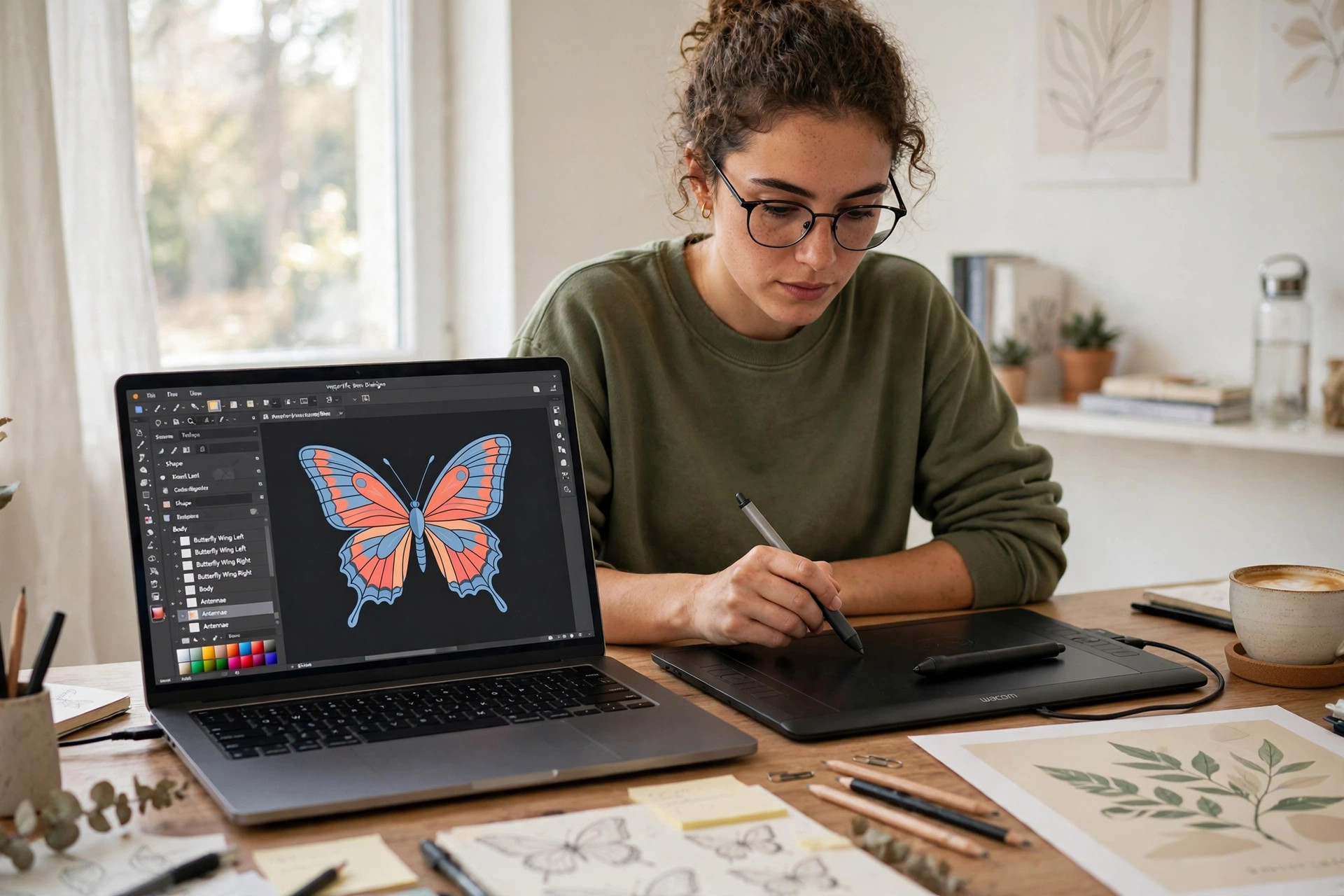
Learning how to flip an image in Inkscape takes less than a minute, and it costs nothing. Inkscape is a free, open-source vector editor — nothing to buy, no account to create.
Whether a logo faces the wrong way or you want a perfect symmetrical butterfly, Inkscape has a flip for it. Here are five easy ways: the Object menu, two shortcuts, the Transform dialog, the live Mirror Symmetry effect, and a free online way.
What Flipping Means in Inkscape
Flipping an image mirrors it, like looking at it in a mirror. A horizontal flip swaps left and right, so a shape facing left now faces right. A vertical flip swaps top and bottom, turning the picture upside down.
Inkscape works with objects, not pixels. A photo you import, a shape you draw and a line of text are all objects, and the same flip commands work on each. Flipping is non-destructive: flip again the same way and it goes straight back.
Flipping is not rotating. Rotating turns an object around its centre, like spinning a print on a table. A sideways picture needs a turn — see our guide to how to rotate an image — while writing that reads backwards needs a horizontal flip.
Method 1: How to Flip an Image in Inkscape with the Object Menu
This is the standard way to flip an image in Inkscape, and the one most people need.
- Open your file, or import a photo with File > Import. Inkscape asks whether to embed the image or link to it — embed it if the file needs to work on its own.
- Click the image or shape once with the Select tool (press F1 if another tool is active).
- Open the Object menu, then choose Flip Horizontal or Flip Vertical. The object flips instantly, in place.
The flip happens around the centre of the bounding box, so the object stays exactly where it was — only its direction changes.
For a mirrored copy instead, duplicate the object first with Ctrl + D, then flip the copy and drag it into place — that is how designers make symmetrical pairs.
Method 2: How to Flip an Image in Inkscape with the H and V Shortcuts
The keyboard shortcuts are the fastest way to flip once you know the menu method.
- Select the image or object with the Select tool (F1).
- Press H to flip horizontally, or V to flip vertically. No menu needed.
- Press the same key again to flip it straight back.
The shortcuts work with any tool active, so you can flip without switching tools.
One detail: in scaling mode the flip turns around the bounding-box centre, but in rotation mode it turns around the rotation centre — the small plus handle you can drag. If a flip seems to move your object, press F1 to return to the Select tool. The Inkscape guide documents the same shortcuts and the Tool Controls bar flip icons in its transformations chapter.
Method 3: Flip Precisely with the Transform Dialog
If you already know how to flip an image in Inkscape with the menu, this panel is the precise version of the same command.
- Select the image or object.
- Open Object > Transform, or press Shift + Ctrl + M.
- Click the Flip tab. You will see two buttons: Flip horizontal and Flip vertical.
- Click the one you need. The object flips at once.
The same flip buttons also sit as icons in the Tool Controls bar when the Select tool is active — one-click flips without opening a panel.
Use it when you are already working in the Transform dialog. For the same tools in a paid editor, see our guide to how to flip an image in Illustrator.
Method 4: Mirror Live with the Mirror Symmetry Path Effect
The first three methods show how to flip an image in Inkscape after you made it. The Mirror Symmetry path effect is different: it mirrors your drawing live, while you draw it. Draw one wing of a butterfly and the other wing appears by itself.
- Select the object to mirror. It must be a path — convert a shape or text first with Path > Object to Path.
- Open Path > Path Effects (or press Ctrl + Shift + 7).
- Click the + button at the bottom of the panel and choose Mirror Symmetry from the list.
- Pick the axis — vertical for a left-right mirror, horizontal for top-bottom — and move the axis handle to set the distance between the halves.
Now every change to the original is copied to the mirrored side at once — the best way to draw faces, butterflies and logos, because you only ever draw half of it.
If the effect button is greyed out, the object is not selected or not a path yet — select it, convert it with Path > Object to Path, and try again. The Educba guide to mirroring in Inkscape walks through the same effect with examples. For a photo-only mirror, see our guide to how to mirror an image.
Method 5: Flip an Image Online Free (No Inkscape Needed)
Sometimes you do not need a vector editor at all — you just need a photo flipped, fast. For those moments, the free Flip Image tool does the same job in any browser.
- Open the Flip Image tool and choose your photo.
- Pick Flip Horizontal or Flip Vertical. The flip happens on your device, so the photo is never uploaded.
- Download the flipped copy.
Use the online tool when speed matters. Keep Inkscape for designs and illustrations, where its flip commands and mirror effect earn their keep. If you work in the other free editor instead, our guide to flipping an image in GIMP covers its flip tool.
Tips for a Clean Flip in Inkscape
A few habits make how to flip an image in Inkscape go smoothly every time.
Duplicate before you flip. Press Ctrl + D first — you keep the original, and the flipped copy can move wherever the design needs it.
Check text before you flip it. Flipping mirrors every letter, so text reads backwards after a horizontal flip. If the words must stay readable, flip the shape and retype the text.
Linked images stay linked. Inkscape can link to an imported photo instead of embedding it, but if you move or rename the original file, Inkscape loses track of it. Embed images when the file needs to travel.
Export a flipped photo properly. Flipping an imported photo changes the document, not the original file. To save the flipped version, choose File > Export PNG Image (Shift + Ctrl + E) and pick the area to export.
Flip the view, not the artwork. To check whether a design leans to one side, use View > Canvas orientation > Flip horizontally — it only flips what you see, not the artwork.
FAQ
Is Inkscape free?
Yes — learning how to flip an image in Inkscape costs nothing. Inkscape is free and open source for Windows, Mac and Linux, with no paid version or subscription.
Can I flip a JPG or PNG photo in Inkscape?
Yes — how to flip an image in Inkscape works for photos too: choose File > Import, pick the photo, select it and press H. To save the flipped photo, use File > Export PNG Image (Shift + Ctrl + E).
Why is my text backwards after flipping in Inkscape?
Because flipping mirrors everything, letters included — a horizontal flip turns text into mirror writing. To keep words readable, flip only the artwork and retype the text.
Does flipping an image in Inkscape change the original file?
No. Flipping changes the Inkscape document only — an imported photo file stays as it was. Save the document to keep the flip, or export a PNG for a flipped picture file.
How do I flip just the canvas view in Inkscape?
Use View > Canvas orientation > Flip horizontally or Flip vertically. This mirrors only what you see, so you can check a design both ways — it changes no object.
Try It Free
Now you know how to flip an image in Inkscape five ways: the Object menu, the H and V shortcuts, the Transform dialog, the live Mirror Symmetry effect, and the free online shortcut. For logos and illustrations, Inkscape’s flip tools are free, precise and non-destructive. For a quick photo flip with no software, try the free Flip Image tool and mirror any photo in seconds.
