

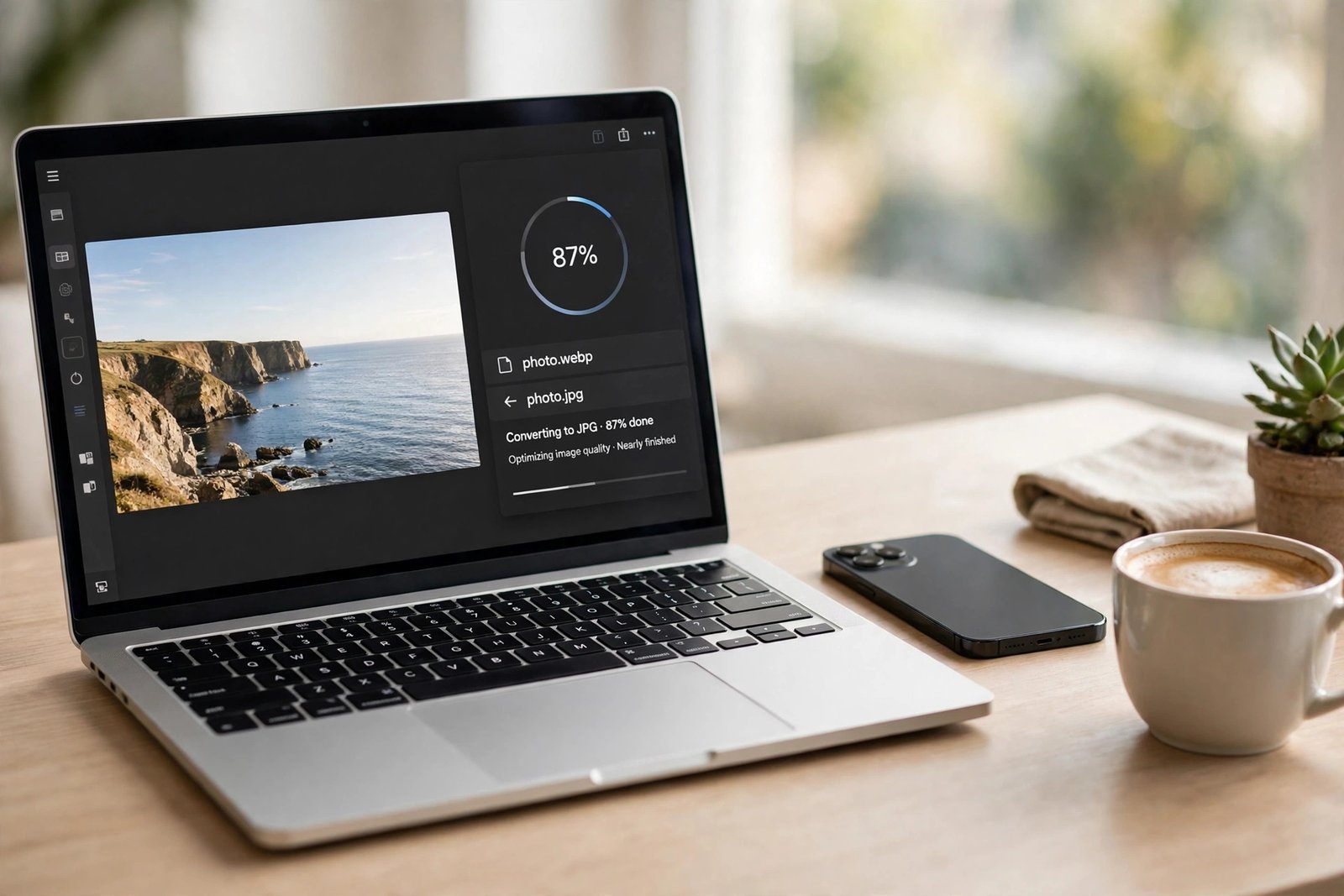
WebP to JPG Free: 5 Easy Ways to Convert Any Image in Seconds
WebP to JPG conversion is something almost everyone runs into. You download a photo, and instead of a JPG you get a file ending in .webp. It opens fine in your browser, but try to use it elsewhere — an email attachment, a job form, an older editor — and it gets rejected. The good news: turning a WebP into a JPG takes seconds, free, on any device. Here are five easy ways to do it, plus how to keep the quality high.
What Is a WebP File — and Why Change It to JPG?
WebP is a modern image format developed by Google. It squeezes photos into smaller files than JPG — Google’s tests put the saving at roughly 30% — and it handles transparency and animation too. That is why so many websites serve WebP: smaller files mean faster pages.
So why convert at all? Compatibility. JPG has been the universal photo format for over 30 years, and almost everything accepts it: email, printers, upload forms, older phones, and social apps. WebP works well in browsers, but outside the browser it still hits walls. If a form says “unsupported format”, converting to JPG is usually the whole fix — see Google’s WebP FAQ for more on the format.
One thing to know first: the conversion never adds quality, and JPG cannot store transparency. If your WebP has a transparent background, the JPG fills it with a solid colour — usually white. Check the result before you send it.
Method 1: Convert WebP to JPG Online Free (Fastest Way)
The quickest way is a free online converter in your browser. It works on Windows, Mac, Chromebook, iPhone, and Android, and you install nothing.
- Open a free online converter — for example, the Adobe Express WebP to JPG converter.
- Upload your WebP file, or drag and drop it into the page.
- Make sure JPG is selected as the output format.
- Click Convert, then download the finished JPG.
The whole thing takes under a minute. Once your JPG is ready, check it opens correctly — and if the photo faces the wrong way, as saved selfies often do, you can flip it free with our Flip Image tool in seconds. Our PNG to JPG and HEIC to JPG guides cover the same job for those formats.
Method 2: Convert WebP to JPG on Windows (Paint or Photos)
On Windows 10 or 11, you already have what you need.
Using Paint: right-click your WebP file, choose Open with, then Paint. Click File, choose Save as, then JPEG picture. Pick a name and folder, and click Save.
Using the Photos app: double-click the WebP file, click the three dots, choose Save as, select JPG, and save. Paint is simpler; for a whole folder, use the online method above.
Method 3: Convert WebP to JPG on Mac (Preview)
Mac’s built-in Preview app converts WebP to JPG in a few clicks, and it lets you control the quality.
- Double-click the WebP file to open it in Preview — or right-click it, choose Open With, then Preview.
- Go to File in the menu bar, then Export.
- In the Format dropdown, choose JPEG, and set Quality to 90% or higher.
- Choose where to save it and click Save.
Preview leaves the original untouched. If your Mac is older and Preview will not open the WebP, use the online method in Method 1.
Method 4: Convert WebP to JPG in Photoshop
If you already use Photoshop, it is the best option when quality matters most — and it handles batches.
- Open your WebP file in Photoshop. (CC 2020 and later open WebP natively; older versions need a free plug-in.)
- Go to File, then Save As, and choose JPEG — or File, Export, Export As for more control.
- Set the quality to 90–100% and click Save.
- For many files, use File, Automate, Batch to convert the whole folder.
You can also fix the photo first — crop, straighten, or brighten it — so the JPG is the finished version. If it ends up too large to send, compress an image to shrink it without visibly hurting the quality.
Method 5: Convert WebP to JPG on iPhone and Android
On iPhone: open the WebP file in the Files app, tap Share, then Save Image. Photos stores it as a JPEG you can share or upload anywhere.
On Android: open the image in your gallery or Google Photos. If your gallery offers “Save as JPG” or “Export”, use it. If not, open the online converter from Method 1 in Chrome — it works the same on a phone. A screenshot also produces a JPG, but only as a last resort: it captures your screen, not the original file, so you lose resolution.
WebP vs JPG: Which Format Should You Keep?
- File size: WebP is smaller, usually by around a quarter to a third.
- Quality: at high quality settings, the two look the same to the human eye.
- Transparency: WebP supports transparent backgrounds; JPG does not — transparency is lost in the conversion.
- Animation: WebP can hold a short animation; JPG is a still image only.
- Compatibility: JPG wins by a mile — it works everywhere.
Keep WebP for website images; convert to JPG for anything you share, print, or upload. If a photo is too big after converting, resize an image first.
5 Tips to Keep Quality High When You Convert WebP to JPG
- Start from the original. Always convert from the original WebP — converting a JPG back and forth degrades it a little every time.
- Use 90% quality or higher. Below 80%, smooth areas like skies may look blocky.
- Check the background. If your WebP had transparency, the JPG gets a solid background — check the result before sending it.
- Do not upscale. Keep the original pixel size; making the image bigger only blurs it.
- Convert in batches. For dozens of files, convert a whole folder at once instead of one by one.
One more tip: if you later need the picture inside a PDF — for a form or an application — save a PNG copy and use a free PNG to PDF converter to place it in a PDF. Our JPG to PDF guide covers that trip step by step.
FAQ: WebP to JPG
Does converting WebP to JPG lose quality?
A tiny amount. JPG uses lossy compression, so a little detail is discarded — but at 90% quality or higher, the loss is invisible in normal use.
Can I convert WebP to JPG without installing software?
Yes. The online method needs only a browser, and Paint (Windows) and Preview (Mac) are already on your computer. No downloads or sign-ups are needed.
Why do my images download as WebP?
Because the website served it that way. Sites use WebP to make pages load faster, and your browser saves the file in the format it was given.
Can I turn a JPG back into WebP?
Yes, the same tools handle it both ways. But going back will not recover quality lost in the JPG step — once detail is gone, it is gone.
Try It Free
It is a thirty-second job — pick the method for your device, keep the quality high, and check the result. And if your photo needs one more fix, like flipping a backwards selfie, try our free Flip Image tool — no software, no sign-up.

1 Comment
Pingback: WebP to PNG Free: 5 Easy Ways to Convert in Seconds