

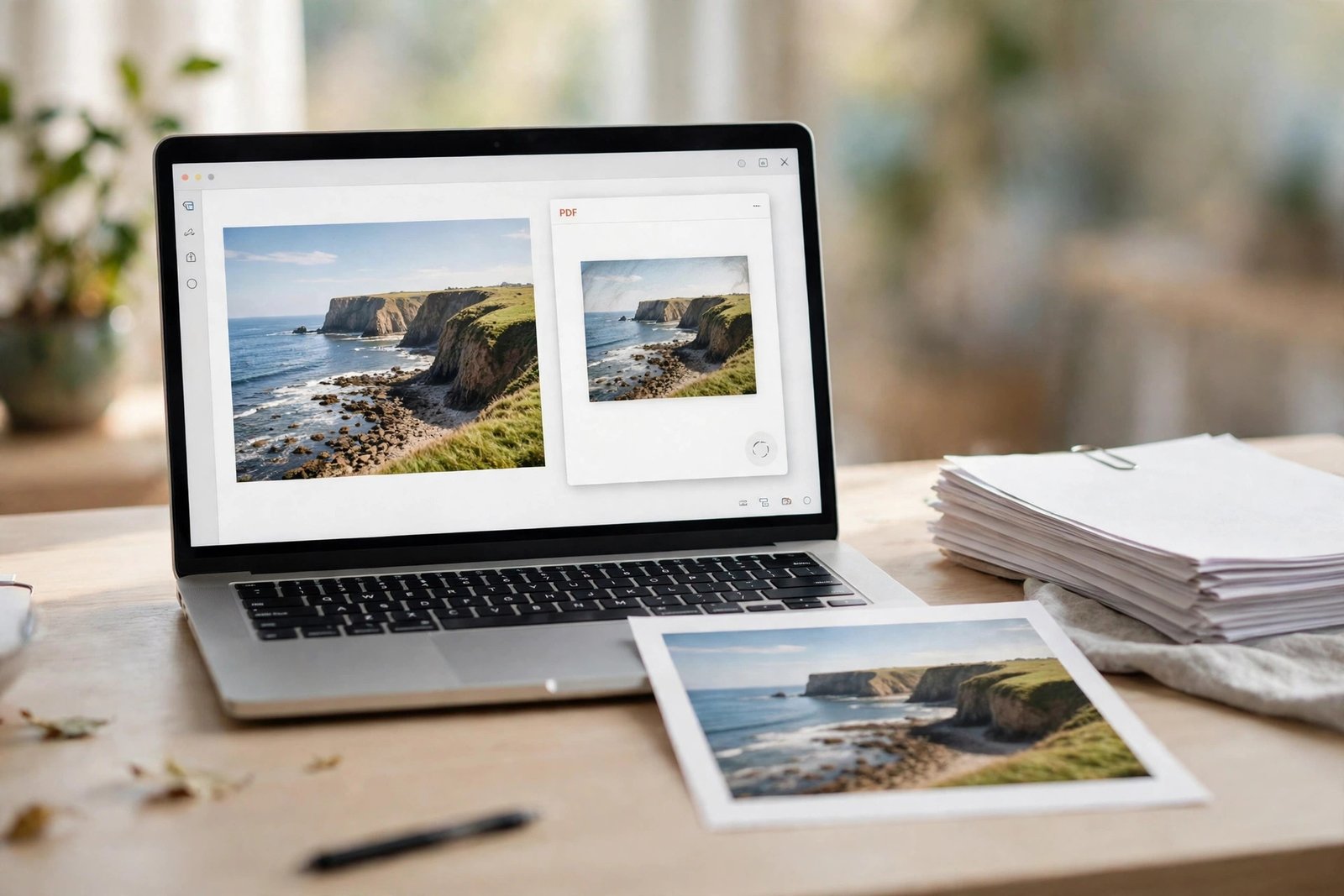
Converting JPG to PDF is quick, free, and something almost everyone needs sooner or later. A job application asks for your documents as a PDF. A form only accepts PDF uploads. Or you simply want to share a photo in a format that looks the same on every screen. Whatever the reason, turning a JPG into a PDF takes less than a minute once you know the right method.
A JPG is a picture. A PDF is a document that can hold that picture in a file that opens the same way everywhere. That is why schools, employers, banks, and government portals so often ask for PDFs instead of image files. You do not need paid software to convert JPG to PDF: your phone and computer already have the tools built in, and free online converters handle the rest.
Below are five easy ways to convert JPG to PDF on any device.
A PDF keeps your image exactly as you arranged it, works on every device, and is accepted by almost every upload form — for scanned documents, photo IDs, certificates, or several photos bundled into one tidy file. Before converting, check the photo is the right way up: if your JPG is sideways or mirrored, fix it first with the free Flip Image tool, then convert the corrected image to PDF.
Method 1: Convert JPG to PDF Online Free (Fastest Way)
The fastest way to convert JPG to PDF is a free online converter. It works on any device with a browser, and there is nothing to install.
- Open a free converter such as the Adobe Acrobat JPG to PDF tool in your browser.
- Click Select a file, or drag your JPG into the upload area.
- The tool converts the image automatically, usually in a few seconds.
- Download the finished PDF to your device.
Most online converters also let you upload several JPGs at once and download them as one combined PDF, which is handy for multi-page documents.
If your file is a PNG rather than a JPG, use a free PNG to PDF converter instead. And if your JPG file is very large, shrink it first with our guide on how to compress an image so the PDF stays small enough to email or upload.
Method 2: How to Convert JPG to PDF on iPhone
You can convert JPG to PDF on an iPhone without downloading any app, using the built-in Photos app.
- Open the Photos app and find the JPG you want to convert.
- Tap the Share button (the square with an arrow pointing up).
- Tap Print in the share sheet.
- On the print preview screen, pinch outward on the photo thumbnail with two fingers. This opens a full-screen PDF preview.
- Tap the Share button again and choose Save to Files.
- Pick a folder, tap Save, and your PDF is ready.
To convert several JPGs into one PDF on iPhone, select multiple photos first, then follow the same steps. The Files app also offers a shortcut: long-press an image in Files, tap Quick Actions, and choose Create PDF.
Method 3: How to Convert JPG to PDF on Android
Android phones can also convert JPG to PDF with no extra apps, using the print-to-PDF feature built into the system.
- Open the JPG in Google Photos or your phone’s Gallery app.
- Tap the three-dot menu, then tap Print (or Share, then Print).
- At the top, where the printer is shown, tap it and choose Save as PDF.
- Tap the PDF download button and pick where to save the file.
The exact menu names vary slightly between Samsung, Pixel, and other Android phones, but Save as PDF is present on all of them. To combine several JPGs, select multiple photos before tapping Print.
Method 4: How to Convert JPG to PDF on Windows
Windows has a built-in PDF printer, so converting JPG to PDF on a PC takes only a few clicks.
- Open the JPG in the Photos app (double-click the file).
- Press Ctrl + P, or click the three dots and choose Print.
- In the printer list, select Microsoft Print to PDF.
- Choose the paper size and layout if you want — portrait usually suits photos best.
- Click Print, choose a save location and file name, and click Save.
The same trick works from File Explorer: select one or more JPGs, right-click, choose Print, pick Microsoft Print to PDF, and each photo becomes a page in the resulting PDF.
Method 5: How to Convert JPG to PDF on Mac
Mac users have it easiest of all, because the built-in Preview app converts images to PDF in seconds. Apple documents this in its Preview user guide.
- Double-click the JPG to open it in Preview.
- Go to File in the menu bar and choose Export as PDF.
- Type a file name and choose where to save it.
- Click Save.
To convert several JPGs into one PDF on a Mac, open them all in Preview, select them in the sidebar, then choose File, then Export Selected Images, and pick PDF as the format.
How to Combine Multiple JPGs Into One PDF
Check the page order before you save: most tools order pages by file name, so rename your photos (01, 02, 03 and so on) if the order matters. Each method above already covers combining — select several photos before converting and they become pages of one PDF.
Tips for a Perfect JPG to PDF Conversion
A few small habits make your PDFs look better and behave better:
- Check the orientation first. A sideways photo makes a sideways PDF. Flip or rotate the image before converting if needed.
- Keep the file size sensible. A PDF made from a huge photo can be several megabytes. If you need to email it or upload it to a form with a size limit, compress the image before converting.
- Use the right format for the job. A JPG is a photo; a PNG suits graphics and screenshots. If you need to change formats first, see our guides on how to convert PNG to JPG and how to convert HEIC to JPG for iPhone photos.
- Name the PDF clearly. “passport-photo.pdf” is far easier to find later than “IMG_4821.pdf”.
- Keep the original JPG. You cannot get the original photo data back from a PDF, so keep the JPG file as well.
If your photo needs a quick size or shape change before converting, our guides on how to resize an image and how to crop an image will help.
FAQ: JPG to PDF
Is converting JPG to PDF free?
Yes. Every method in this guide is free: online converters, the iPhone and Android print-to-PDF features, Microsoft Print to PDF on Windows, and Preview on Mac.
Does converting JPG to PDF reduce quality?
No, not by itself. A PDF simply wraps your JPG inside a document, so the photo keeps its original quality. Quality only drops if you compress the image or choose a low-quality setting.
Can I convert multiple JPGs into one PDF?
Yes. All five methods above support multiple images: select several photos before converting and they become pages of a single PDF.
What is the difference between JPG and PDF?
A JPG is an image file — a single photo. A PDF is a document format that can contain images, text, and multiple pages, and it looks identical on every device.
Try It Free
Converting JPG to PDF takes seconds, and you already have everything you need — your phone or computer can do it with no extra software. Pick the method that matches your device, check the orientation first, and your PDF will be ready in under a minute.
And if your photo needs fixing before it goes into a PDF — a flip, a rotation, or a mirror — try the free Flip Image tool first. It runs in your browser, needs no sign-up, and your photo will be perfectly oriented before you convert it.

1 Comment
Pingback: Image to PDF Free: 5 Easy Ways to Convert in Seconds