

PNG to PDF Free: 5 Easy Ways to Convert Any Image in Seconds
PNG to PDF conversion is one of those small jobs that comes up all the time. You have a screenshot, a scanned document, or a photo saved as a PNG, and the form, the email, or the printer wants a PDF. The good news: turning a PNG into a PDF takes seconds and costs nothing. Here are five easy ways to do it.
What Is a PNG — and Why Turn It into a PDF?
PNG is a lossless image format: it stores every pixel exactly, with no quality lost when you save it. That is why screenshots, logos, and scanned pages usually end up as PNGs — and PNG also supports transparent backgrounds, so a logo can sit cleanly on any colour.
So why convert at all? A PDF opens the same way on every device, prints exactly as it looks on screen, and almost every form, job portal, and government website accepts PDF uploads while rejecting plain images. A PDF also keeps several pages in one file, so five scanned pages become one document.
One thing to know first: a PDF wraps your PNG inside a document — it does not add quality, and it cannot keep transparency. If your PNG has a transparent background, the PDF fills it with a solid colour, usually white.
Method 1: Convert PNG to PDF Online Free (Fastest Way)
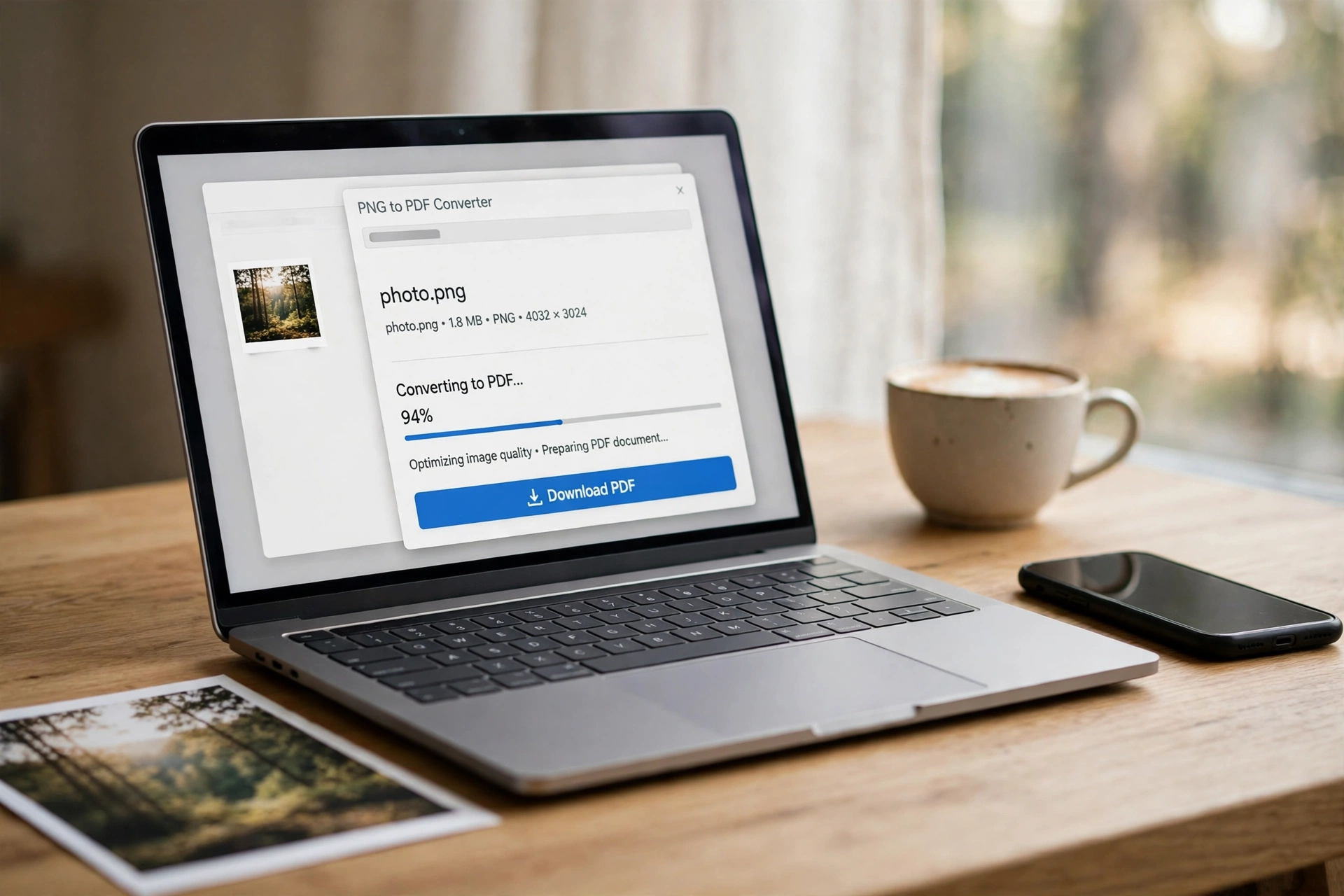
The quickest way is a free online converter in your browser. It works on Windows, Mac, Chromebook, iPhone, and Android, and you install nothing.
- Open a free online converter — for example, the Adobe Acrobat PNG to PDF converter.
- Upload your PNG file, or drag and drop it into the page.
- The tool converts it automatically — most converters need no settings at all.
- Click Download to save the finished PDF.
The whole thing takes under a minute. If you convert PNGs to PDF often, a dedicated PNG to PDF converter does the same job in one click, with no account and no software. And if the picture faces the wrong way — a backwards selfie saved as a PNG, for example — you can flip it free with our Flip Image tool before converting.
Method 2: Convert PNG to PDF on Windows (Print to PDF)
Windows has a built-in way to make a PDF from any image, and it needs no extra software.
- Double-click your PNG to open it in the Photos app.
- Click the three dots, then Print — or press Ctrl + P.
- In the printer list, choose Microsoft Print to PDF.
- Pick the paper size, then click Print and choose where to save the PDF.
That is it. The same trick works from almost any app: if you can print it, you can save it as a PDF. For several PNGs at once, select them all in File Explorer, right-click, and choose Print — Windows puts each image on its own page of one PDF. If the PNG is too large to send, compress an image first.
Method 3: Convert PNG to PDF on Mac (Preview)
Mac’s built-in Preview app converts a PNG to PDF in a few clicks.
- Double-click the PNG file to open it in Preview — or right-click it, choose Open With, then Preview.
- Go to File in the menu bar, then Export as PDF.
- Choose a name and a folder, then click Save.
To combine several PNGs into one PDF, open them all in Preview (select them in Finder, right-click, Open With Preview), then choose File, then Print, and in the print dialog choose Save as PDF from the PDF dropdown at the bottom left. Preview leaves your original PNGs untouched. See Apple’s Preview guide for more on what Preview can export.
Method 4: Convert PNG to PDF on iPhone (Files App)
On iPhone, the Files app has a PDF maker built in.
- Open the Files app and find your PNG. (If the image is in Photos, tap Share, then Save to Files first.)
- Long-press the PNG file, then tap Quick Actions, then Create PDF.
- The PDF appears in the same folder, ready to share or upload.
For several images, tap the three dots, tap Select, choose your PNGs, tap the three dots again, and choose Create PDF — they become one multi-page document in the order you picked.
Method 5: Convert PNG to PDF on Android (Print to PDF)
Android has no single built-in converter, but the print system does the job on almost every phone.
- Open the PNG in your gallery or in Google Photos.
- Tap the three dots, then Print — or Share, then Print.
- Change the printer to Save as PDF, then tap the PDF button to save it.
If your gallery has no Print option, open the online converter from Method 1 in Chrome — it works the same on a phone, and it handles several images at once.
PNG vs PDF: Which Format Should You Keep?
- Quality: PNG is lossless; a PDF simply wraps the PNG, so the picture inside stays as sharp as the original.
- Transparency: PNG supports it; PDF does not — transparent areas become a solid colour.
- Pages: a PNG is always one image; a PDF can hold many pages in a single file.
- Editing: a PNG is easy to crop or flip; a PDF is meant to be viewed and printed, not edited.
- Acceptance: forms, portals, and printers ask for PDF far more often than for PNG.
Keep the PNG as your master copy, and make a PDF whenever you need to submit, share, or print it. If the same picture also needs to become a JPG, our PNG to JPG guide covers that, and our JPG to PDF guide covers the trip from JPG to PDF.
4 Tips to Keep Quality High When You Convert PNG to PDF
- Start from the original. Always convert from the original PNG — converting a screenshot of a PNG degrades it.
- Check the background. If your PNG had transparency, the PDF gets a solid background — check it before sending, especially for logos.
- Combine, do not zip. If you have several pages, put them in one PDF instead of sending a zip of PNGs — the receiver can open and print it in one go.
- Watch the file size. PNGs of photos can be large, and a PDF of many of them gets heavy fast — resize an image before converting if the file needs to stay small.
FAQ: PNG to PDF
Does converting PNG to PDF lose quality?
No. The PNG is embedded in the PDF exactly as it is, so the picture stays as sharp as the original — only any transparency becomes a solid background.
Can I convert PNG to PDF without installing software?
Yes. The online method needs only a browser, and Windows (Print to PDF), Mac (Preview), and iPhone (Files) all have it built in. No downloads or sign-ups are needed.
Can I put several PNGs into one PDF?
Yes. On Mac, open them all in Preview and use Print, then Save as PDF. On iPhone, select several in Files and choose Create PDF. On Windows, select them in File Explorer and Print to PDF. Online converters usually let you upload several files and merge them too.
Why does my PDF have a white background when the PNG was transparent?
Because PDF has no transparency for placed images — the converter fills transparent pixels with white (sometimes black). Flatten the PNG onto a white background first if it matters.
Try It Free
It is a thirty-second job — pick the method for your device, check the background, and send the PDF. And if your picture needs one more fix first, like flipping a backwards selfie, try our free Flip Image tool — no software, no sign-up.
