

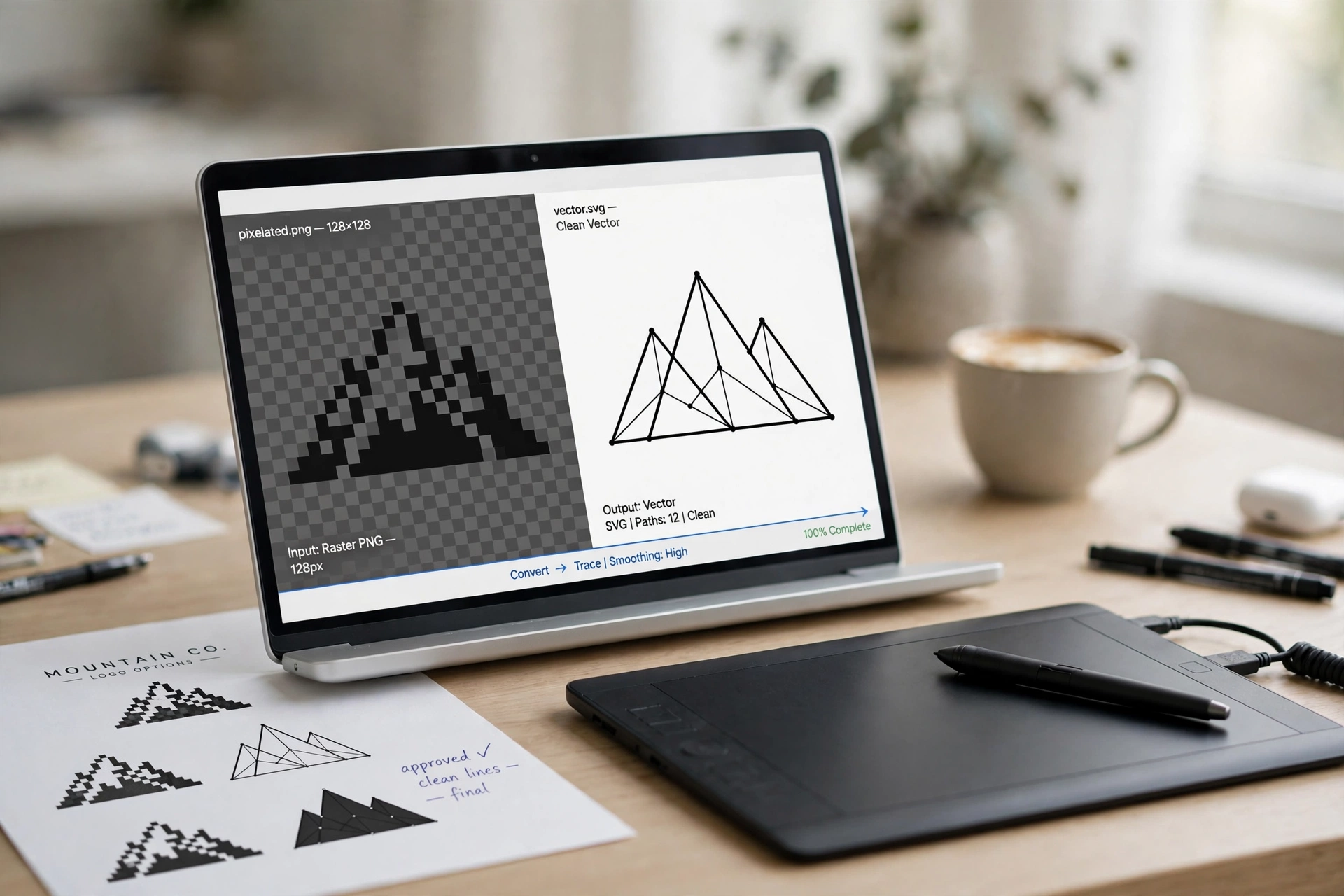
To convert PNG to SVG free, you need a tracer, not a simple file converter: a PNG is made of pixels, while an SVG is made of shapes, so the picture must be redrawn as smooth vector paths. You can do it in seconds, free, with no sign-up: drop your PNG into an online vectorizer, or trace it in Inkscape or Illustrator. Here are five free ways to do it — including a Cricut-ready cut file.
What Happens When You Convert PNG to SVG?
A PNG stores your picture as a grid of tiny coloured squares. Enlarge it and those squares show up as blurry, jagged edges — and a cutting machine cannot follow them at all. An SVG stores the same picture as instructions — lines, curves and filled shapes. That is why an SVG stays sharp at any size, and why every outline in it is a path a cutter can follow. The W3C SVG specification defines how those shapes and paths work.
Converting PNG to SVG therefore means tracing: the tool fits smooth Bézier curves around each area of flat colour, and each colour becomes its own group of shapes. A clean two-colour logo can come out as just a handful of shapes — one real example turned a 50 KB PNG into a 10 KB SVG.
Which Images Convert Well — and Which Don’t
Tracing follows edges, and that one fact predicts almost every result. Logos, icons, lettering, line art, black-and-white drawings, signatures and flat illustrations convert beautifully — they have hard edges and a few flat colours.
Photographs convert poorly: a photo has no hard edges, just thousands of soft colour transitions, so it comes back as a poster-style picture of flat colour areas, with lost detail. Never expect a photo to trace like a logo.
Watch out for the transparency trap: a genuinely transparent PNG traces cleanly, because tracing reads that area as the outline. But a screenshot PNG often looks transparent while actually carrying a solid white rectangle, and the trace returns a box around your artwork. Check for a real checkerboard behind the artwork first.
Method 1: Convert PNG to SVG Online Free (Fastest Way)
The fastest way to convert PNG to SVG is a free online tool. Open Flip Image and upload your PNG — no software to install, no account, no watermark. Pick what the picture is (logo, icon, line art or illustration), wait a few seconds, then preview the result at the size you will use it and download the SVG.
Tracing runs in your browser, so your picture is never uploaded — no queue, no server file-size limit. To turn it back later, see our guide to convert SVG to PNG.
Method 2: Use a Free Browser Vectorizer (No Upload, No Sign-Up)
Dedicated vectorizer sites work the same way — drop a PNG, JPG, WebP, GIF or BMP on the page and download the SVG — with fine-tuning controls. Set the colour count yourself (1 to 32): for vinyl cutting, use the number of vinyl colours you will cut, because each colour becomes its own layer. Turn on Remove background to drop the white box behind your design. If the result has hundreds of tiny shapes, move the Detail slider towards Simpler — soft shading and JPEG noise are the usual cause.
The free trace follows your pixel edges, so curves can come back slightly uneven, with more points than needed — fine for a quick SVG and for screen use. Paid AI vectorizers redraw cleaner shapes with fewer points — what a printer or cutter file really needs. For most logos, the free trace is already good enough.
Method 3: Trace a PNG to SVG in Inkscape (Free Desktop)
Inkscape is a free, open-source vector editor, and its Trace Bitmap tool is the most capable free desktop way to convert PNG to SVG. Import your PNG, select it, then open Path > Trace Bitmap. Choose Brightness Cutoff for black-and-white art, Edge Detection for outlines, or Quantize for a set number of colours — then turn on “Remove background” if your logo sits on white. Preview, click OK, and delete the original PNG underneath.
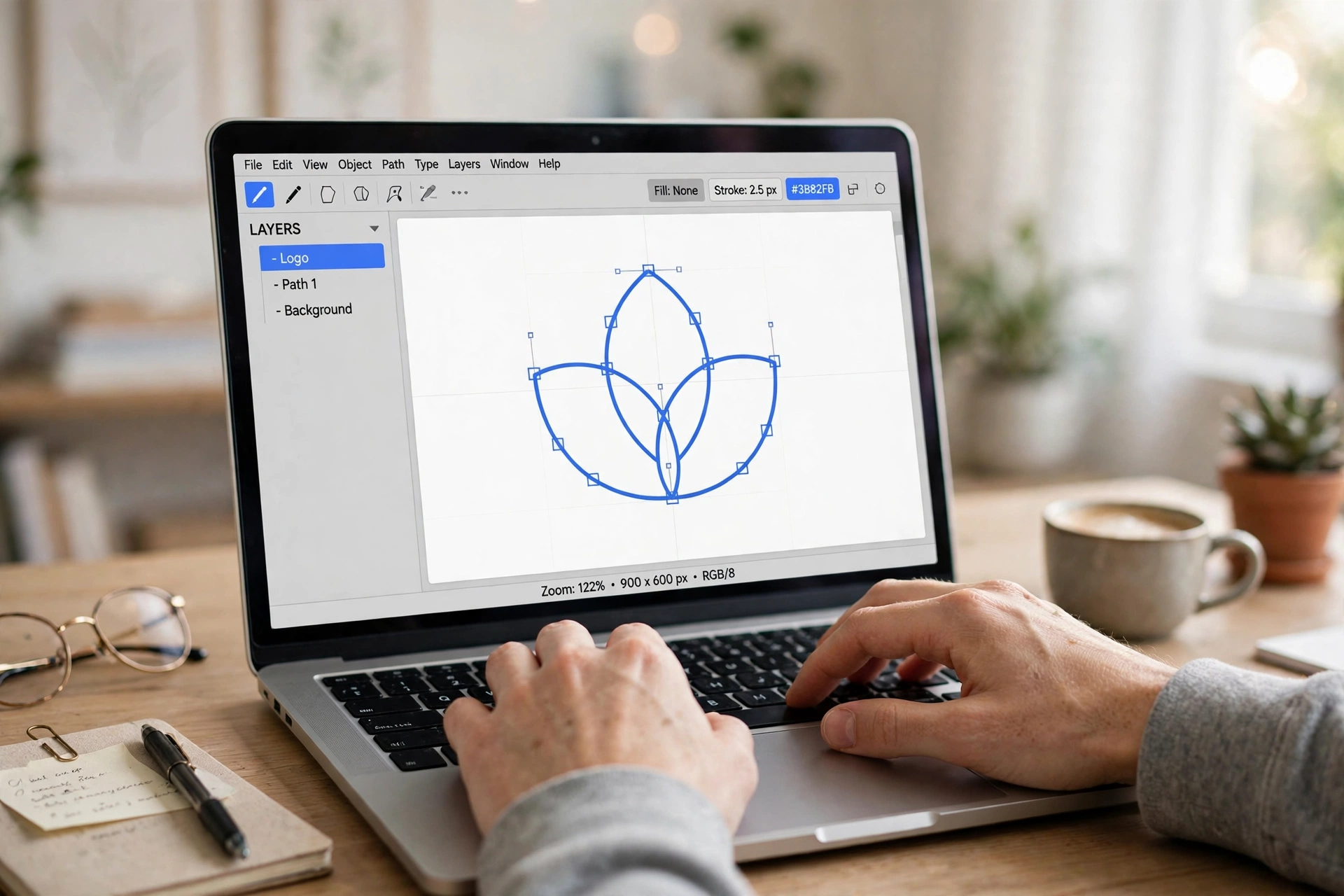
Inkscape also has a centerline trace, which follows the middle of each pen stroke — ideal for signatures and sketches. After tracing, click any shape to move its anchor points or delete specks. The MDN guide to SVG explains how SVG stores pictures as paths rather than pixels.
Method 4: Image Trace in Adobe Illustrator
If you already have Illustrator, its Image Trace panel is the professional route. Place your PNG, select it, and open Window > Image Trace. Use Black and White Logo for single-colour art, or 3 Colors / 6 Colors for flat logos. Slide Paths and Corners until the edges look clean, then click Expand. The trade-off is the subscription — for a one-off logo, the free methods above get you just as far.
Method 5: Make a Cricut-Ready SVG Cut File
Many people who convert PNG to SVG want one thing: a cut file for Cricut, Silhouette, LightBurn or Glowforge. Start from the biggest PNG you have — around 500 px on the long side is a good minimum; below about 100 px, small details merge. Convert with a one-colour or few-colour setting, so each colour comes into Design Space as its own layer, ready to cut, and remove the background first. Choose “Cut file” or “Black & white” mode where offered, so the result is solid closed shapes instead of dozens of slivers.
Before you cut, upload the SVG to Design Space and check it: zoom in on thin lines and small letters, and confirm each colour is its own layer. If the free trace has too many tiny paths, weeding will be slow — re-trace with fewer colours. The same SVG also works for laser cutting (export DXF) and print (export PDF or EPS). If you still need the photo as a document, you can convert your PNG to PDF once the vector work is done.
5 Tips for the Cleanest Trace
- Start from the biggest original you have. Upscaling only makes the blur bigger.
- Check the transparency is real. A genuine checkerboard means the background stays empty in the SVG; a white box must be removed first.
- Use fewer colours than you think. Two or three colours trace far cleaner than twelve.
- Judge the result at its real size. Compare edges, colours and negative space — not at 400% zoom.
- Keep a copy of the source. Save the original PNG next to the SVG so you can re-trace with different settings.
Convert PNG to SVG — FAQs
Can I convert a photo to SVG?
Yes, but it will not look like a photo — you will get a poster-style vector with flat colour areas, because photos have no hard edges.
Will converting make a blurry image sharp?
Mostly: edges are redrawn as shapes, so a soft, small logo comes back crisp at any size. But missing detail cannot be invented — around 500 px on the long side is a good minimum.
Is it really free?
Yes. The online tools and Inkscape are free with no sign-up, no watermark and no daily limit. You only pay if you choose an AI vectorizer’s clean file for print or cutting work.
Will the SVG work in Cricut Design Space?
Yes. Download the SVG and upload it in Design Space — each colour comes in as its own layer, ready to cut. Remove the background first, and check thin lines at real size before you cut.
Is my image uploaded anywhere?
Not with a browser-based tracer: it runs on your own device, so the file never reaches a server. An AI vectorizer is the exception — it uploads your image to trace it.
Try It Free
Now you know how to convert PNG to SVG free — which pictures are worth converting, and which settings make the difference. Start with a clean, large PNG, pick the method that fits your job, and check the result at its real size. Try the Flip Image tool now and turn your logo into a sharp, scalable SVG in seconds. More format guides: PNG to JPG, convert WebP to PNG, HEIC to PNG, and compress a PNG.
