

This guide shows you five free ways to convert SVG to JPG — and how to avoid the blurry results and black backgrounds that catch most people out. An SVG is a vector file: it stays sharp at any size, but most websites, email apps and photo tools cannot display it. A JPG works everywhere — websites, emails, social media, documents.
Why Convert an SVG to JPG?
An SVG (Scalable Vector Graphics) file is made of shapes, lines and text described in code, not pixels — which is why an SVG logo looks perfect on a business card and on a billboard alike. The World Wide Web Consortium maintains the SVG standard, and every modern browser can display it. W3C SVG standard
JPG is the opposite: a photo format made of pixels that cannot scale up without losing sharpness and cannot hold transparency — but almost every app, printer, phone and website accepts it, and JPG compression keeps files small. That is why people convert SVG to JPG for an email signature, a marketplace image or a document graphic. Keep the SVG as your master file, and make a JPG copy whenever you share the image somewhere that does not understand vectors.
Before You Convert: 3 Settings That Decide Quality
1. Output size. An SVG has no fixed pixel size, so the converter must choose one — and a small export, such as 300 pixels wide, looks blurry when enlarged. Use 1200 pixels wide for most web use, 1920 for large banners and 3000 for print.
2. Background colour. JPG files do not support transparency, so transparent parts of your SVG must become a solid colour — many converters default to white, but some default to black. If your logo has a transparent background, choose white (or your brand colour) before you convert.
3. JPEG quality. A setting of 90–95 gives a crisp image with a modest file size and suits almost every use. Dropping to 70–80 is fine for small thumbnails, but fine text and thin lines can look fuzzy. Adobe’s guidance on image size and resolution explains how pixel dimensions and resolution work together for screen or print. Adobe image size guide
Method 1: Convert SVG to JPG Online Free (Fastest Way)
The quickest way is a free online converter — no software to install and no account needed. Open Flip Image and upload your SVG, choose JPG, set the width (1200 pixels is a good default) and a white background, then set the quality to around 90, convert, and download your JPG. The job takes under a minute.
Tip: if you ever need a PNG inside a PDF for a form, printout or application upload, you can convert your PNG to PDF with our free sister tool.
Method 2: Convert SVG to JPG in Canva (Edit First, Then Export)
Canva suits you when you want to change the design before exporting — a colour, some text, or a coloured background. Open Canva, start a new design at the size you need, upload your SVG and place it on the canvas. Edit it, then click Share, Download, choose JPG, set the size and download.
Canva’s free plan handles most single-image jobs, but its SVG upload limit is small (around 3 MB) and it offers no DPI or exact quality controls.
Method 3: Convert SVG to JPG in Inkscape (Free Desktop Software)
Inkscape is a free, open-source vector editor that gives you the most control of any free method — best when quality matters or the SVG uses custom fonts or linked images. Install Inkscape (free for Windows, Mac and Linux) and open your SVG. Set the page size to match your image under File, then Document Properties. If your design uses a custom font, make sure it is installed on your computer, or the text may render in a fallback font.
Then go to File, Export PNG Image, set the width (for example 2000 pixels) and export. Open the PNG in any image editor and save it as a JPG at quality 90–95, with white filling transparent areas.
Method 4: Convert SVG to JPG in Photoshop or Illustrator
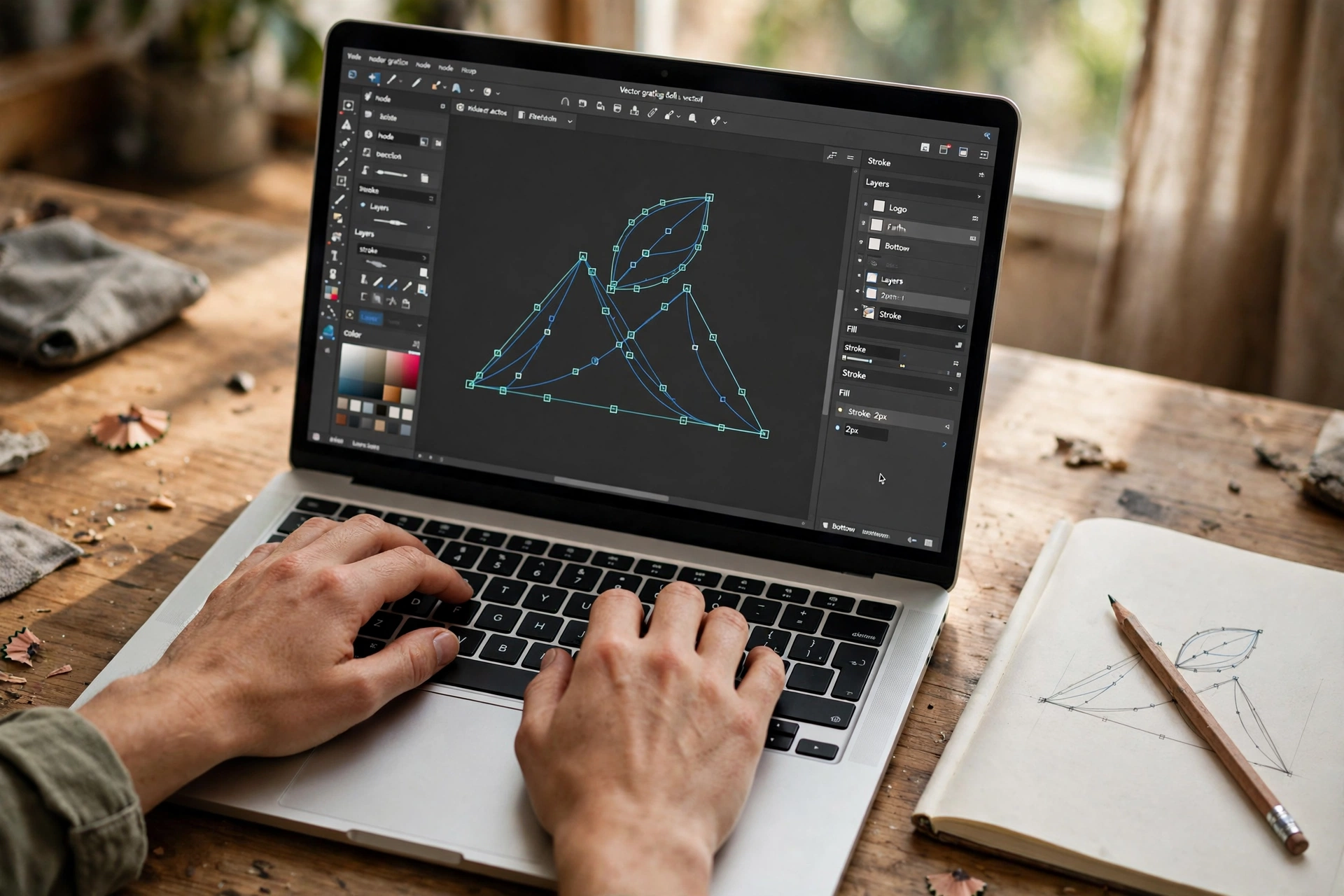
In Illustrator, open the SVG, then go to File, Export, Export As, choose JPG, and set the resolution — 300 PPI for print, 72–150 PPI for screen. Setting the artboard size first makes the output dimensions exact.
In Photoshop, open the SVG and enter a rasterize size when asked — this is when the vector becomes pixels, so enter the final size you need (for example, 2000 pixels wide). Then go to File, Save a Copy, choose JPG, and set the quality to 10–12.
Method 5: Convert Multiple SVG Files to JPG at Once (Batch)
For batch jobs, use a tool that accepts many files at once: upload all your SVG files together, apply the same settings to every file — one width, one background colour, one quality level — convert, and download the results as a single ZIP file.
Check two or three results at full size before you use the rest, and keep your original SVG files. For very large batches, free XnConvert or the command-line tool ImageMagick can process hundreds of files without uploading anything.
SVG to JPG Settings Cheat Sheet
| Use case | Width (px) | Quality | Background |
|---|---|---|---|
| Website image or blog graphic | 1200 | 85–90 | White |
| Social media post | 1080 | 85–90 | White or brand colour |
| Marketplace product image | 1600–2000 | 90–95 | White |
| Print or large banner | 3000 | 95 | White |
JPG vs PNG: Which Should You Pick for an SVG?
Choose JPG when the image is a photo-like graphic or a logo on a solid background, or anything where a small file matters more than perfect edges.
Choose PNG when you need transparency, razor-sharp text or thin lines, or you plan to edit the image again later.
Simple rule: if the background must stay see-through, use PNG; for everything else, JPG is the right call. If you need a PNG version instead, see our guide to convert SVG to PNG — or convert PNG to SVG to go back to a vector.
Troubleshooting: Fix the 4 Most Common Problems
Black background instead of white. Your SVG has transparent areas and the converter filled them with black. Re-convert and set the background colour to white explicitly.
Blurry or pixelated result. The output size was too small — export again at least 1200 pixels wide for web use, at quality 90 or above.
Text looks wrong or a font changed. The SVG uses a font not installed on the converting machine — install the font, or convert the text to outlines (paths) first.
Parts of the image are missing. The SVG links to external images or files that the converter cannot see. Embed all images inside the SVG before converting.
FAQ: Convert SVG to JPG
Does JPG support transparency? No. JPG has no transparency channel, so transparent areas become a solid colour — usually white. If you need transparency, export as PNG instead.
What quality setting should I use? Quality 90–95 is the sweet spot: sharp images with reasonable file sizes. Use 80–85 only for small thumbnails.
What size should I export? 1200 pixels wide suits most web use, 1080 fits social posts, and 3000 is a safe choice for print. Always export at the largest size you might need.
Is it free to convert SVG to JPG? Yes — every method in this guide is free: the online tool, Canva’s free plan, Inkscape, and batch converters with free tiers.
Try It Free
Converting SVG to JPG is a two-minute job once you know the three settings that matter: size, background and quality. Pick the method that fits your file — the online tool for a quick conversion, Canva to edit first, Inkscape for full control, or a batch converter for a folder of logos. Keep your original SVG safe and check the result at full size before you share it.
Try the free tool now — upload your SVG, choose JPG, and download a clean, sharp image in seconds. For more format guides, see our PNG to JPG converter guide, JPG to WebP conversion and how to compress a JPG.
