

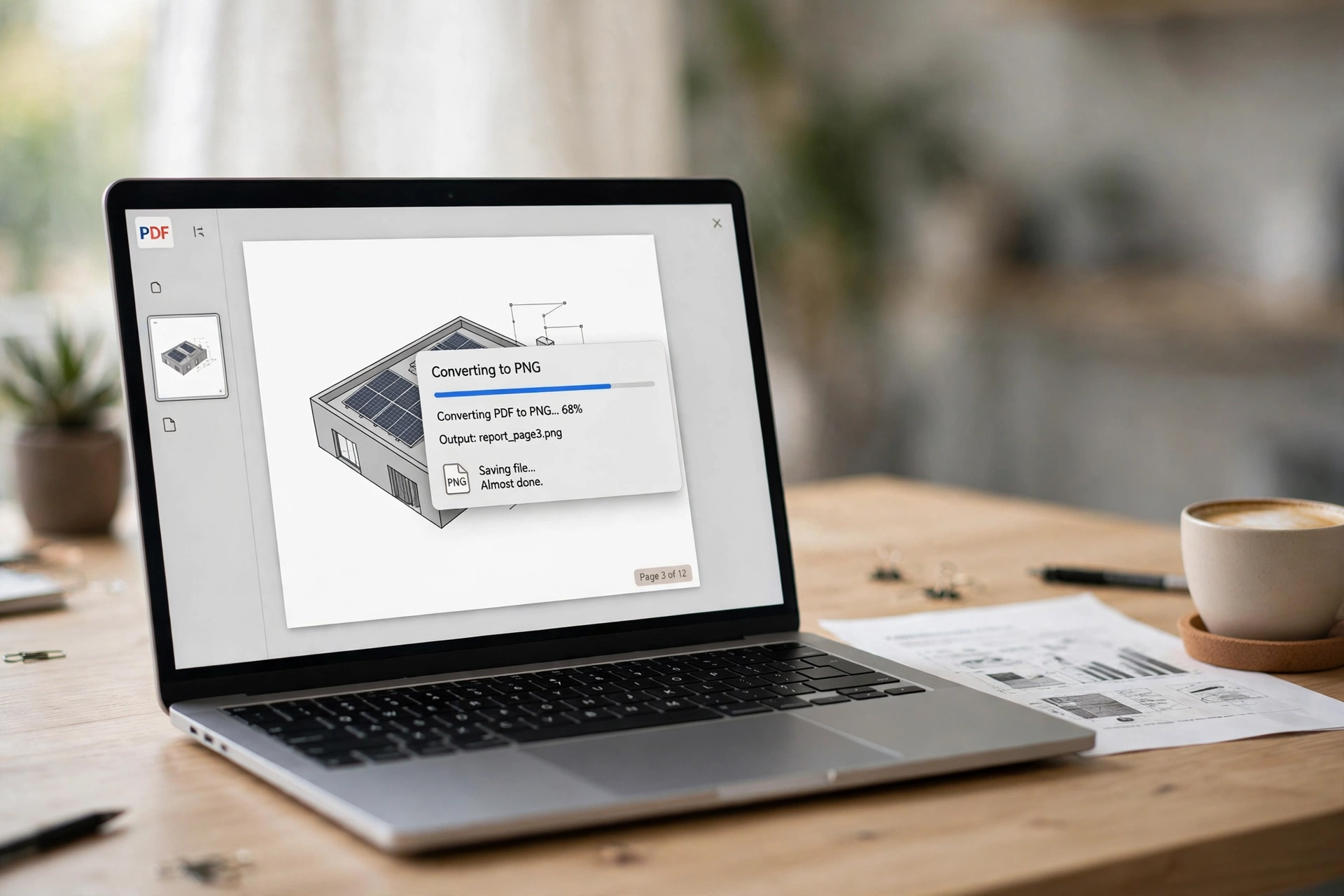
A pdf to png conversion turns a document page into an image you can use anywhere. A PDF is great for sharing documents exactly as they look, but it is a poor fit when you need a single page as a picture — for a website, a slide, or a form that only accepts images. Converting that page to PNG gives you a crisp image that opens on any device, and it takes less than a minute. It also helps when a site accepts images but not PDFs, or when text must stay sharp. Here are five free ways to do it.
Method 1: Convert PDF to PNG Online Free (Fastest Way)
An online converter is the quickest route, and it works on any device with a browser. No software to install, no account needed.
- Open a free pdf to png converter in your browser.
- Upload your PDF file, or drag and drop it onto the page. Most free tools accept files up to 1 GB.
- Choose PNG as the output format, and pick the pages you need — for example just page 1.
- Click Convert and wait a few seconds. Each page becomes its own PNG image.
- Download the PNG files, either one by one or all together as a ZIP archive.
Check the quality settings first: 90–100 quality and 150 DPI is plenty for screen use, while 300 DPI is right for printing.
If the image comes out sideways or mirrored, flip it in seconds with the free Flip Image tool. And to turn those PNGs back into a single PDF, a free PNG to PDF converter does it in one click.
Method 2: Convert PDF to PNG in Adobe Acrobat (Best Quality)
If you have Adobe Acrobat, it gives you the most control — especially over resolution, which decides how sharp the text looks.
- Open your PDF in Adobe Acrobat.
- Click Convert in the top bar, then choose Image format in the left pane.
- Pick PNG from the format list — the right pick for sharp text and transparency.
- Click the settings icon next to PNG to change the resolution. Choose at least 300 pixels per inch for print quality, or 150 for screen use.
- Click Convert, choose where to save the files, and click Save.
Adobe’s own guide to converting PDFs to image formats covers the same steps. Best for print quality — a scanned contract or certificate. The trade-off: Acrobat Pro is paid, while the online method above is free.
Method 3: Convert PDF to PNG on Mac with Preview (Free, Built In)
Every Mac already has what you need: Preview, the built-in app that opens PDFs, can export any page as a PNG in a few clicks.
- Right-click your PDF and choose Open With, then Preview.
- In the sidebar, click the page you want. If you do not see the sidebar, click the sidebar icon at the top left and choose Thumbnails.
- Click File in the menu bar, then Export.
- In the export window, click the Format dropdown and choose PNG.
- Give the file a name, pick a folder, and click Save.
Repeat for each page you need — Preview exports one page at a time. Apple’s Preview guide covers the same steps.
Method 4: Convert PDF to PNG on Windows (Free, No Install)
Windows has no built-in “save PDF as PNG” button, but you can still do it free in under a minute with tools already on your PC.
- Open the PDF in Microsoft Edge. Just double-click the file, or drag it into an Edge window.
- Zoom to fit the page on screen, at 100 percent or larger.
- Press Windows + Shift + S to open the Snipping Tool.
- Drag a rectangle around the page and release. The capture is saved as a PNG image.
- Click the notification that appears, then save the snip where you want it.
Ideal for a single page — a ticket or a certificate. For whole documents, Method 1 is faster.
Method 5: Convert PDF to PNG on iPhone and Android
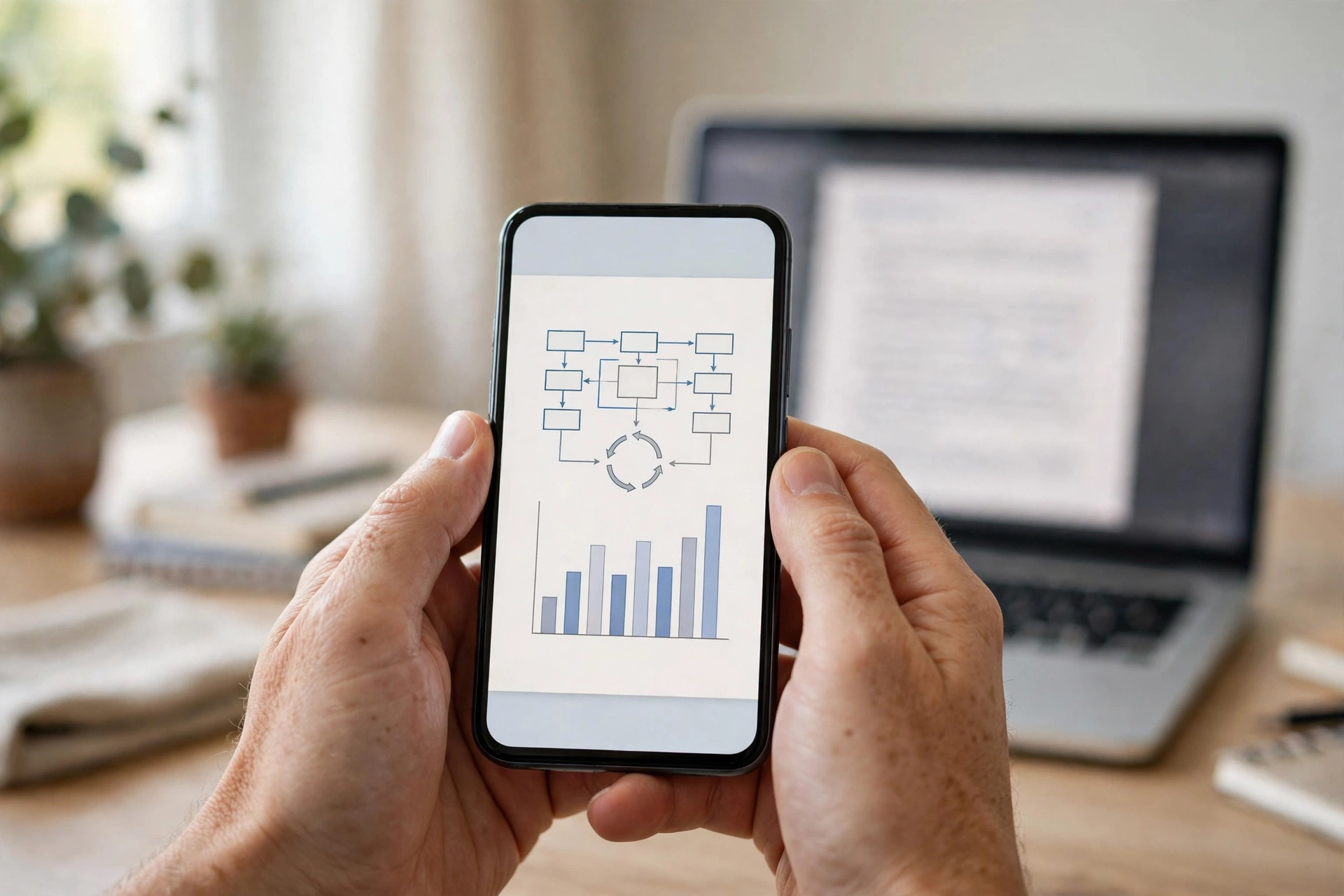
On a phone, the online converter is again the easiest option: open your browser, upload the PDF, and download the PNGs. It works the same on iPhone and Android.
There is also a quick trick that needs no website at all. Open the PDF on your phone, zoom to the page you need, and take a screenshot. On iPhone, screenshots are saved as PNG files by default, so the result is already in the format you want. On Android, screenshots are usually PNG too, though some phones save JPG — check the file after. For several pages, or for print quality, use the online converter instead — screenshots are limited to your screen resolution.
PDF to PNG Quality Settings That Actually Matter
Most converters hide their settings behind an “advanced options” link. These are the four that change your result:
- Resolution (DPI). The big one. 150 DPI looks great on screen; 300 DPI is the standard for printing. Below 100 DPI, small text turns blurry.
- Page range. Do not convert all 40 pages when you need one.
- Transparency. If your PDF page has a transparent background, choose a converter that keeps it. Some tools flatten everything onto white, which is fine for documents but ruins logos.
- File size. PNG is lossless, so compression gains little. If the file is too big, resize the dimensions instead.
A text-heavy A4 page at 150 DPI makes a PNG of roughly 200–400 KB; at 300 DPI it can be 1–2 MB. Pick the resolution that matches your use.
PNG vs JPG: Which One Should You Pick?
Pick PNG for text, logos, screenshots or transparency — it keeps edges sharp. Pick JPG for pages that are mostly photographs, where the smaller file size matters more.
If you chose the wrong format, it is easy to fix: convert a PNG to JPG to shrink a photo-heavy page, or convert a JPG to PNG when you need transparency. And to make a document again, turn images into a PDF or convert a JPG to PDF instead.
Common PDF to PNG Mistakes to Avoid
- Exporting at low resolution. The most common reason for blurry text. Use 150 DPI for screen, 300 DPI for print.
- Converting the whole file for one page. Use the page-range setting.
- Forgetting transparency. If your logo’s background turns white, the converter flattened it. Try a different tool, or export from Acrobat with transparency kept.
- Trusting a random converter with sensitive files. Check that the tool deletes your files after conversion — reputable ones do so within hours — and never upload documents with passwords or bank details to a site you do not trust.
PDF to PNG FAQs
Can I export a PDF to a high-quality PNG? Yes. Use 300 DPI and a quality setting of 90–100 — Acrobat and most online converters let you set this before you export.
Is converting PDF to PNG free? Yes, all five methods here are free. Online converters, Mac Preview, the Snipping Tool and phone screenshots cost nothing. Only Adobe Acrobat Pro is paid.
Why convert PDF to PNG instead of JPG? PNG uses lossless compression, so text stays sharp, and it supports transparent backgrounds. JPG is better only for photo-heavy pages.
How do I convert PDF to PNG on Mac? Open the PDF in Preview, select the page, choose File, then Export, pick PNG from the Format menu, and click Save. It is free and built into every Mac.
Can I convert multiple PDFs to PNG at once? Yes. Most online converters accept several files in one batch — some up to 20 PDFs at once, with all results in a single ZIP file.
Can I turn the PNG back into a PDF afterwards? Yes — convert your PNG to PDF and you will have a single PDF file again.
Try It Free
Converting a PDF to PNG takes seconds — pick the method that fits the device in front of you: an online converter for speed, Acrobat for print quality, Preview on Mac, the Snipping Tool on Windows, or a screenshot on your phone.
If your PNG needs flipping, rotating or resizing, try the free Flip Image tool — no download, no sign-up.
