

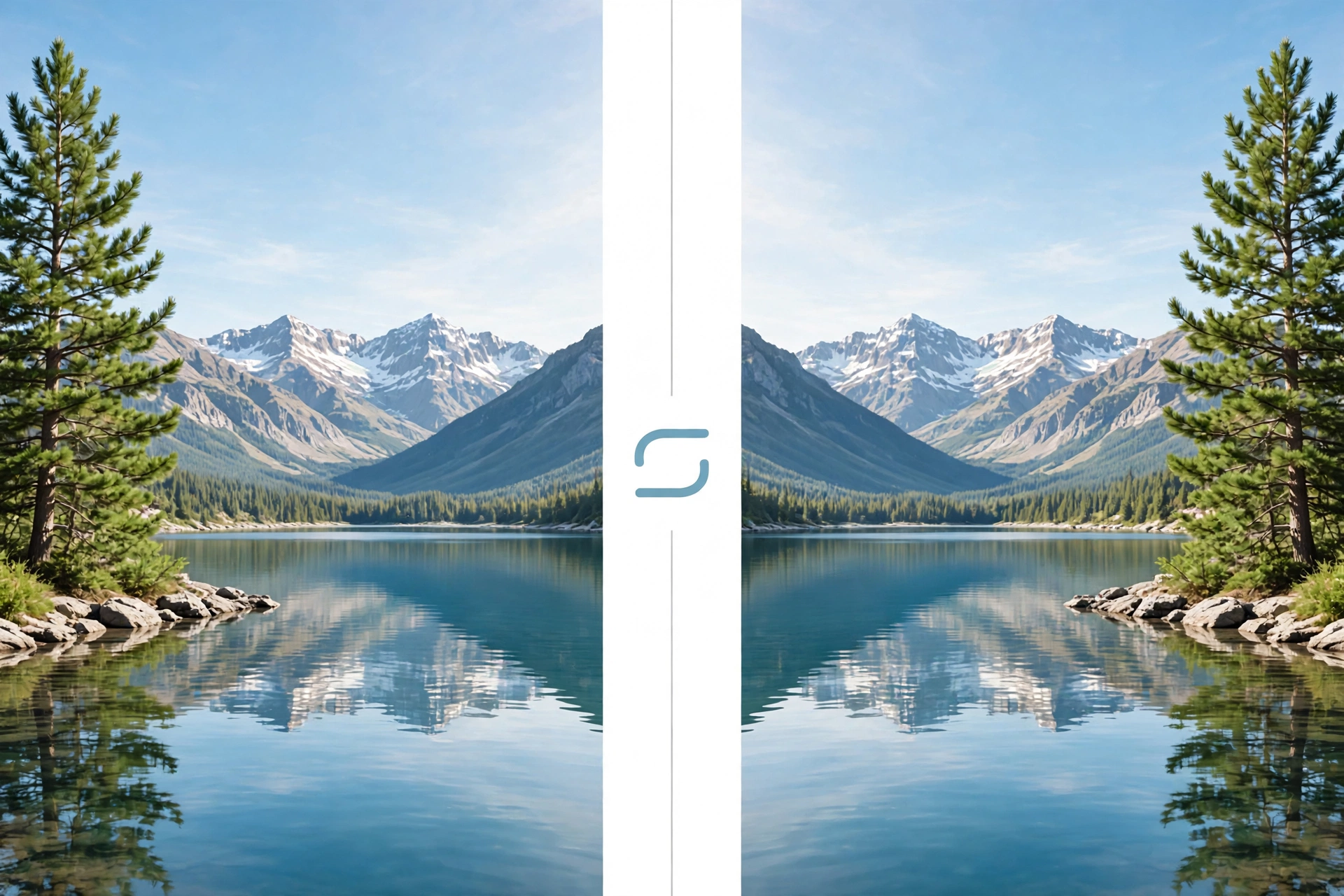
When you flip image files, you create a mirror version of the original — left becomes right, or top becomes bottom. It fixes everyday photo problems: a selfie that looks backwards, a T-shirt logo that reads in reverse, a product photo facing the wrong way, or a scanned picture that came out upside down. You can flip image files free in seconds, with no design skills or expensive software. This guide explains what flipping does, when you need it, and the five fastest ways to do it.
What Does It Mean to Flip an Image?
To flip an image is to mirror it along an axis, like holding it up to a mirror. There are two kinds of flip, and mixing them up is the most common beginner mistake.
Flip horizontal mirrors the picture from left to right. Everything on the left moves to the right, and vice versa. Text in the photo reads backwards after a horizontal flip — which is why this is the one to use when you want to correct a mirrored selfie.
Flip vertical mirrors the picture from top to bottom, so the image looks upside down. This is the fix for a photo that was scanned or saved upside down.
That is different from rotating, which turns the whole picture by an angle instead of mirroring it.
When Should You Flip an Image?
- Your selfie looks backwards. Front cameras save a mirrored preview, so a mole, a parting, or a logo can end up on the wrong side. A horizontal flip puts everything back where it belongs.
- Text in the photo is reversed. If you photographed a whiteboard or a shop sign through a mirror, the words read backwards. Flip the image horizontally and the text becomes readable again.
- A product faces the wrong way. Online sellers often need a product to face left or right to match a listing page. Flipping the image is quicker than reshooting it.
- A scanned photo is upside down. Old prints scanned in the wrong orientation are fixed in one click with a vertical flip.
5 Fast Ways to Flip an Image Free
Here are the five quickest methods, starting with the easiest. All of them are free, and none require you to install anything you do not already have.
Method 1: Flip Image Online Free (Fastest Way)
The fastest way to flip an image is a free online tool — nothing to install, and the whole job takes under a minute. Flip Image is built for exactly this: it flips and mirrors pictures horizontally or vertically right in your browser.
- Open the Flip Image tool and upload your photo — JPG, PNG, and most common formats work.
- Choose Flip Horizontal to mirror it left to right, or Flip Vertical to turn it upside down.
- Preview the result, then download the flipped image.
It works the same on Windows, Mac, Chromebook, Android, and iPhone.
Method 2: Flip an Image on Your Phone
Your phone already has a flip image tool built in, so you can fix a selfie the moment you take it. On iPhone: open the Photos app, tap the photo, then tap Edit. Tap the crop icon, then the flip icon (two triangles) in the top-left corner to mirror the photo. Tap Done to save — your iPhone keeps the original too, so you can undo it later.
On Android: open the photo in Google Photos or your Gallery app and tap Edit. Open the crop tool, then tap the flip icon to mirror the image. Tap Save.
Method 3: Flip an Image in Canva
If you are already designing a social media post or a poster in Canva, flip image files without leaving your design. Upload your image, place it on your canvas, click it once to select it, then click Flip in the toolbar and choose Flip horizontal or Flip vertical. The change happens instantly.
Canva’s flip tool is free, and it works the same in the web version and the mobile app. For a full step-by-step walkthrough, see Jotform’s guide to flipping an image in Canva.
Method 4: Flip an Image in Photoshop
Photoshop gives you the most control, which matters when you only want to flip one layer — a logo, a person, a product — instead of the whole picture. To flip the entire picture, go to Image > Image Rotation and choose Flip Canvas Horizontal or Flip Canvas Vertical. To flip just one layer, select that layer, then go to Edit > Transform and choose Flip Horizontal or Flip Vertical.
Adobe’s own guide explains the rotate and flip commands in Photoshop in more detail.
Method 5: Flip an Image on Windows or Mac Without Extra Software
Both Windows and Mac ship with a free tool that can flip images. On Windows, open the photo in the Photos app, click Edit, then use the flip button. In older versions of Windows, the same option lives in Paint: open the image, click Rotate, and choose Flip horizontal or Flip vertical.
On Mac, open the photo in Preview, then go to Tools > Flip Horizontal or Tools > Flip Vertical. Save the file — the change is permanent, so keep a copy of the original if you might want it back.
Flip Image Horizontally or Vertically: Which One Do You Need?
Selfie looks backwards, text reads in reverse, or the subject faces the wrong way — flip horizontal. Photo is upside down, or a scanned page is inverted — flip vertical. You want a fun mirror effect — try horizontal first, then vertical. Still not sure? Flip horizontal: it is the one people need about nine times out of ten.
Does Flipping an Image Reduce Quality?
No. A flip only rearranges the existing pixels — it does not throw any away, add compression, or change the resolution. The picture that comes out has exactly the same sharpness as the one that went in.
One exception: saving as JPG re-compresses the file, so repeated saves can slowly soften fine detail. Export as PNG if you want zero loss — and always keep the original file somewhere safe.
Pro Tips for a Perfect Flip
- Check text first. If a photo contains readable words, flip it and read them before you save. Backwards text is the clearest sign you picked the wrong direction.
- Mind the background. Flipping also mirrors the background, so a street sign or a number plate will read backwards too. If that matters, crop it out or flip only the subject in Photoshop.
FAQs About Flipping Images
Can I flip an image for free without downloading software?
Yes. A free online tool lets you flip image files in the browser in seconds, with no download and no sign-up. Your phone’s built-in Photos app can do it too, and so can Canva’s free plan.
How do I flip only part of an image?
Use an editor with layers, such as Photoshop or Canva. Select the layer you want to mirror and flip that one on its own — the rest of the picture stays untouched.
What is the difference between flipping and rotating an image?
Flipping mirrors the image, like a reflection in a mirror. Rotating turns it by an angle, like turning a printed photo in your hands. A 180-degree rotation turns a photo upside down but does not mirror it.
Can I flip an image on my iPhone or Android phone?
Yes. On iPhone, open the photo in Photos, tap Edit, then the crop icon, then the flip icon. On Android, open it in Google Photos or Gallery, tap Edit, open the crop tool, and tap the flip icon.
Flip Your Image Free in Seconds
Flipping an image is one of the simplest edits there is — a single click fixes a backwards selfie, unreadable text, or a product facing the wrong way. You do not need expensive software or design experience: the free flip image tool is the fastest option for most people, your phone handles quick fixes on the go, and Canva or Photoshop are there when the flip is part of a bigger project.
Try it now: open the free Flip Image tool, upload any photo, and flip it horizontally or vertically in seconds. No downloads, no sign-up, no cost.

1 Comment
Pingback: How to Flip an Image Free: 5 Easy Ways in Seconds