

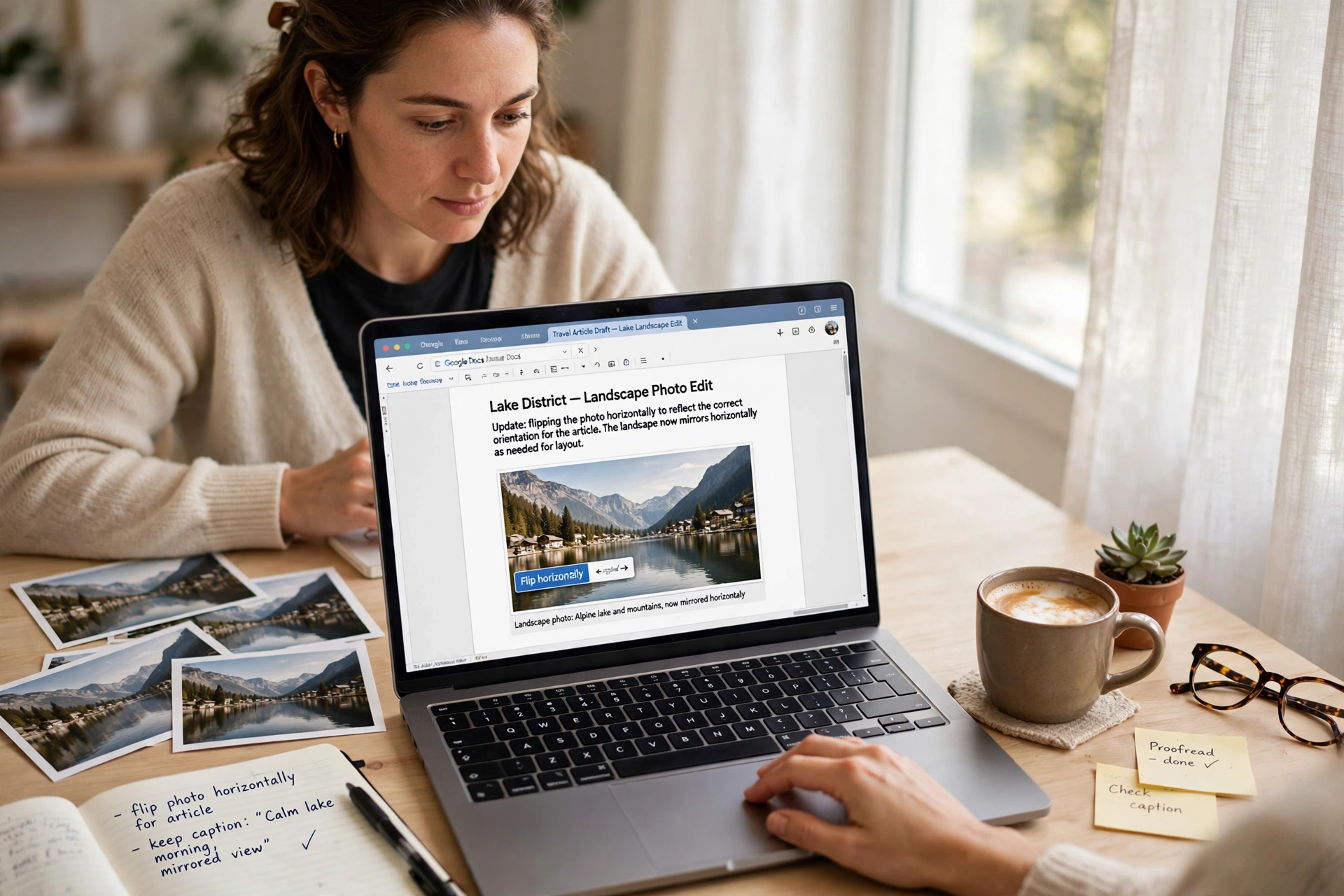
Learning how to flip an image in LibreOffice takes less than a minute once you know where the command hides. Whether your photo came out backwards or the text in a screenshot reads the wrong way round, LibreOffice has a built-in flip command in every one of its apps — no add-on, no extra software and no cost. This guide shows you five free ways to flip an image in LibreOffice, in Writer, Draw, Impress and Calc, plus how to flip the image file itself first.
What Flipping an Image Means in LibreOffice
Flipping an image creates a mirror copy of it. Flip horizontally and the left and right sides swap — a photo of a person facing left now faces right. Flip vertically and the top and bottom swap. Nothing is cropped or stretched, only the orientation changes.
That is different from rotating. Rotating turns the picture around a point, while flipping mirrors it across an invisible line. If you need a sideways photo upright, read our guide on how to rotate an image. If the picture faces the wrong way, flipping is the fix you want. And flipping only changes the picture inside your document — your original image file stays exactly as it was.
Method 1: How to Flip an Image in LibreOffice Writer (Fastest Way)
Writer is where most people first need to know how to flip an image in LibreOffice, and it has the quickest route of all. The official LibreOffice guide confirms the same steps work across the suite, and Writer even offers a few extra rotation controls beyond the quick menu.
- Open your document in Writer and click the picture once to select it. You will see green selection handles around it.
- Right-click the picture. In the context menu, hover over Rotate or Flip.
- Choose Horizontally to mirror it left to right, or Vertically to mirror it top to bottom.
That is all there is to it — the picture flips in place, keeping its position on the page. To insert a picture first, use Insert > Image, then right-click and flip. If the change is not quite what you expected, press Ctrl+Z to undo it straight away. Microsoft users: see our guide on how to flip an image in Word.
Method 2: How to Flip an Image in LibreOffice Draw (Most Control)
Draw is LibreOffice’s drawing app, and it gives you the most control over a flip. Use it when you want to flip around a line you choose yourself, or when the picture is part of a larger design.
- Open Draw and insert your picture with Insert > Image.
- Click the picture to select it.
- Right-click and choose Flip > Horizontally or Flip > Vertically. The same commands live under Shape > Flip, and on the Line and Filling toolbar.
- For finer control, open the Flip tool on the Transformations toolbar. It draws a flip line across your picture that you can drag anywhere, even at an angle, and you flip the picture by dragging a handle across that line.
Pick this method for logos, diagrams and poster designs, where the exact mirror line matters. Draw also lets you flip several objects at once: hold Shift, click each object, then flip them all together.
Method 3: How to Flip an Image in LibreOffice Impress
Flipping a picture on a slide works almost exactly like Writer, which is handy when you are building a presentation in a hurry.
- Open your presentation in Impress and click the picture on the slide.
- Right-click it, hover over Rotate or Flip, then pick Horizontally or Vertically.
- For a custom mirror line, use the Flip tool from the Transformations toolbar, just as in Draw — drag the flip line where you want it, then drag a handle across it.
A common use is a title slide: flip a photo so the person looks into the slide, towards your headline, instead of off the edge. Google Docs users can follow our guide on how to flip an image in Google Docs instead.
Method 4: How to Flip an Image in LibreOffice Calc
Spreadsheets need flipped pictures too — a product photo facing the wrong way in a catalogue sheet, or a logo that must match the rest of the row.
- Open your spreadsheet in Calc and click the picture to select it.
- Right-click the picture and hover over Rotate or Flip.
- Choose Horizontally or Vertically.
Calc treats pictures the same way Writer does, so the menu is in the same place. If you build product sheets often, compare this with our guide on how to flip an image in Excel — the idea is identical, only the menus differ.
Method 5: Flip the Image File First with the Free Online Tool
Sometimes knowing how to flip an image in LibreOffice is not enough — for example, when you need the flipped picture as a saved file, or the same flipped photo in several different documents. Then flip the file first and insert the flipped copy.
- Open the free Flip Image tool and upload your photo — no sign-up or download needed.
- Click Flip Horizontal or Flip Vertical, then download the flipped picture.
- Insert the downloaded file into LibreOffice with Insert > Image.
Because the file itself is already flipped, it looks right everywhere you use it. The tool works in your browser, so it is also a good fallback on a computer without LibreOffice installed.
Flip Horizontally or Flip Vertically — Which One Do You Need?
Here is the quick test. If the picture looks like it is looking or pointing the wrong way — a face turned away from your text, an arrow pointing the wrong way — flip it horizontally. If the picture is upside down — the sky at the bottom, a person’s head at the bottom of the frame — flip it vertically.
Text is the easiest clue of all. If the words inside a screenshot or a scanned page read backwards, a horizontal flip fixes them. If the words are upside down, a vertical flip is the one you want. When in doubt, try horizontal first: it is the fix people need nine times out of ten.
5 Quick Tips for Flipping Images in LibreOffice
- Flip a copy first. Duplicate the picture (Ctrl+C, Ctrl+V) and flip the copy, so you can compare both versions side by side.
- Check text and logos. A flip mirrors everything, including words in the picture — check a flipped logo still reads correctly before printing.
- Undo is instant. Ctrl+Z reverses a flip immediately, and you can flip the same picture again as often as you like.
- Watch the anchor. A flipped picture keeps its anchor and position in Writer, so your layout should not move — but glance at the page after flipping.
- Quality stays the same. Flipping is a lossless change in LibreOffice: it does not re-compress your picture, so there is no drop in sharpness.
Frequently Asked Questions
How do I flip an image in LibreOffice Writer?
Click the picture, right-click it, hover over Rotate or Flip, then choose Horizontally or Vertically. That is the whole method — no add-on needed.
Can I flip an image in LibreOffice Draw around a line I choose?
Yes. Use the Flip tool on the Transformations toolbar: drag its flip line to any position or angle, then drag a handle of the picture across the line to mirror it. The official LibreOffice help page on Transformations describes this in detail.
Does flipping an image in LibreOffice change the original file?
No. The flip only changes how the picture appears inside your document; the file on your computer is untouched unless you save a flipped copy separately.
How do I flip an image in LibreOffice Impress?
Click the picture on the slide, right-click, hover over Rotate or Flip, and pick Horizontally or Vertically. For a custom mirror line, use the Flip tool from the Transformations toolbar.
Try It Free
Now you know how to flip an image in LibreOffice in Writer, Draw, Impress and Calc — and how to flip the file itself when you need a saved copy. The right-click menu covers most jobs in seconds, and Draw gives you the most control. If you want the fastest flip of all, try the free Flip Image tool now: upload your photo, flip it in one click, and download it ready to use anywhere.
