

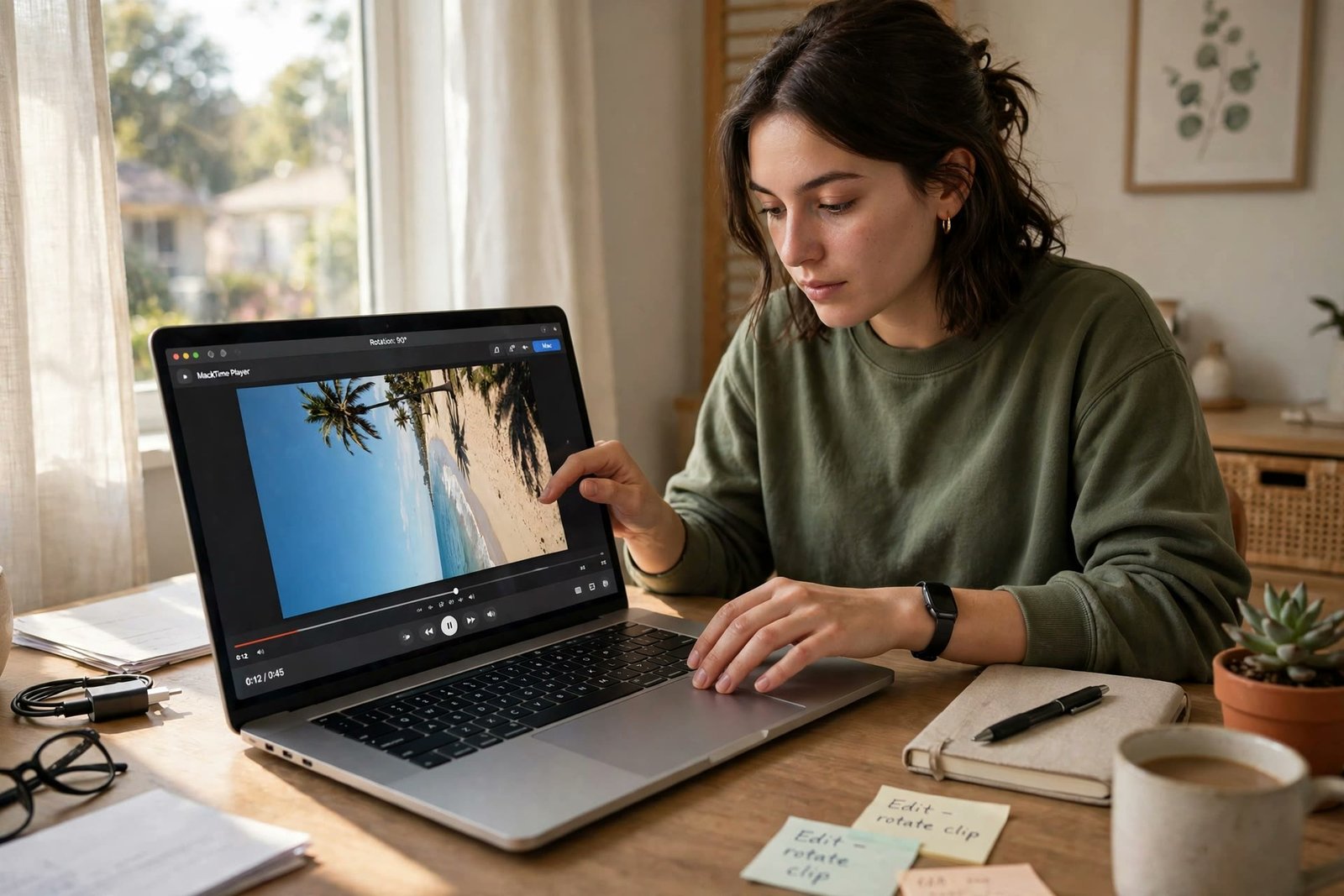
How to Rotate a Video on Mac: 4 Easy Free Ways
Knowing how to rotate a video on Mac saves a clip that was filmed sideways or upside down — usually because the phone turned a moment too late, or the camera was mounted at an angle. The good news: your Mac already has everything you need. QuickTime Player and iMovie are built in and free, Photos handles quick fixes, and VLC can rotate during playback. Here are four easy ways, from fastest to most flexible.
Method 1: Rotate a Video in QuickTime Player (Fastest)
QuickTime Player is the quickest fix for a single clip — no project, no timeline, just open and turn.
- Open the video in QuickTime Player.
- Choose View > Show Clips, then click the clip to select it (it gets a yellow outline).
- From the Edit menu, choose Rotate Left or Rotate Right. Repeat if the video is upside down and needs 180 degrees.
- Click Done.
- Save with File > Save, or keep the original untouched by choosing File > Export As and saving a copy at your chosen resolution.
Apple lists the matching keyboard shortcuts — Shift-Command-L to rotate left and Shift-Command-R to rotate right — in its QuickTime Player shortcuts guide. The same Edit menu also holds Flip Horizontal and Flip Vertical if the clip is mirrored rather than rotated.
Method 2: Rotate a Video in iMovie (Best for Editing After)
If the clip needs trimming, titles or music as well, rotate it inside iMovie instead:
- Open iMovie, create a new Movie project, and import your video.
- Drag the clip into the timeline and click it to select it.
- Click the Cropping button above the viewer.
- Click Rotate Counterclockwise or Rotate Clockwise — once for 90 degrees, twice for 180.
- Click the Apply checkmark.
- Export with File > Share > File at your preferred quality.
CapCut’s step-by-step guide to rotating video in iMovie shows the same controls with screenshots. One thing to know: iMovie projects are 16:9, so a vertical video rotated into a project may gain black bars — use the Crop controls to fill the frame if that matters.
Method 3: Rotate a Video in the Photos App
For a clip that lives in your Photos library, you can fix it without exporting anything:
- Open Photos and double-click the video.
- Click the Rotate Counterclockwise button in the toolbar (or press Command-R), repeating until the video is upright.
- The change saves to your library automatically. To use the file elsewhere, choose File > Export > Export Video.
Photos is the most convenient option for iPhone clips that sync to your Mac, because the corrected orientation syncs back to your other devices too.
Method 4: Rotate a Video in VLC (Playback Fix)
VLC can rotate a video while it plays — handy for watching a sideways clip correctly without editing it:
- Open the video in VLC.
- Go to Tools > Effects and Filters > Video Effects > Geometry (on Mac, look under Window > Video Effects > Geometry).
- Tick Transform and pick a rotation — 90, 180 or 270 degrees.
This changes playback only; the file itself is unchanged. For a permanent fix you can share, use QuickTime Player or iMovie above — or see our guide on how to flip a video in VLC for more VLC orientation tricks.
Which Method Should You Choose?
- One clip, fixed now: QuickTime Player.
- Rotating plus real editing: iMovie.
- A clip from your iPhone library: Photos.
- Just watching it the right way up: VLC.
If the video came from a phone and still sits on it, it may be quicker to fix it there — our rotate video online guide and the walkthrough on how to rotate a video on iPhone cover those routes.
Frequently Asked Questions
Does rotating a video on Mac reduce its quality?
QuickTime and Photos keep the original quality when you save. In iMovie, export at the same resolution as the source and choose High quality to avoid visible loss.
How do I rotate a video 180 degrees on Mac?
Apply the 90-degree rotation twice. In QuickTime Player, choose Edit > Rotate Left (or Right) two times; in iMovie, click the same rotate button twice.
Can I rotate a video on Mac without installing anything?
Yes. QuickTime Player, iMovie and Photos all come with macOS, and all three can rotate a video free.
Why does my video open sideways on my Mac?
The clip was recorded with the phone held at an angle, and the orientation flag in the file does not match how you want to watch it. Rotating with any method above corrects it permanently (except VLC, which is playback-only).
What is the difference between rotating and flipping a video?
Rotating turns the whole frame by 90, 180 or 270 degrees. Flipping mirrors it left-to-right or top-to-bottom without turning it. Our flip vs rotate vs mirror explainer shows both side by side.
Try It Free
Now you know how to rotate a video on Mac four ways, all free and mostly built in. And when it is a photo that needs turning — a sideways scan, a mirrored selfie, a tilted screenshot — the free Flip Image tool rotates, flips and mirrors images in your browser in seconds. No sign-up and no watermark: drop in the picture, turn it, download it.
