

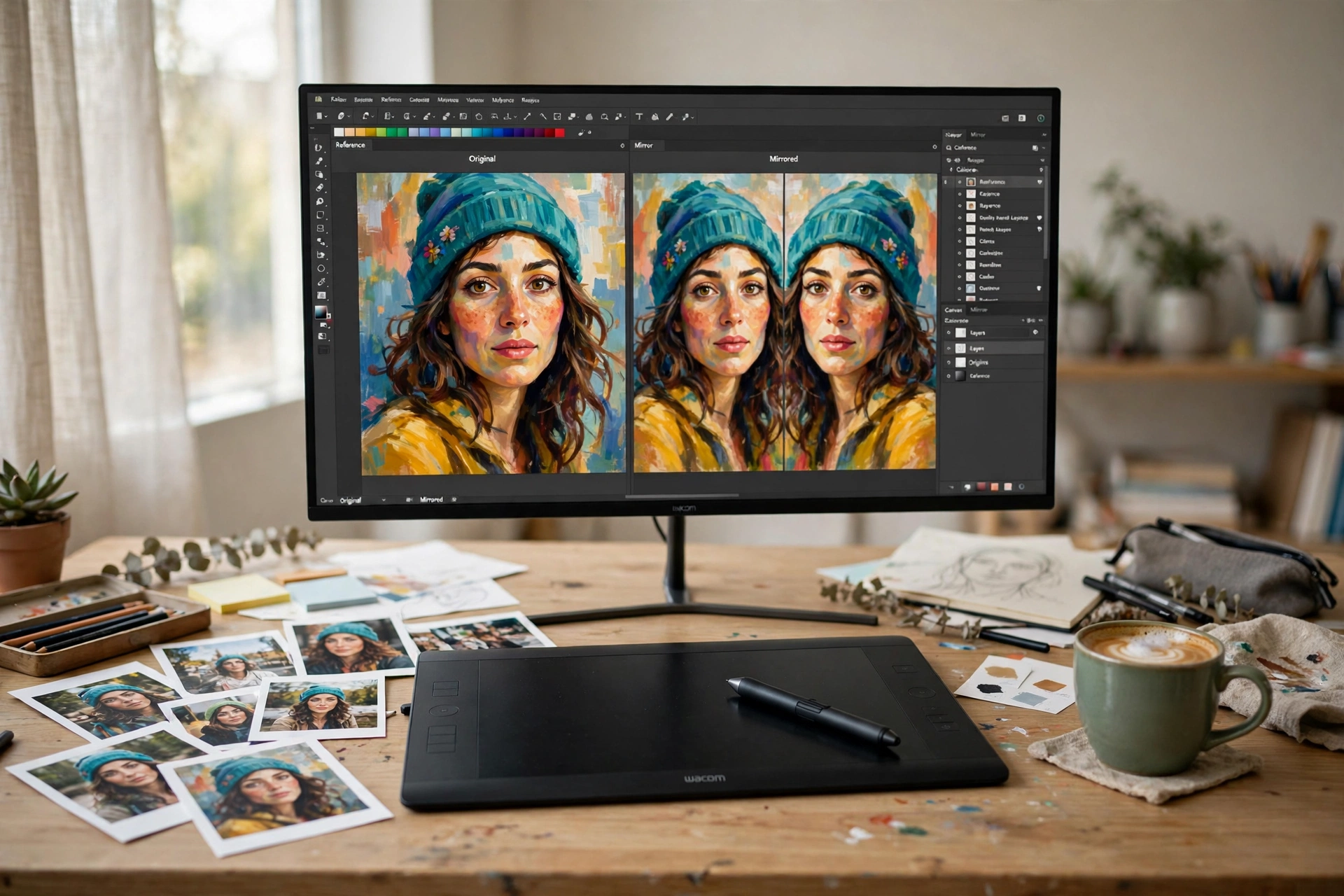
Learning how to flip an image in Krita takes less than a minute once you know where the mirror commands live. Whether you paint in Krita every day or have just opened it for the first time, learning how to flip an image in Krita is a skill you will use again and again. Krita is a free, open-source digital painting program, and it gives you several ways to flip a picture: mirror the whole image, flip one layer, mirror a selection, or temporarily flip the canvas view to check your drawing. This guide covers all five methods.
Flipping is different from rotating. When you flip an image horizontally, the left side becomes the right side, like looking in a mirror. Flip it vertically and the top becomes the bottom. Nothing is resized or redrawn — Krita simply mirrors the pixels, so quality stays exactly the same. Flipping is one of the safest edits you can make: artists flip work to spot mistakes, designers flip elements to build symmetrical layouts, and anyone with a backwards selfie can fix it in seconds.
Method 1: How to Flip an Image in Krita with the Image Menu (Fastest Way)
If you want the entire picture mirrored — every layer, all at once — the Image menu is the fastest route. Use it when the finished image itself needs to face the other way.
- Open your image in Krita.
- Click Image in the top menu bar.
- Choose Mirror Image Horizontally to flip the picture left to right, or Mirror Image Vertically to flip it top to bottom.
- The whole canvas flips instantly, including every layer in the document.
That is all there is to it — the Image menu is the simplest answer to how to flip an image in Krita. The change is permanent once you save or export the file, so check the result before you export. If it is not what you wanted, press Ctrl + Z (or Cmd + Z on a Mac) to undo it straight away. The official Krita manual lists Mirror Image Horizontally and Vertically among the basic transforms in the Image menu.
Method 2: How to Flip an Image in Krita on One Layer
Very often you only want to flip one layer — a character, a logo, a background element — while everything else stays put. The Transform Tool is made for exactly that.
- In the Layers docker, click the layer you want to flip so it is highlighted and active.
- Press Ctrl + T on Windows or Cmd + T on a Mac to activate the Transform Tool. Handles appear around the layer’s content.
- Right-click anywhere inside the bounding box and choose Mirror Horizontally or Mirror Vertically from the context menu. Only the active layer flips; every other layer is untouched.
- Press Enter to confirm the transformation.
There is a second, more visual way to do the same thing. With the Transform Tool active, open the Tool Options docker (under Settings > Dockers > Tool Options if it is hidden) and click the Flip Horizontally or Flip Vertically icon at the bottom. The Krita manual’s Transform Tool page confirms these quick flip buttons sit at the bottom of the free transform options. The same commands also live under Layer > Transform > Mirror Layer Horizontally and Mirror Layer Vertically.
Method 3: Flip Just a Selection
Sometimes only part of the picture needs flipping — one object in a scene, or a word in a poster. Krita lets you flip a selected area without touching the rest of the canvas.
- Pick a selection tool from the toolbar — the Freehand Selection Tool for organic shapes, or the Bezier Curve Selection Tool for precise outlines.
- Draw a selection around the part of the image you want to flip.
- Press Ctrl + T (Windows) or Cmd + T (Mac) to activate the Transform Tool. Handles appear around your selection.
- Right-click inside the selection and choose Mirror Horizontally or Mirror Vertically. You can also use the flip icons in the Tool Options docker.
- Press Enter to confirm, then press Ctrl + Shift + A to deselect.
Method 4: Mirror the Canvas View with the M Key (Temporary Check)
This method does not change your image at all — and that is the point. After staring at the same drawing for an hour, your eyes stop noticing mistakes. Flip the view and the picture suddenly looks new, so mistakes jump out at you.
- Press the M key on your keyboard. The whole canvas mirrors horizontally in the canvas view.
- Study your artwork in its mirrored state and note anything that suddenly seems off.
- Press M again to return to the normal view. You can also toggle it from View > Canvas > Mirror View.
The important thing to remember is that Mirror View only changes what you see, not the file itself. If you export while Mirror View is on, the saved image still comes out in its original orientation.
Method 5: Flip an Image Online Free (No Software Needed)
If you do not have Krita installed, or you just need a quick flip of a photo rather than a painting project, you do not need to install anything at all. A free online tool does the same job in seconds.
- Open the Flip Image tool in your browser.
- Upload the photo you want to flip.
- Click the horizontal or vertical flip button, then download the result.
There is no sign-up and no download, so it is ideal for a one-off fix — a backwards selfie or a scanned photo that came out reversed. For detailed painting work, Krita is still the better choice, but for a fast mirror of a finished photo the online tool is hard to beat. Compare with our guides to how to flip an image in GIMP and how to flip an image in Photopea.
Tips for Flipping Images in Krita
Flip on a duplicate layer when you are unsure. Duplicate the layer first (right-click it and choose Duplicate Layer), flip the copy and hide the original. If you change your mind, the original is still there.
Mind your text. Flipping a layer that contains text makes the text read backwards. If the text must stay readable, keep it on its own layer and flip only the artwork, or retype the text after the flip.
How to Flip an Image in Krita: FAQ
Can I flip only part of an image in Krita?
Yes. Draw a selection around the part you want, press Ctrl + T, then right-click and choose Mirror Horizontally or Mirror Vertically. Only the selected area flips — a handy trick once you know how to flip an image in Krita.
Does flipping an image in Krita reduce its quality?
No. Flipping only mirrors the pixels — it does not compress, resize or resample the image, so the resolution and sharpness stay exactly the same.
How do I flip an image in Krita without changing the file?
Press M to toggle Mirror View. It flips the canvas on screen so you can check your work with fresh eyes, but it does not alter the image data.
Can I flip multiple layers at once in Krita?
Yes, in Krita 5.2 and later. Select all the layers you want in the Layers docker (hold Ctrl while clicking each one), then activate the Transform Tool and flip them together.
Try It Free
Now you know how to flip an image in Krita five ways — the whole image, a single layer, a selection, a temporary Mirror View check, and a free online flip. Start with the Image menu for a quick flip, and reach for the Transform Tool for finer control. For a fast mirror of a finished photo, try the free Flip Image tool — upload, flip, download, done in seconds.
