

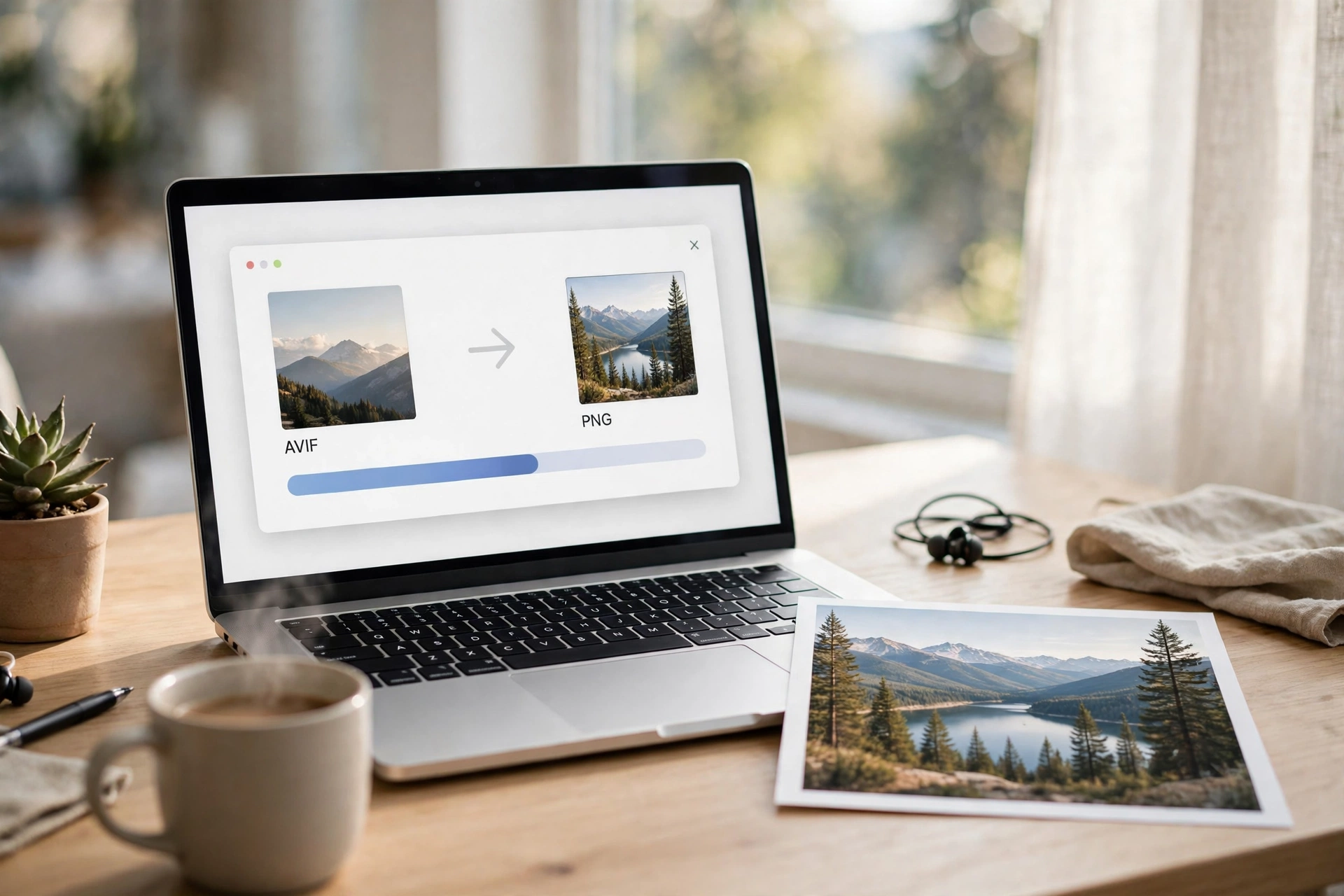
Need to convert AVIF to PNG? AVIF photos are wonderfully small — often about half the size of the same picture saved as a JPG — but plenty of apps, upload forms and older devices still cannot open them. PNG opens almost everywhere: every editor, phone gallery and upload box accepts it. This guide shows five free ways to convert AVIF to PNG in seconds: a fast online tool, two feature-rich converters, one that handles animated AVIFs, and an offline method built into Windows. No software to install, no sign-up, and no visible loss of quality.
What Is an AVIF File?
AVIF stands for AV1 Image File Format. It stores a still picture compressed with the AV1 video codec — the same technology that streams 4K video — inside a HEIF container, the same container Apple’s HEIC photos use. The format was published in 2019 by the Alliance for Open Media, whose members include Google, Apple, Microsoft, Mozilla and Netflix; Uploadcare’s AVIF guide explains the format in full.
Because it borrows a video codec, AVIF squeezes a photo much smaller than JPG at the same visible quality — often around 50% smaller — while supporting transparency, HDR, wide colour and animated sequences. Every major browser displays AVIF today, which is why websites love it. The catch is compatibility everywhere else: many desktop programs, phone galleries and upload forms still refuse .avif files. That is exactly when converting to PNG makes sense.
AVIF vs PNG: What’s the Difference?
| Feature | AVIF | PNG |
|---|---|---|
| Compression | AV1 codec, lossy or lossless — very small files | Lossless only — larger files |
| Transparency | Yes | Yes |
| Animation | Yes (AVIFS sequences) | No (that is APNG) |
| HDR and wide colour | Yes | Limited |
| Compatibility | Browsers yes, many apps no | Opens almost everywhere |
| Best for | Web images, smallest file size | Editing, screenshots, logos, sharing |
Rule of thumb: keep AVIF for the smallest file, and convert AVIF to PNG when you need to edit, upload or share the picture somewhere that does not understand AVIF.
How to Convert AVIF to PNG Free: 5 Easy Ways
All five are free. Pick the first for speed, the second or third for control, the fourth for animated files, and the fifth when you have no internet.
Method 1: Convert AVIF to PNG Online Free (Fastest Way)
When you just want the job done, a free online converter is the fastest route. Flip Image converts AVIF to PNG in your browser — nothing to install, no account needed.
- Open Flip Image.
- Upload your .avif file — drag it onto the page or click to browse.
- Choose PNG as the output format.
- Click convert and download your PNG.
The whole thing takes seconds for a single photo — the method to use for a one-off conversion, a photo a friend sent you, or an AVIF downloaded from a website.
Method 2: FreeConvert — Best for Settings and Big Files
For more control, FreeConvert is the most flexible free online converter. Upload files up to 1 GB from your device, Dropbox, Google Drive, OneDrive or a URL, and use its advanced settings to resize the output, set the compression level, adjust image quality, keep or strip metadata, and auto-orient the picture.
- Open FreeConvert’s AVIF to PNG page and choose your file.
- Open Advanced settings if you want to resize or tune the quality.
- Click Convert, then download the PNG.
Use it for large files, resizing while converting, or several AVIFs at once.
Method 3: CloudConvert — Best for Quality Control
CloudConvert gives you direct control over quality: set the output resolution, the quality and the target file size before converting.
- Upload your AVIF file to CloudConvert.
- Set PNG as the output format and adjust resolution or quality if you like.
- Convert and download.
A good pick when quality matters more than speed — for example a photo you plan to print or edit further.
Method 4: Ezgif — Best for Animated AVIF Files
Most converters only handle still AVIFs. Ezgif also accepts AVIF and AVIFS files up to 200 MB, including animated sequences, and keeps alpha transparency intact.
- Open Ezgif’s AVIF to PNG tool and upload your file.
- Convert it and download the PNG — or the separate frames, for an animated file.
Pick Ezgif whenever your AVIF is animated or has transparency you need to keep.
Method 5: Microsoft Paint — Best Offline Method (Windows)
No internet? On Windows you can convert AVIF to PNG without uploading anything. First install the free AV1 Video Extension and HEIF Image Extensions from the Microsoft Store — then Paint can open AVIF files, as documented on FileInfo’s AVIF file extension page.
- Right-click your .avif file and choose Open with, then Paint.
- Click File, then Save as, then PNG picture.
- Choose a folder, name the file and save.
That is it — a PNG copy sits next to your original. On a Mac, open the AVIF in Preview, choose File, then Export, and pick PNG. One warning: Paint flattens transparency, so for a transparent background use one of the online methods above instead.
Which Settings Matter When You Convert AVIF to PNG
Four settings decide how good the result looks:
- Lossless vs lossy: PNG is always lossless, so the conversion itself throws away no picture detail — but it cannot add back detail the AVIF already lost. The PNG is only as good as the AVIF you started with.
- Transparency: if the picture has a transparent background, pick a converter that keeps the alpha channel. Ezgif and the online tools do; Paint does not.
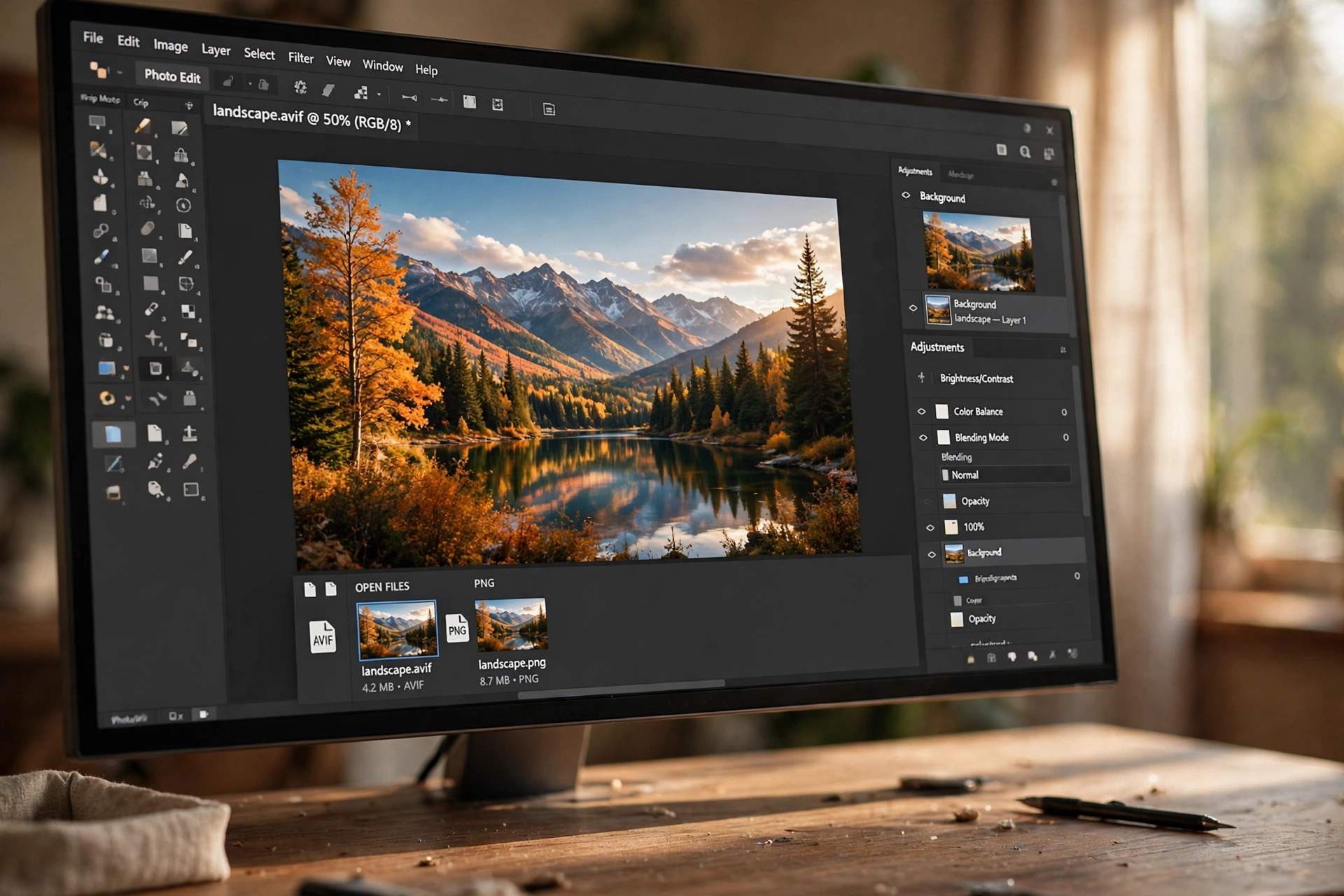
- File size: expect the PNG to be bigger, often several times bigger, than the AVIF. That is normal: PNG compression is older and less efficient.
- Batch conversion: one photo at a time is fine, but for a whole folder use a converter with batch upload instead of repeating the same steps.
4 Mistakes to Avoid When You Convert AVIF to PNG
- Converting back and forth. Every AVIF-to-PNG-to-AVIF round trip softens details. Convert once and keep the original AVIF as your master copy.
- Using Paint for transparent images. Paint fills transparent areas with white. Keep the alpha channel with an online converter instead.
- Expecting a smaller file. PNG files are bigger than AVIF files. If size is the goal, keep the AVIF, or compress the PNG afterwards.
- Forgetting the animated frames. A still-image converter saves only the first frame of an animated AVIF. Use a tool that understands AVIFS sequences, like Ezgif.
AVIF to PNG — Frequently Asked Questions
Can I convert an AVIF file to PNG?
Yes. Any of the five methods above does it for free — the fastest is a free online converter, and Windows users can also do it offline in Paint once the free AV1 extension is installed.
What is an AVIF file?
AVIF (AV1 Image File Format) is a modern format built on the AV1 video codec and stored in a HEIF container. It makes files roughly 50% smaller than JPG at the same quality, and supports transparency, HDR and animation.
Is AVIF the same as PNG?
No. AVIF is a newer, much smaller format built on a video codec; PNG is an older lossless format that works almost everywhere. PNG files are bigger, but they open in practically every app, editor and upload form.
How can I convert AVIF files to PNG files for free?
Upload the AVIF to a free online converter and download the PNG — no sign-up needed. For big files or advanced settings use FreeConvert, for animated AVIFs use Ezgif, and offline use Microsoft Paint on Windows or Preview on a Mac.
Try It Free — Convert AVIF to PNG Now
Your AVIF photo does not have to stay stuck in a format nothing opens. Convert AVIF to PNG free with Flip Image now — upload, convert, download, done. And if the finished PNG needs to go inside a document, convert your PNG to PDF afterwards for easy sharing or printing.
