

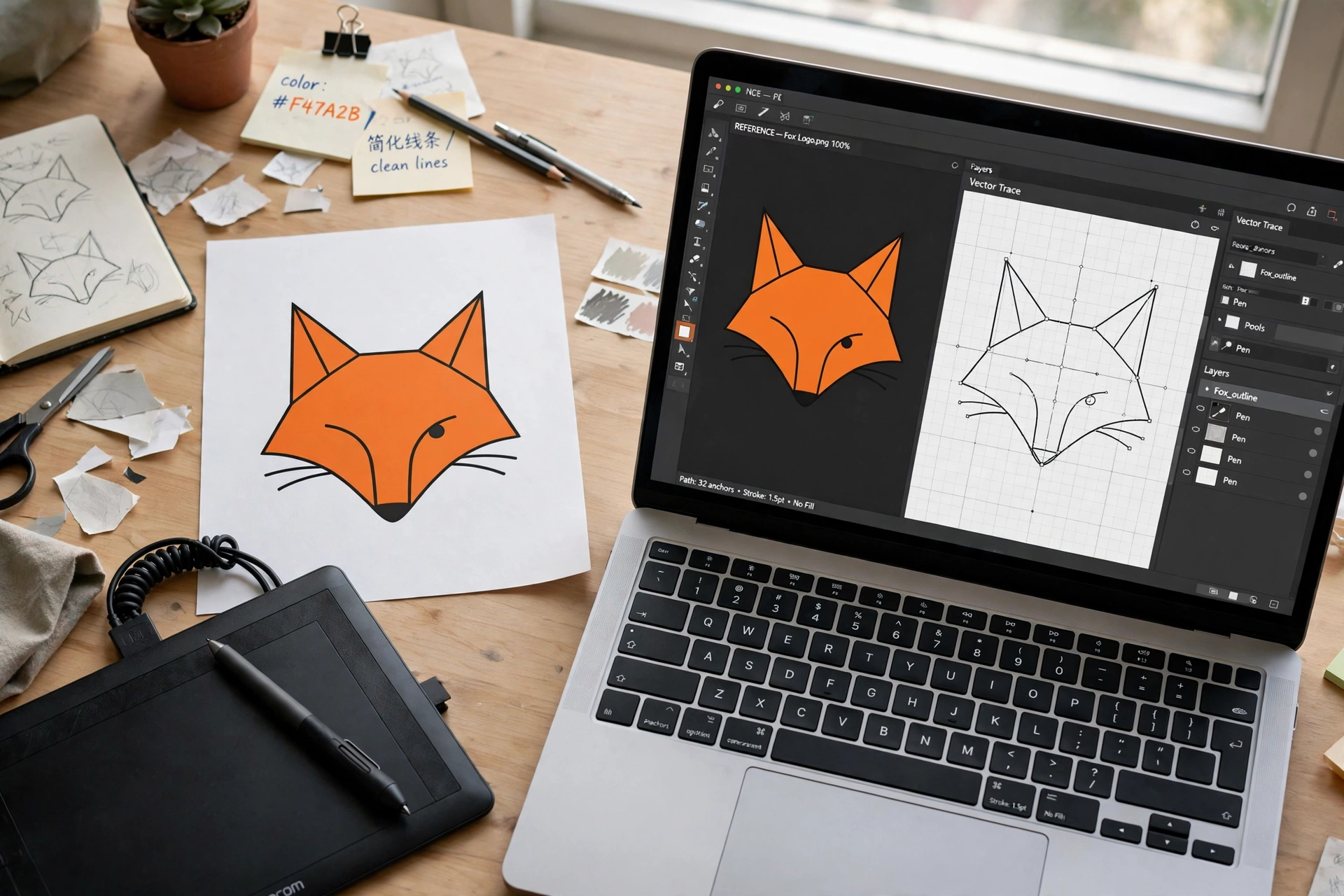
To convert JPG to SVG is to turn a grid of pixels into clean, scalable shapes. A JPG stores your picture as thousands of tiny coloured squares, while an SVG stores it as mathematical paths that stay sharp at any size — which is why logos and icons are usually delivered as SVG files.
Here is the honest truth first: converting is really tracing. No tool can recover the original shapes from a flat JPG, because that information is gone — a converter guesses the shapes that best match the pixels and draws them as paths. Simple logos trace beautifully; photos usually become a mess of blobs. Below are five free ways to convert JPG to SVG, and the mistakes that ruin most conversions.
What Does It Mean to Convert JPG to SVG?
A JPG is a raster image — a fixed grid of pixels that shows its squares when enlarged. An SVG is a vector image: instructions such as “draw a curve from here to here, fill it orange” that stay sharp at any size, from a favicon to a billboard. Tracing bridges the two: software looks at the edges and colour regions in your JPG and draws paths around them. A good trace of a flat logo is almost indistinguishable from the original; a trace of a photograph produces thousands of tiny shapes and a huge file that looks worse than the JPG.
Rule of thumb: fewer than about 30 distinct colour regions traces well. Watch out for one trick — some tools simply wrap your JPG inside an SVG file, so the picture stays pixel-based and still goes blurry. A real conversion contains paths: open the SVG in a text editor and a genuine vector is full of <path> elements, while a fake one contains an <image> tag.
Method 1: Convert JPG to SVG Online Free (Fastest Way)
The quickest way to convert JPG to SVG is a free online converter — nothing to install, no account needed, and the job takes under a minute.
- Open the free image tool at Flip Image.
- Upload your JPG file — a logo, icon or simple illustration works best.
- Let the tool trace the image into vector paths.
- Preview the result and download your SVG.
Online conversion is the best choice for a one-off job, and the easiest way to test whether your image traces well: if the preview looks clean, you are done. If it looks blobby, the problem is the source image — try a desktop method below for more control.
Tip: if you also need the original image inside a PDF — for a form upload or a print shop — a PNG to PDF converter turns it into a PDF in seconds.
Method 2: Convert JPG to SVG in Inkscape (Free)
Inkscape is a free, open-source vector editor whose Trace Bitmap feature gives you far more control than a one-click web tool.
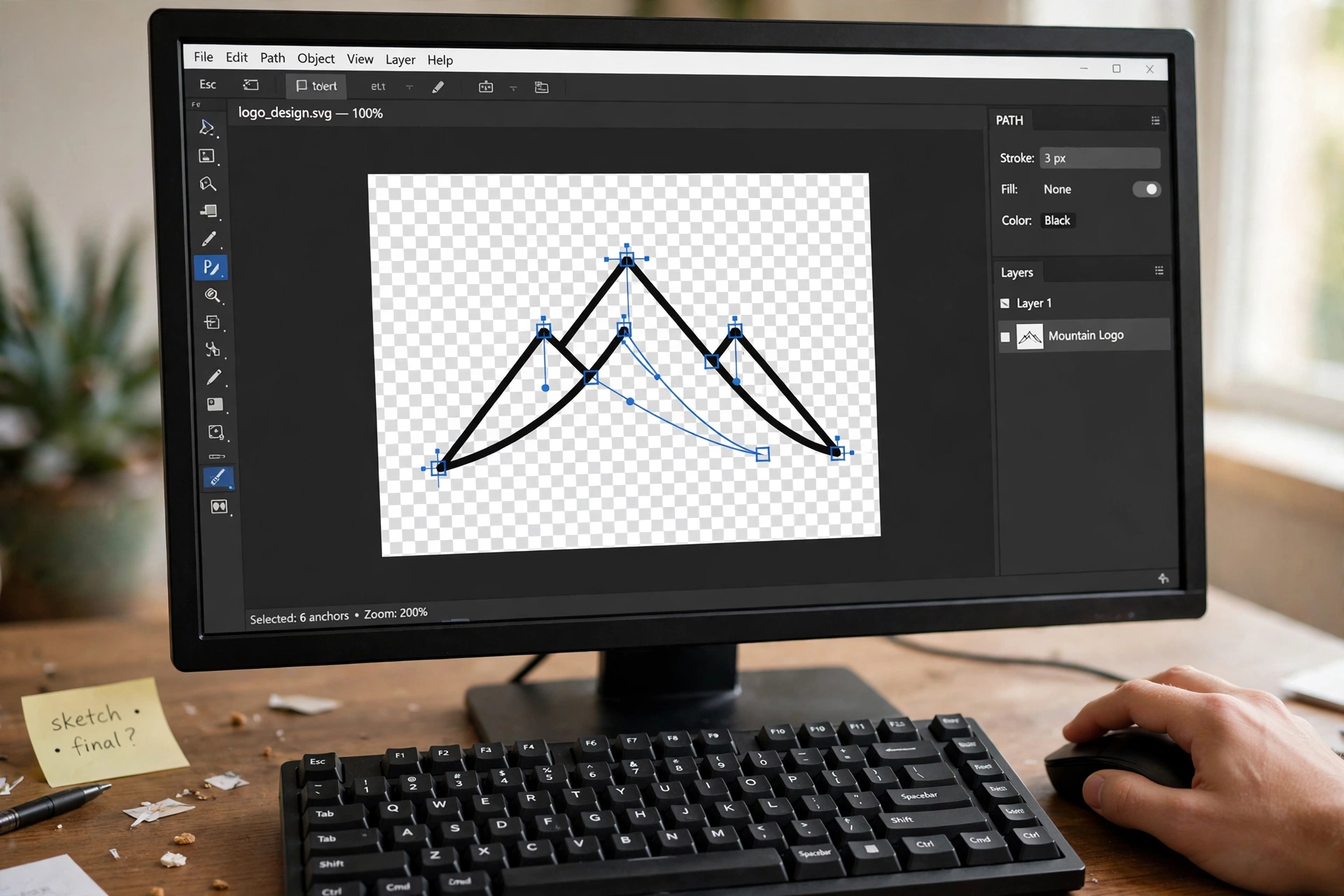
- Open Inkscape and import your JPG with File > Import.
- Select the image, then go to Path > Trace Bitmap (Shift + Alt + B).
- Pick a mode: Brightness cutoff for a silhouette, Color quantization for a flat-colour logo, or Multiple scans for more detail.
- Click Update to preview the trace, adjust the threshold or colour count, and click Apply.
- Drag the vector off the original image, delete the JPG, and save with File > Save As > Plain SVG.
Tip: use Path > Simplify (Ctrl + L) after tracing to remove extra anchor points, and save as Plain SVG rather than Inkscape SVG. Inkscape’s own tracing guide explains every mode in the dialog.
Method 3: Use Adobe Illustrator Image Trace
If you already have Adobe Illustrator, its Image Trace feature is the most polished way to convert JPG to SVG — especially for colour artwork.
- Place your JPG with File > Place and select it.
- Open Window > Image Trace to show the tracing panel.
- Pick a preset: Auto-Color for general artwork, Black and White Logo for a one-colour mark, or High Fidelity Photo for photos.
- Fine-tune with the Paths, Corners and Noise sliders — higher Noise ignores small specks and JPG artifacts.
- Choose Object > Image Trace > Expand to turn the preview into editable paths, then save as SVG.
Illustrator’s presets do most of the work. Adobe’s official Image Trace help page explains every preset and panel option.
Method 4: Try an AI Vectorizer
AI vectorizers are the newest option. Tools such as Vectorizer.ai and Recraft use models trained on millions of raster-to-vector pairs, and they are often better than classic tracers at guessing clean shapes from a rough logo. Upload the JPG, pick a style, and download the SVG. The catch is pricing: most give you a few free conversions and then ask for a subscription — and for a two-colour stencil, the free tools above are just as good.
Method 5: Potrace on the Command Line (for Developers)
If you need to convert many files at once, Potrace is the free open-source engine behind Inkscape’s tracer. Convert the JPG to a bitmap first — Potrace needs BMP or PBM input: magick input.jpg input.bmp. Then run potrace input.bmp -s -o output.svg. Potrace handles black-and-white artwork only; for colour tracing from the command line, VTracer is the free alternative. Command-line tools are not for everyone, but for batch jobs they are unbeatable.
Which Method Should You Pick to Convert JPG to SVG?
| Method | Best for | Cost | Skill needed |
|---|---|---|---|
| Online converter | One-off logos, quick test | Free | None |
| Inkscape Trace Bitmap | Free, full control | Free | Beginner |
| Illustrator Image Trace | Best colour quality | Paid | Beginner |
| AI vectorizer | Clean modern logos | Free trial, then paid | None |
| Potrace / VTracer | Batch jobs, developers | Free | Technical |
For one logo, start with the online tool. If the result is not clean enough, move to Inkscape — the extra settings usually fix it.
5 Mistakes to Avoid When You Convert JPG to SVG
1. Tracing a photo. Photos contain thousands of colours and soft gradients, so a trace becomes a huge file of flat blobs. Keep photos as JPG or PNG.
2. Embedding instead of tracing. Some converters just hide your JPG inside an SVG wrapper, so the file still pixelates. Always check the SVG contains paths.
3. Using too many colours. A logo traced with 64 colours becomes thousands of paths and a bloated file. Limit the colour count to 2–16 for most logos.
4. Ignoring JPG noise. JPG compression leaves artifacts around edges, and a tracer turns each one into extra shapes. Raise the threshold or use the noise setting first.
5. Forgetting to delete the original raster. After tracing, the JPG sits underneath your new vector. Delete the raster layer before you save, or the file carries both images.
Frequently Asked Questions
Is it free to convert JPG to SVG?
Yes. Online converters, Inkscape, Potrace and VTracer are all free; only Illustrator and AI tools charge.
Will the SVG look exactly like my JPG?
No — tracing is an approximation. Simple flat artwork can come out nearly identical, but gradients and fine detail are always simplified.
Can I convert a JPG photo to SVG?
Technically yes, but you should not: photos trace into thousands of shapes and look like a posterized mess. Keep photos as JPG — see our guide on converting PNG to SVG for when tracing makes sense.
What is the difference between JPG and SVG?
JPG is a raster format — a fixed grid of pixels, great for photos but blurry when enlarged. SVG is a vector format — mathematical paths that stay sharp at any size.
Can I use the SVG for Cricut or laser cutting?
Yes — SVG is the standard format for cutting machines. Use a clean single-colour trace, delete the background, and check the paths are closed shapes.
Related Guides
- Convert PNG to SVG Free: 5 Easy Ways to Vectorize Any Image
- Convert SVG to PNG Free: 5 Easy Ways in Just Seconds
- Convert SVG to JPG Free: 5 Easy Ways to Turn Vectors Into Photos
- JPG to PNG Free: 5 Easy Ways to Convert Any Image in Seconds
Try It Free
Ready to try it? Open the free image tool, upload your JPG, and download a crisp SVG in seconds — no sign-up, no software, no watermark.
