

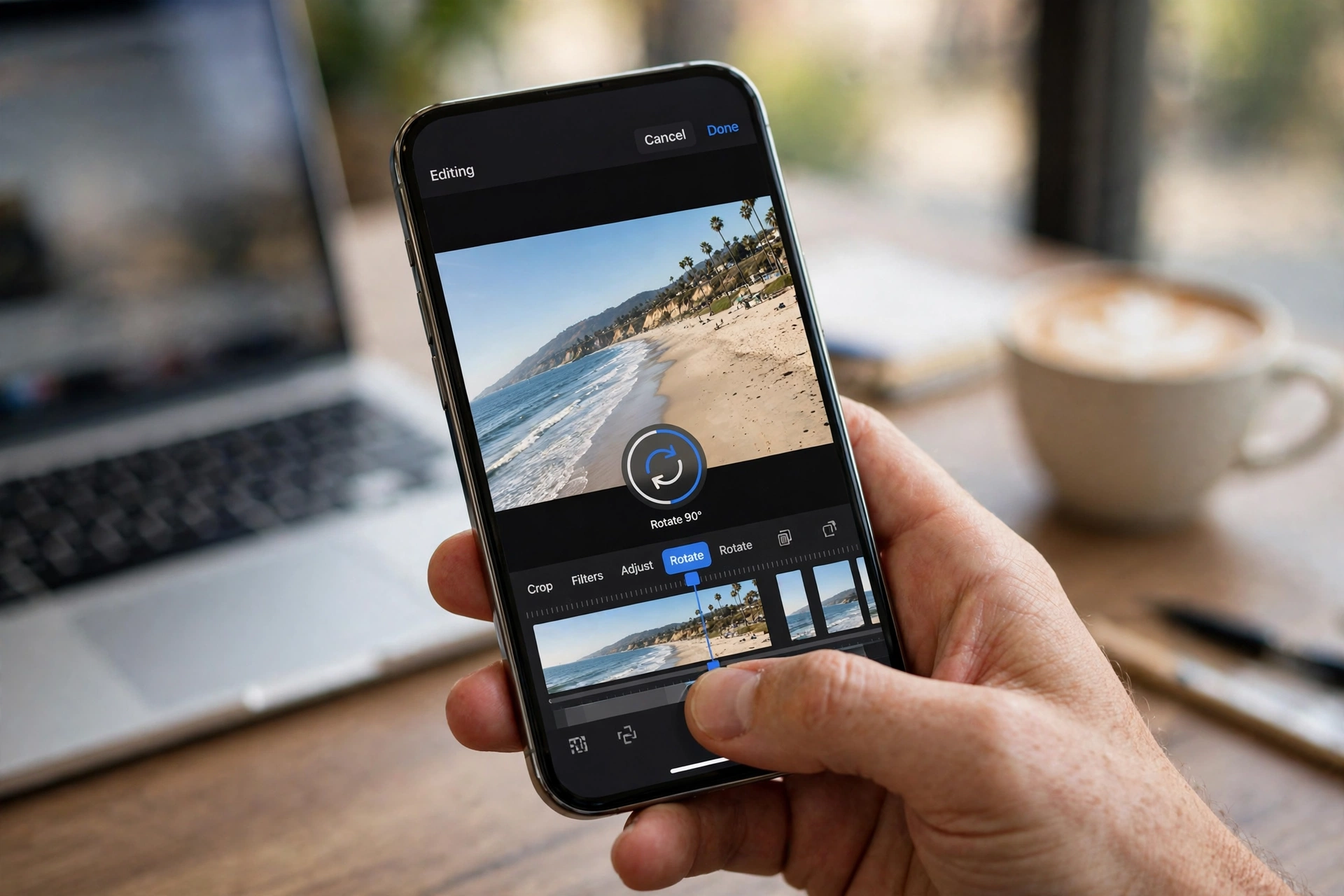
How to rotate a video on iPhone is a question every iPhone owner asks sooner or later: you record a clip, play it back, and it is sideways. The good news: no computer or paid app is needed. This guide shows you how to rotate a video on iPhone in five free ways — Photos, iMovie, CapCut, Google Photos, and a no-install online option.
Why Do iPhone Videos End Up Sideways?
A video usually ends up sideways because of how the phone was held when recording started — the iPhone fixes the clip’s orientation the moment you press record. Start recording while the phone is still turning — or with the orientation lock on — and the video can be saved 90 degrees off. The same happens with clips from friends and camera imports: the file is fine, but its orientation flag tells the player to show it sideways.
Method 1: How to Rotate a Video on iPhone in the Photos App (Fastest Way)
The Photos app is the fastest way to rotate a video on iPhone: already on your phone, free, and the fix takes about twenty seconds (iOS 13 and later).
- Open the Photos app and tap the sideways video.
- Tap Edit, then the Crop icon.
- Tap the Rotate button. Each tap turns the video 90 degrees — keep tapping until it is upright.
- Tap Done to save.
The edit is non-destructive: Photos keeps your original, and you can tap Edit and choose Revert to undo it. To keep both versions, choose Duplicate from the three dots first. Apple describes the same steps in its official iPhone crop, rotate, and flip guide. One limit: Photos rotates in 90-degree steps only — for a slight tilt, use the straighten slider.
Method 2: How to Rotate a Video on iPhone in iMovie (Free)
iMovie is Apple’s free video editor — best when you want to rotate a video on iPhone and keep editing.
- Open iMovie (free from the App Store), tap Start New Project, then Movie.
- Pick the sideways video and tap Create Movie.
- Tap the clip in the timeline, then twist two fingers on the preview to turn it in 90-degree steps.
- Tap Done, then Share and Save Video to export it to Photos.
The export is a new file, so your original stays untouched. Because iMovie re-encodes on export, pick the highest quality (4K if your original was 4K). For a quick rotation alone, Method 1 is faster; for a video you plan to edit anyway, iMovie is the natural place to do it. iDownloadBlog’s guide to rotating a video on iOS shows the same steps with screenshots.
Method 3: How to Rotate a Video on iPhone in CapCut (Free)
CapCut is a free editor many iPhone users already have for TikTok and Reels, with the most precise rotate control of the free apps: 90-degree turns plus a fine slider.
- Open CapCut, tap New project, and pick the sideways video.
- Tap the clip in the timeline, then tap Transform.
- Tap Rotate for 90-degree turns, or drag the rotation slider for a small tilt.
- Preview it, then tap the Export arrow (top right) to save it to Photos.
CapCut also has a Mirror button in the same Transform menu, which flips the video horizontally — useful for a selfie video that looks backwards. If your clip is both sideways and mirrored, fix the rotation first and the mirror second. Rotation, export, and 1080p saving are free, with no watermark.
Method 4: How to Rotate a Video on iPhone in Google Photos (Free)
If you back up videos to Google Photos, you can rotate a video on iPhone without Apple’s Photos app — handy when the clip lives in your Google library.
- Open the sideways video in Google Photos.
- Tap Edit, then Crop.
- Tap the Rotate button until the video is upright, then tap Save copy.
Google Photos saves the rotated clip as a copy, so the original stays in your library. The steps mirror Apple’s Photos app, because both put rotation inside the Crop tool. The bonus: the rotated copy syncs to your Google account, so it is upright on your tablet or computer too. For still photos, see our guide on how to rotate an image in Google Photos.
Method 5: How to Rotate a Video on iPhone Online Without Installing an App
No app? You can rotate a video on iPhone in Safari with a free online video rotator — nothing to install.
- Open Safari and search for a free online video rotator that needs no account.
- Upload the sideways video from Photos.
- Choose Rotate 90° (or 180° if upside down) and preview the result.
- Download the rotated video back to Photos.
Online tools suit a one-off fix, but the video is uploaded to someone else’s server — avoid them for private clips — and the download is re-encoded, which can soften quality. For everyday clips, the Photos app (Method 1) is faster and keeps everything on your device. And if the file to fix is a still photo, the free Flip Image tool flips or rotates it in seconds in Safari, with no sign-up.
Rotate vs Flip: What Is the Difference?
Rotation and flipping do different things. Rotating turns the whole frame — a sideways video becomes upright. Flipping mirrors the frame — left and right swap, like looking in a mirror. A selfie video that reads backwards needs a flip; a sideways video needs a rotation. Once you know how to rotate a video on iPhone, the flip button is the only other control you need: Photos and CapCut put both in the same menu, so it is easy to tap the wrong one — if your clip looks upright but backwards, tap the flip button again.
5 Tips for Perfectly Rotated iPhone Videos
- Check the orientation lock first. Switch the orientation lock off in Control Centre before you record.
- Keep a copy of the original. Duplicate the clip first, so you can start again if you rotate the wrong way.
- Rotate before you trim. Fix the orientation first, then cut the clip.
- Preview before you share. Play the rotated video once before sending it — an upside-down clip needs two taps, not one.
- Mind the frame. Rotating a 16:9 video 90 degrees makes it vertical, with black bars on a TV. That is normal — nothing is lost.
FAQ: How to Rotate a Video on iPhone
Can I rotate a video on iPhone without downloading any app?
Yes — the Photos app is the easiest way. Open the video, tap Edit, then Crop, then the Rotate button until it is upright, and tap Done. No download is needed, and the edit is non-destructive, so you can revert it later.
How to rotate a video on iPhone 90 degrees?
In Photos, each tap of the Rotate button turns the video 90 degrees counter-clockwise. Tap once for 90 degrees off, twice for upside down, and three times for the other way.
Does rotating a video on iPhone reduce its quality?
Not noticeably. In Photos, rotation is a non-destructive edit, so the original pixels are untouched. Apps that export a new file, like iMovie and CapCut, re-encode — export at the highest quality.
Why is my iPhone video still sideways after I rotate it?
Usually the video was rotated in one app but shared from another that reads the original file. Tap Done or Save after rotating, and share the rotated copy — not the original.
Try It Free
A sideways video is a ten-second fix once you know how to rotate a video on iPhone — the Photos app already has the button. Open a sideways clip now, tap Edit, then Crop, then Rotate. And for a still photo, try the free Flip Image tool at flipimage.co — no sign-up, no watermark.

3 Comments
Pingback: How to Flip a Video on TikTok Free: 5 Easy Ways
Pingback: Flip a Video on iPhone Free: 5 Easy Ways in Seconds
Pingback: How to Rotate Video in DaVinci Resolve: 5 Easy Ways