

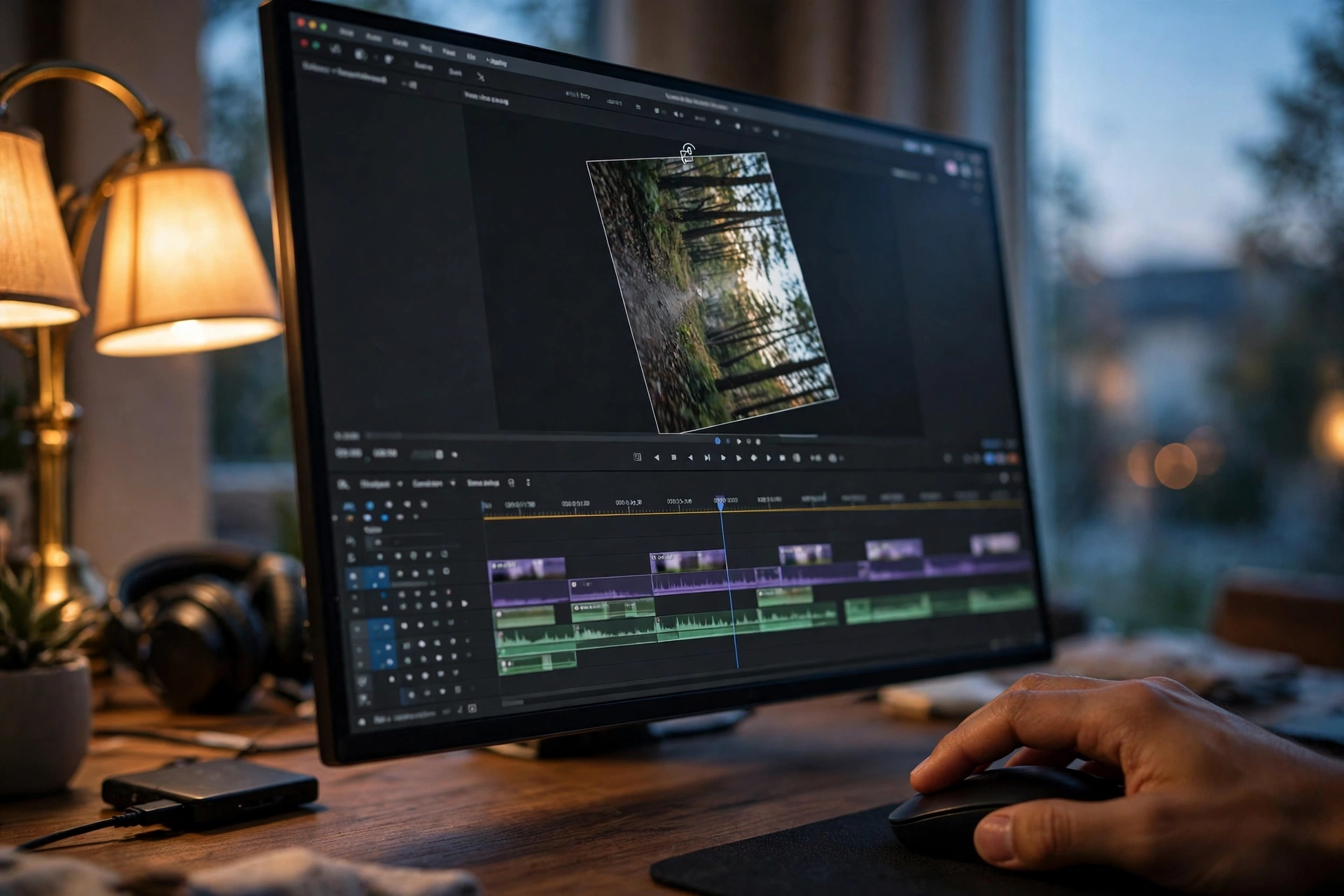
Learning how to rotate video in DaVinci Resolve takes less than a minute once you know where the controls live. Whether your phone clip came out sideways or a camera recorded upside down, the free version has everything you need.
This guide shows you five free ways to rotate a video in DaVinci Resolve, from the precise Inspector panel to a quick 90-degree fix and an animated spin.
Method 1: How to Rotate Video in DaVinci Resolve with the Inspector Panel
The Inspector panel is the standard way to rotate a video in DaVinci Resolve, and the one to learn first. It lets you type an exact angle for a clean 90- or 180-degree turn.
- Open DaVinci Resolve, create a project, and drag your video onto the timeline.
- Click the clip once to select it.
- Open the Inspector panel in the top-right corner of the Edit page.
- Under the Video tab, find the Transform section and look for Rotation Angle.
- Type the angle you need — 90 for a quarter turn clockwise, -90 (or 270) for counterclockwise, 180 to turn the clip upside down — or drag the slider.
That is all there is to it. The change applies instantly, and you can undo it with Ctrl+Z (Cmd+Z on Mac). It also handles small corrections, like straightening a tilted horizon by 2 or 3 degrees. After a 90-degree rotation, black bars appear on the sides — raise the Zoom slider in the same Transform section until the frame is filled. HitPaw’s guide walks through the same Inspector steps with screenshots.
Method 2: Rotate with the Transform Tool (Visual Way)
If you prefer to see the rotation happen instead of typing numbers, here is how to rotate video in DaVinci Resolve with the on-screen Transform tool — the fastest way to eyeball an angle.
- Select the clip on the timeline.
- Above the viewer, click the small rectangle icon and choose Transform.
- Handles appear around your video in the preview window.
- Grab the circular rotation handle and drag it until the clip looks right. Arrow buttons next to the handle nudge the angle in fine steps.
- Click the Transform button again to turn the tool off.
Use it for creative tilts, like a Dutch angle; for a precise 90-degree fix, Method 1 is quicker, because dragging by hand rarely lands exactly on 90.
Method 3: Rotate 90 Degrees Fast with Clip Attributes
For a quick quarter turn, here is how to rotate video in DaVinci Resolve with Clip Attributes.
- Right-click the clip on the timeline and choose Clip Attributes.
- Go to the Video tab and find Image Orientation.
- Pick 90° right, 90° left, or 180° — whichever fixes your footage.
- Click OK.
Best when several clips need the same correction: select them all, open Clip Attributes once, and it applies to every clip. See also our guide to how to flip a video in Premiere Pro.
Method 4: Fix Mirrored Footage with Flip and Rotate
Sometimes a clip is not just rotated — it is mirrored. Front-camera selfie videos are the classic case: text reads backwards and the scene looks flipped. Rotation alone will not fix that, so here is how to rotate video in DaVinci Resolve when footage is mirrored: start with a flip, then rotate if the orientation is also wrong.
- Select the clip and open the Inspector panel.
- In the Transform section, below Rotation Angle, find the Flip buttons.
- Click Flip Horizontal to mirror the clip left to right, or Flip Vertical to turn it upside down.
- If the clip also needs turning, set the Rotation Angle to 90 or 180 degrees in the same panel.
Flip and rotation are different: rotation turns the image around its centre, flipping mirrors it — mixing them up is the most common beginner mistake. For the full comparison, read our guide on how to mirror a video and flip vs rotate vs mirror.
Method 5: Animate a Rotation with Keyframes (Creative Spin)
DaVinci Resolve can also rotate a clip over time — how editors make smooth spin-in intros and playful transitions. The free version supports this fully, so here is how to rotate video in DaVinci Resolve with animation.
- Select the clip and open the Inspector panel.
- Move the playhead to where the spin should start.
- Click the small diamond (keyframe) button next to Rotation Angle to set your starting angle, for example 0.
- Move the playhead a second or two forward and change the Rotation Angle to 360.
- Play the clip back: it now spins a full turn across that range.
Add a matching Zoom keyframe for the classic logo-reveal look. Keep spins short — a full turn over two seconds usually feels slow. Wondershare’s guide covers the same three methods with screenshots.
How to Rotate Video in DaVinci Resolve Without Black Bars
Rotating a 16:9 landscape clip by 90 degrees leaves it portrait-shaped inside a landscape frame, so you get black bars on the sides. When you rotate a video in DaVinci Resolve, fix them one of these ways:
- Zoom to fill. In the Inspector’s Transform section, raise Zoom until the clip fills the frame — about 1.78 fills a 16:9 frame after a 90-degree turn.
- Change the timeline resolution. If the whole video is portrait, set the timeline to a vertical resolution (1080×1920) before editing.
- Blur the background. Duplicate the clip below, scale the copy up to fill the frame, and blur it. The sharp rotated clip sits on top of a soft blurred background.
- Rotate before you cut. Fix orientation on the raw clip first, then trim.
Rotate vs Flip in DaVinci Resolve: Quick Comparison
| Action | What it does | When to use it |
|---|---|---|
| Rotate 90° | Turns the clip a quarter turn | Sideways phone footage |
| Rotate 180° | Turns the clip upside down | Upside-down camera |
| Flip horizontal | Mirrors left to right | Backwards text, selfie footage |
| Flip vertical | Mirrors top to bottom | Upside-down mirrored footage |
| Keyframed rotation | Spins the clip over time | Intros and transitions |
If you only need to turn a clip without editing software, see our guide to rotate video online — but DaVinci Resolve’s free version is the stronger tool.
FAQ: How to Rotate Video in DaVinci Resolve
Can I rotate a video in DaVinci Resolve for free?
Yes. Rotation, flipping, and keyframed transforms are all included in the free version. No Studio version needed.
How do I rotate a video 90 degrees in DaVinci Resolve?
Select the clip, open the Inspector panel, and set Rotation Angle to 90. Or right-click the clip, choose Clip Attributes, and pick 90° right under Image Orientation. Both take seconds.
Why is there a black bar after I rotate my video?
A 90-degree rotation swaps the clip’s width and height, so a landscape clip becomes portrait-shaped inside a landscape frame. Zoom in with the Inspector’s Zoom slider, or switch the timeline to vertical.
Can I rotate only part of a clip?
Yes. Use the Blade tool (B) to cut the clip where the rotation should start and end, then rotate just that segment. Or keyframe the Rotation Angle for a chosen range.
Does rotating a video reduce its quality?
No — rotation is a simple transform. Only export settings affect quality, so export at the same resolution and a high bitrate.
Try It Free
Now you know how to rotate video in DaVinci Resolve five different ways: the precise Inspector panel, the visual Transform tool, the fast Clip Attributes fix, flip-plus-rotate for mirrored footage, and keyframed spins for creative edits. For most clips, Method 1 or Method 3 fixes the problem in under a minute.
Need a quick flip without opening an editor? Try the free tool at Flip Image — flip any photo in seconds, right in your browser, no download or sign-up.
Related guides
- Rotate Video Online Free: 5 Easy Ways to Turn Any Clip in Seconds
- How to Flip a Video in Premiere Pro Free: 5 Easy Ways in Seconds
- How to Mirror a Video Free: 5 Easy Ways in Seconds
- Video Flipper Free: 5 Best Tools to Flip Any Video in Seconds
- How to Rotate a Video on iPhone Free: 5 Easy Ways in Seconds
