

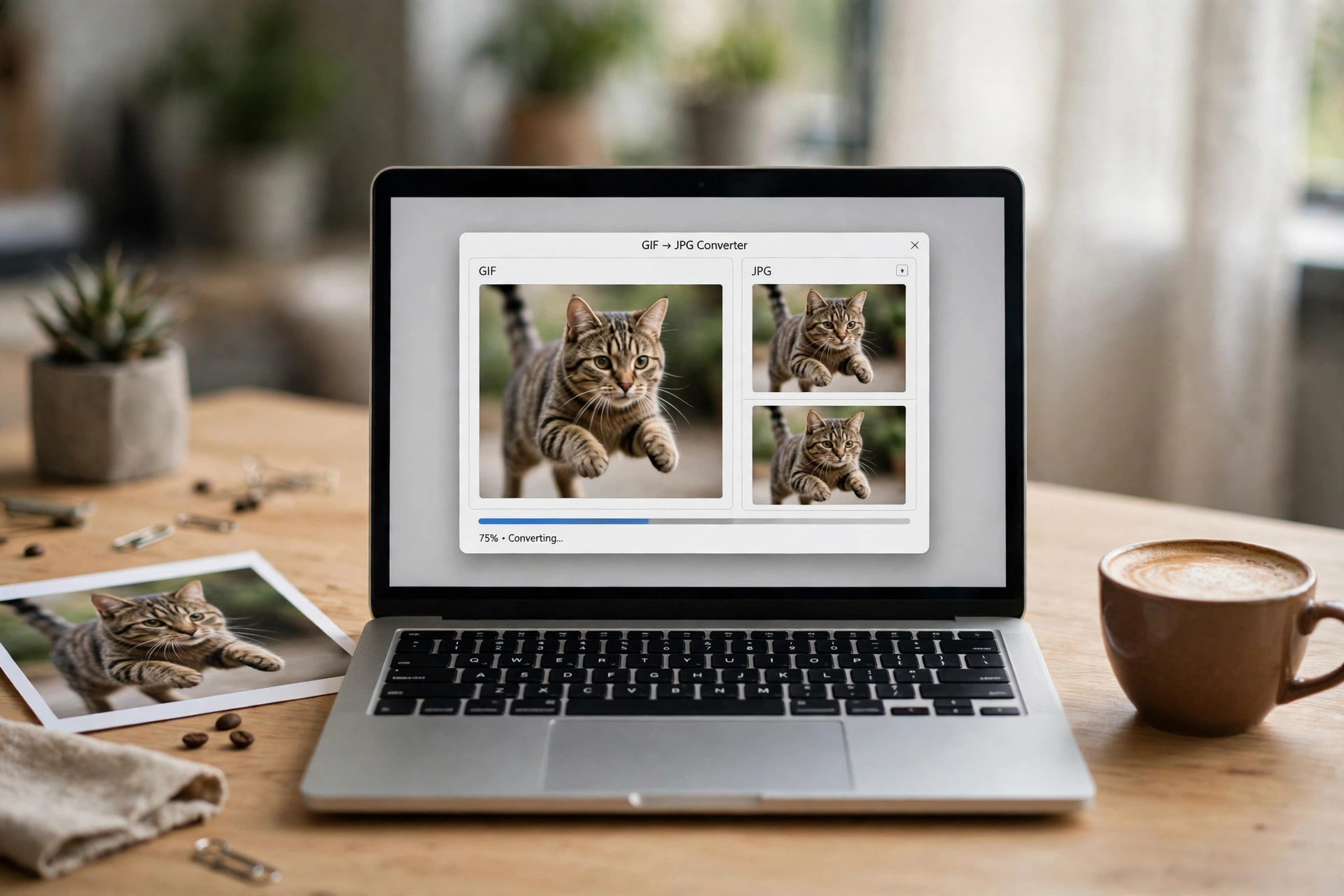
GIF to JPG conversion is the fastest way to turn a moving GIF into a still photo you can share anywhere. A GIF is great for a quick laugh, but most apps, forms and printers want a plain JPG — smaller, sharper and accepted everywhere. Converting a GIF to JPG takes seconds, with nothing to install and nothing to pay.
Below are five free ways to convert a GIF to JPG — online, on iPhone, on Android, on Windows and on Mac — plus the quality settings that keep your still frame crisp.
GIF vs JPG: What Actually Changes
GIF and JPG were built for different jobs, so converting changes two things you should know about.
| GIF | JPG | |
|---|---|---|
| Colours | Max 256 colours | Millions of colours |
| Animation | Yes — many frames | No — one still image |
| Transparency | One transparent colour | None — flattened on white |
| Best for | Short animations | Photos, sharing, printing |
| File size | Often large for photos | Usually much smaller |
A GIF stores at most 256 colours, so it can never show a photograph as smoothly as a JPG — photos saved as GIFs look banded or grainy. A JPG blends millions of colours and shrinks photos dramatically. Adobe’s guide to image file formats puts it simply: GIF suits small animated graphics, while JPEG is the best choice for nearly all online images.
Two things to remember. First, the animation does not survive — a JPG is one still image, so an animated GIF becomes a single frame, usually the first. Second, transparency is flattened — JPG has no transparency, so see-through areas become solid, usually white. If you need transparency, convert to PNG instead.
Method 1: Convert GIF to JPG Online Free (Fastest Way)
The quickest way to convert a GIF to JPG is a free online converter. It works on any device with a browser, and the job takes under a minute.
- Open the free Flip Image tool in your browser.
- Upload your GIF — drag it in or click to choose it.
- Pick the frame you want if your GIF is animated. The first frame is the usual choice.
- Choose JPG as the output and set the quality to 85–90.
- Download your JPG. No sign-up, no software, no watermark.
If you want every frame of an animated GIF, look for an “all frames” option, which downloads each frame as a numbered JPG, usually in a ZIP file. Keep the original GIF if you ever need the motion again — a JPG can never turn back into an animation.
Tip: once you have your still JPG, if you ever need that image inside a PDF for a form or an application, you can convert your PNG to PDF with our free sister tool.
Method 2: Convert GIF to JPG on iPhone
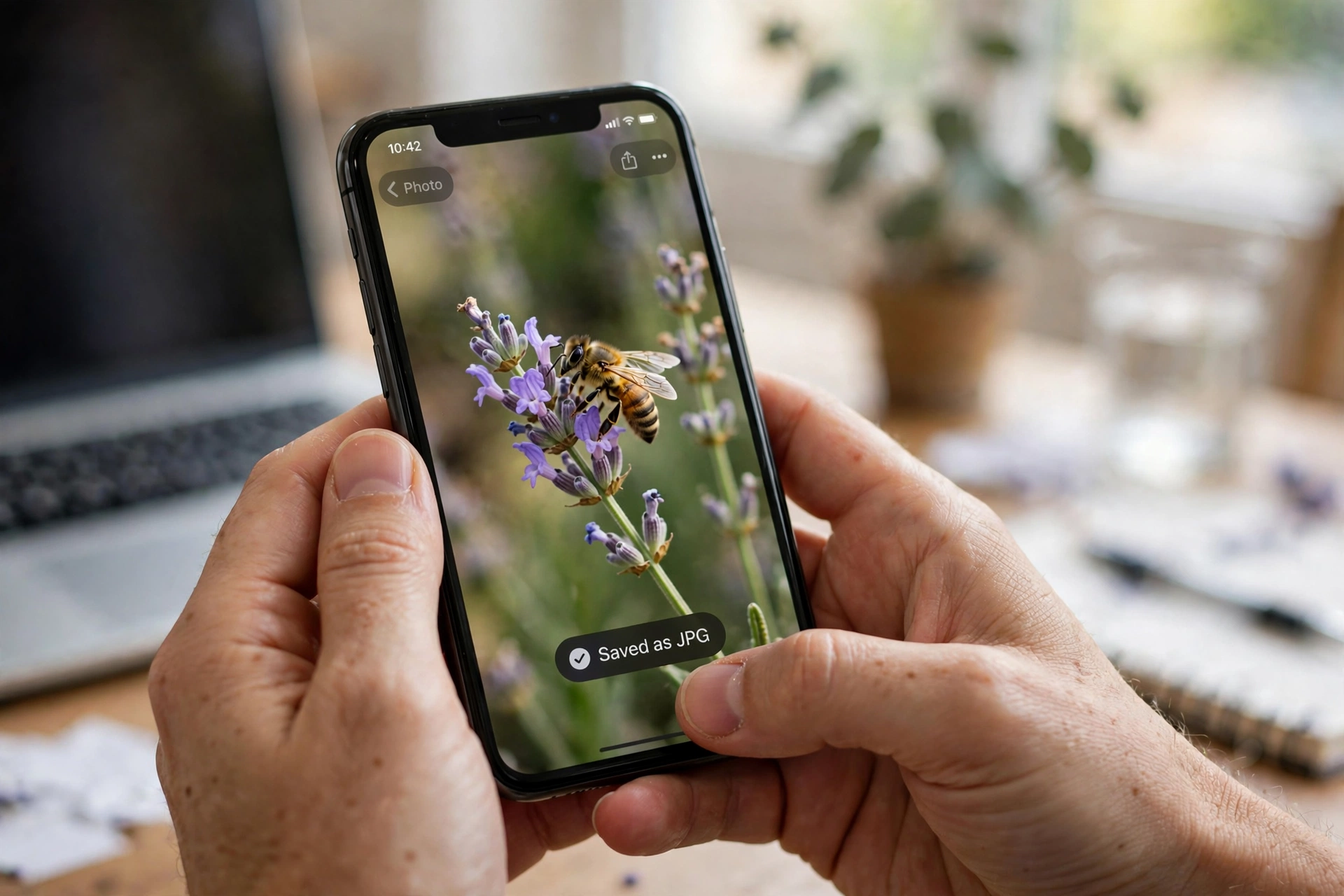
You can convert a GIF to JPG on an iPhone with the built-in Photos app — nothing to install.
- Open the GIF in the Photos app.
- Tap Share, then Save to Files — or open the GIF in Safari and long-press it.
- Choose Save Image. The iPhone saves the still frame as a JPG in your library.
- If the GIF is animated, the saved image is the first frame only.
For more control, use the Shortcuts app: make a shortcut with the “Convert Image” action set to JPEG, then run it on any GIF from the share sheet. It converts in one tap at quality 85–90, keeping the photo sharp and the file small.
Method 3: Convert GIF to JPG on Android
Android makes this just as easy, and Google Photos does most of the work.
- Open the GIF in Google Photos or your gallery app.
- Tap Share, then look for Save, Export or Save as JPG — the wording varies by phone.
- If your gallery has no export option, open the GIF in your browser, long-press it and choose Download Image.
- Check the saved file in your gallery — it should now end in .jpg.
On Samsung phones, open the GIF in the Gallery app, tap the three-dot menu and use Save as JPG if it appears. Otherwise, pause the GIF on the best frame and screenshot it — screenshots save as JPG automatically.
Method 4: Convert GIF to JPG on Windows
On Windows, the Paint app already on your computer converts a GIF to JPG in a few clicks.
- Right-click your GIF and choose Open with, then Paint.
- If the GIF is animated, Paint shows the first frame.
- Click File, then Save as, and choose JPEG picture.
- Pick a folder, name the file and click Save.
Paint gives you no quality slider — it saves at a fixed quality that is fine for sharing and documents. If you need a smaller file, open the saved JPG in the Photos app and use Resize. For many GIFs at once, an online converter is faster.
Method 5: Convert GIF to JPG on Mac
Mac users get the same one-click treatment from Preview, built into macOS.
- Double-click the GIF to open it in Preview.
- Click File, then Export.
- In the Format dropdown, choose JPEG.
- Drag the Quality slider — 85–90 is the sweet spot — and click Save.
Preview also lets you resize in the same step: click Tools, then Adjust Size, set the width you need, and export. Handy when the GIF is huge and you only need a small JPG.
Picking the Right Quality Setting
The quality slider decides how good your JPG looks and how big the file is:
- Quality 90–95: best for printing or when every detail matters. Files stay fairly large.
- Quality 85–90: the sweet spot for sharing and social media — sharp and small.
- Quality 70–80: fine for thumbnails and messages where size matters more than detail.
- Quality below 70: only for the smallest possible file. Expect visible blockiness in skies and skin.
A GIF only holds 256 colours, so your JPG can never gain detail the GIF did not have — but a high quality setting avoids adding new artefacts, so do not go below 80 unless you have to.
4 Mistakes to Avoid
1. Expecting the animation to survive. A JPG cannot move. Keep the original GIF if you need the motion — do not delete it after converting.
2. Converting a photo GIF at low quality. A GIF of a photo is already colour-limited. Saving it at quality 50 adds blocky artefacts on top. Use 85 or higher for photos.
3. Forgetting the white background. Transparent areas turn white. If the white box looks wrong, convert to PNG instead — PNG keeps transparency.
4. Re-saving the same JPG again and again. JPG is lossy: every save throws away a little detail. Always convert from the original GIF and keep one master copy.
FAQ: GIF to JPG
Does converting a GIF to JPG keep the animation?
No. JPG is a still-image format, so an animated GIF becomes a single frame — usually the first one. Some converters let you pick a different frame or export all frames as separate JPGs.
Will converting GIF to JPG lose quality?
A little, but usually not noticeably. GIFs hold only 256 colours, so the JPG cannot look worse in colour than the GIF did. Set the quality to 85–90 and the result will look clean.
What happens to transparency when I convert GIF to JPG?
JPG does not support transparency, so transparent areas are filled in — almost always with white. If you need a transparent background, convert the GIF to PNG instead.
Can I convert many GIFs to JPG at once?
Yes. Most online converters support batch conversion — some handle up to 30 files in one go — and download the results as a ZIP. Desktop tools can batch-convert hundreds of files offline.
Related guides
- Compress GIF Free: 5 Easy Ways to Shrink Any GIF Fast
- JPG to PNG Free: 5 Easy Ways to Convert Any Image in Seconds
- PNG to JPG Free: 5 Easy Ways to Convert Any Image in Seconds
- Convert SVG to JPG Free: 5 Easy Ways to Turn Vectors Into Photos
- Image Compressor Free: 5 Easy Ways to Shrink Any Photo Fast
Try It Free
Converting a GIF to JPG should take seconds, not software. Try the free Flip Image tool now — upload your GIF, pick your frame and quality, and download a crisp JPG with no sign-up and no watermark.
