

PDF to JPG conversion turns a fixed PDF page into an ordinary JPG image you can share, upload or print anywhere. A PDF keeps a document exactly as designed, but most websites, chats and forms want an image, not a PDF. That is when you need to convert PDF to JPG: one page becomes one JPG file, ready for Instagram, WhatsApp, a job portal or a school assignment.
The good news is that you do not need paid software. Every method below is free, and the fastest one takes less than a minute. This guide covers all five — online, iPhone, Android, Windows and Mac — plus the quality settings that keep your text sharp.
What Does PDF to JPG Mean?
Converting a PDF to JPG can mean two things:
- Convert each page to a JPG. Every page becomes its own JPG image — a 10-page PDF gives you 10 JPG files. This is what most people want.
- Extract the images inside a PDF. Only the photos and graphics embedded in the file — useful when you need one picture from a long report.
Most free tools do the first one by default. JPG is the right output when your pages are mostly photos or you want small files; if your pages are mostly text and diagrams, our guide to converting PDF to PNG explains when PNG wins.
Method 1: Convert PDF to JPG Online Free (Fastest Way)
The quickest way to convert PDF to JPG is a free online converter. No download, no sign-up, and it works on any device with a browser.
- Open the free online tool in your browser.
- Upload your PDF file — drag it in or tap to browse.
- Choose JPG as the output format and pick your quality — 150 DPI for screen use, 300 DPI for printing.
- Click Convert and download your JPG files. Multi-page PDFs usually come back as a ZIP file with one JPG per page.
Use this method when you are on a borrowed computer, a Chromebook, or any device where you cannot install software. It also handles batch conversion — several PDFs at once.
Privacy note: if your PDF holds bank details, ID cards or anything confidential, convert it on your own device instead of uploading it to a random server.
Method 2: Convert PDF to JPG on iPhone
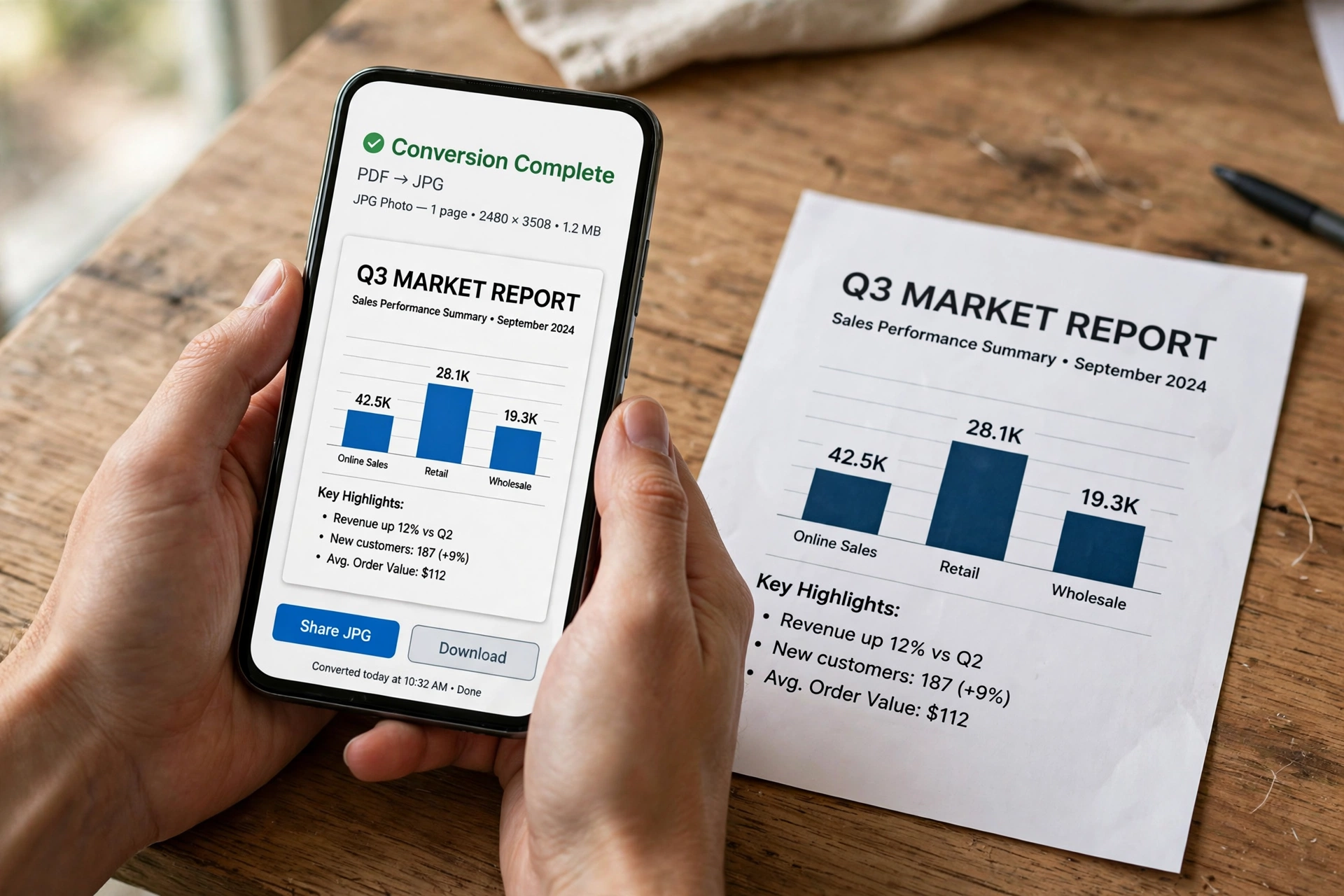
On an iPhone you can convert PDF to JPG without installing anything, using the built-in Shortcuts app and its “Make Image from PDF Page” action.
- Open the Shortcuts app on your iPhone.
- Tap + to create a new shortcut.
- Add the Get File action and pick your PDF from Files.
- Add Make Image from PDF Page, and set the page and image quality.
- Add Save File, then run the shortcut.
Each page saves as a separate JPG, so a long document gives you a full set of images in one run. If you only need one page, screenshot it in Files instead — faster, though the resolution is limited to your screen.
Method 3: Convert PDF to JPG on Android
Android has no built-in PDF-to-JPG button — use your mobile browser instead.
- Open your browser and go to a free online PDF to JPG converter.
- Upload the PDF from your phone’s storage or Google Drive.
- Choose JPG and your quality setting, then convert.
- Download the JPG files — they land in your Downloads folder, ready to share or upload to a form.
If you convert PDFs often, a dedicated converter app from the Play Store can save the upload step, but check its reviews first: some free apps add watermarks or limit you to a few conversions a day.
Method 4: Convert PDF to JPG on Windows
On Windows, Adobe Acrobat gives you the most control over the result, and its free online tool needs no installation. Adobe’s own free PDF to JPG converter works in any browser: upload the PDF, pick JPG, click Convert to JPG, and download the images.
If you have Acrobat installed, the desktop route gives you more settings:
- Open the PDF in Adobe Acrobat.
- Choose Convert from the toolbar, then Image format.
- Select JPEG from the format list.
- Click Convert to JPEG, choose a folder, and save.
Each page is saved as its own JPEG file, and you can control the resolution per file — which matters when a form demands a specific size.
Method 5: Convert PDF to JPG on Mac
Your Mac already has everything you need. Preview, the app that opens PDFs by default, can export any page as a JPG in seconds.
- Right-click your PDF and choose Open With > Preview.
- Click the page you want in the sidebar (choose Thumbnails if it is hidden).
- Go to File > Export.
- In the Format menu, choose JPEG, and drag the Quality slider toward Best for print.
- Set the Resolution field — 150 for screen reading, 300 for printing — then click Save.
Preview exports one page per save, so for a long document use Automator instead: build a Quick Action with the “Render PDF Pages as Images” action, then right-click any PDF to convert every page at once. Apple’s Preview method is covered step by step in this Mac PDF to image guide.
Going the other way: if you ever need to put an image back into a PDF — for a form, an application or printing — a free PNG to PDF converter does it in seconds.
PDF to JPG vs PDF to PNG: Which Should You Choose?
JPG and PNG are both images, but they suit different pages:
| Situation | Best choice |
|---|---|
| Photo-heavy pages, sharing online | JPG — smaller files, loads fast |
| Text, diagrams, screenshots | PNG — sharper edges, no blur |
| Printing a page | JPG at 300 DPI, or PNG for fine print |
| You need transparency | PNG — JPG cannot do transparency |
The simple rule, and the one Google’s own AI Overview highlights, is: use JPG for smaller file sizes and photos, and PNG when you need sharper text and diagrams.
4 Mistakes to Avoid When You Convert PDF to JPG
1. Using 72 DPI for print. Many converters default to 72 DPI, which looks fine on a phone but soft on paper. Use 150 DPI for screens and 300 DPI for print.
2. Converting the wrong direction. Double-check which file you uploaded — for the reverse job, see our guide on how to convert JPG to PDF.
3. Uploading sensitive files anywhere. Bank statements, ID cards and medical records should be converted locally — in Preview on Mac or with desktop software — not uploaded to a server you do not trust.
4. Forgetting the file gets bigger at high quality. A 300 DPI full-page JPG can be several megabytes. If a portal caps uploads at 200 KB, convert at 150 DPI first, or shrink the result with our image compressor guide.
FAQs About Converting PDF to JPG
Is it free to convert PDF to JPG?
Yes. Every method in this guide is free — online converters, iPhone Shortcuts, Mac Preview and Adobe’s online tool all convert PDF to JPG without paying. Some tools charge only for extras like batch conversion or very large files.
Will converting PDF to JPG reduce quality?
It can, because JPG is lossy: it drops some detail to shrink the file. At high quality and 300 DPI the loss is invisible in normal use; only tiny print and fine lines suffer — that is when PNG is better.
Is JPG the same as JPEG?
Yes. JPG and JPEG are the same format — JPG is just the older three-letter extension from the days when Windows limited extensions to three characters.
Can I convert only one page of a PDF to JPG?
Yes. In Preview on Mac, select the page first and export just that page. Online, most converters let you pick a page range, so you can convert pages 3–5 and skip the rest.
Can I convert PDF to JPG without the internet?
Yes, on a computer. Mac Preview, Adobe Acrobat desktop and Windows photo tools all work fully offline — only the online converters need an internet connection.
Related guides
- JPG to PDF Free: 5 Easy Ways to Convert Any Photo in Seconds
- PDF to PNG Free: 5 Easy Ways to Convert Any PDF in Seconds
- PNG to PDF Free: 5 Easy Ways to Convert Any Image in Seconds
- JPG to PNG Free: 5 Easy Ways to Convert Any Image in Seconds
Try It Free
PDF to JPG conversion is a two-minute job once you know the right method: online for speed, Shortcuts on iPhone, your browser on Android, Acrobat on Windows, and Preview on Mac. Pick the method that matches your device, set 150 DPI for screens or 300 DPI for print, and your PDF pages become JPG images you can share anywhere.
Try the free online tool now and convert your first PDF to JPG in seconds — no download, no sign-up, no watermark.
